
How to Export a Squarespace Website to Another Platform
AI can now copy your whole Squarespace site to another platform with the same design, page for page. This guide explains how to move your site off Squarespace without starting over.

Introduction
Moving a website off Squarespace has always been a challenge. Squarespace's built-in export only creates a file for WordPress, and that file doesn't include your site's design. So for years, the only way out was to rebuild your site on another platform.
But recent developments in AI have opened new possibilities for exporting off Squarespace. It's now possible to move a website off Squarespace without starting over. In this guide, I'll show you how to move your site into Repaint. Then you can maintain your website by talking to an AI chatbot, similar to ChatGPT, Gemini, or Claude.
How It Works
Older migration tools could only move your content. Squarespace's own export carries your basic pages and one blog into WordPress, but not your design, store, or portfolio. Other tools copied the text and images from your pages, and some AI tools tried rebuilding sites from screenshots. None of them could reproduce the design.
Modern AI agents take a different approach. Anyone who visits a Squarespace page receives the code that displays it, and AI models released in late 2026 can read that code and write a new site that looks the same. Because they start from your real layout, fonts, and images, the result is a near-exact copy of your original site. From there, you can keep it as it is or redesign it.
Step 1: Paste Your URL
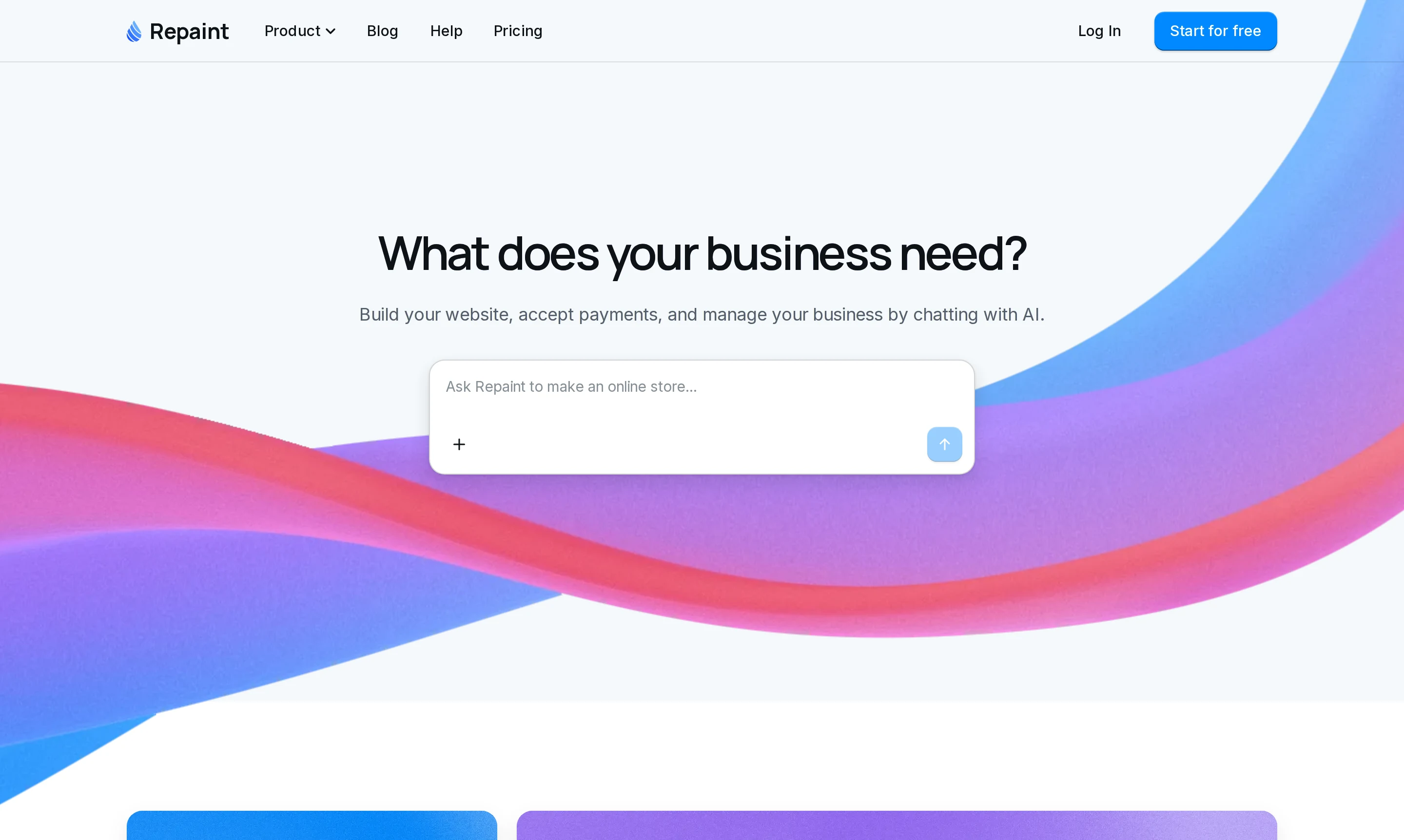
Start by copying the address of your live Squarespace site. It can be your own domain or a Squarespace address like yoursite.squarespace.com. Paste it into the box on Repaint's homepage, then create an account to start your free 14-day trial.
Repaint reads your site and replies with a short summary of what it found, like your business details and the pages on your site. Then it asks what you'd like to do. Repaint doesn't need your Squarespace login for any of this, and nothing on your Squarespace site changes.
Step 2: Import Your Website
Next, tell Repaint how you want your new site to look. If you want it to match your Squarespace site, ask for an exact copy. Repaint will keep your layout, fonts, colors, and images as they are.
If there's anything you want to change, this is a great time to do it. Repaint can redesign anything on your website based on your instructions, so you could change the style, choose which pages to include, or ask for new features.
Once Repaint understands what you're looking for, it starts importing your website, including every page, blog post, and gallery. This usually takes 2 to 10 minutes, depending on how big your site is. When it's ready, Repaint gives you a button to view your new site, or you can open the Website tab in Repaint.
If your site has hundreds of pages, Repaint may start with your main pages and a few blog posts. That way you can check the result before using much of your trial's AI allowance. Once you're happy with it, ask Repaint to bring over the rest.
Importing Advanced Features
Repaint imports everything visitors can see on your site, including your pages, design, images, and blog. For features that run behind the scenes on Squarespace, like checkout, scheduling, and member areas, Repaint rebuilds them on its own platform. You just tell it which ones you use and how they should work.
Squarespace lets you export the data behind those features, like your products, orders, or contacts, as spreadsheets. When you share those files in the chat, Repaint adds the data to your new site. Your customers can keep their accounts too. Repaint signs people in with a link sent to their email, so nobody needs to set a new password.
Because Repaint is a full app builder, you aren't limited to what Squarespace offered. You can also ask for features your Squarespace site never had, like a customer portal or a dashboard for running your business.
Step 3: Edit by Chatting

Once your site is in Repaint, you manage it by chatting, like you would with any AI chatbot. The difference is that Repaint's AI can see and change your actual website. Your chats are saved, so you can come back to an earlier conversation and pick up where you left off.
Any change to your website takes a single message, whether it's fixing a detail from the import, updating your hours, or adding a new page. You'll see the change in your preview as soon as Repaint finishes. For quick wording changes, you can also click the edit button above your preview and type directly on the page.
Every change is saved in your version history, so it's easy to go back. You can ask Repaint to undo a change, or pick an earlier version from the history list.
Dashboards and Data
Repaint is also an app builder that can set up the systems that run your business, like online payments, bookings, customer accounts, and email. You add them the same way you edit your site, by describing what you need in the chat. Repaint builds the feature and stores its data for you.
Because Repaint has access to your business data, the AI can also handle the day-to-day work of running your business, like answering questions about orders, refunding payments, or emailing customers.
For anything you check regularly, Repaint can build a dashboard. A dashboard is a custom screen for viewing and managing your data, and you create one by describing what you want to see. Because it's built for you, it fits how your business actually works.
Step 4: Publish
Publishing puts your new site live on the internet at a Repaint subdomain. You can publish it yourself or ask the AI to do it for you.
Your domain still points to your Squarespace site at this point, so your visitors won't notice anything until you connect your domain in the next step. That gives you time to try the new site the way a visitor would. You can open the link on your phone, click through your pages, and send yourself a test message through your contact form.
If your Squarespace site already gets traffic from Google, you'll want to keep that traffic when you switch. Google ranks each page by its address, so a page that moves to a new address starts over. When you ask Repaint to preserve your SEO, it keeps your old page addresses or redirects them to the new ones.
Step 5: Connect Your Domain

Your domain is the address people type to find your site, like yourbusiness.com. It's registered with a company called a registrar, like GoDaddy or Namecheap, or Squarespace itself if you bought it there. To switch over, you change your domain's settings to send visitors to your new Repaint site instead of Squarespace. The switch usually takes effect within about 20 minutes.
You don't need to know how DNS works to do this. Repaint can walk you through it. When you ask it to connect your domain, it tells you exactly which settings to change with your registrar and confirms once everything is working.
Repaint doesn't register domains, so your domain stays with your registrar. If that's Squarespace, including domains that moved over from Google Domains, it can stay there. Your domain and your Squarespace website plan are separate subscriptions, so you can cancel the website plan and keep paying only for the domain. You could also transfer the domain to another registrar, but there's no real need to.
FAQ
Can you export a Squarespace site to another platform?
Yes. Squarespace's built-in export only creates a file for WordPress, but AI can now rebuild your whole site from its live pages, with the same design, text, and images. Repaint imports a Squarespace site this way from its URL, so you can move it without starting over.
What does Squarespace's export include?
Squarespace's export creates a WordPress file with your basic pages, one blog, and the text and images from your page blocks. It doesn't include your design, custom CSS, store pages, portfolio or index pages, or audio and video blocks. Repaint brings all of that over by reading your live site instead.
Can I move a Squarespace site to a platform other than WordPress?
Yes. Squarespace's export is made for WordPress, but you don't need it to move anywhere else. Repaint imports your site from its live pages, so you can go straight from Squarespace to Repaint.
Is there a tool that moves a Squarespace site to another website builder?
Yes. Repaint imports your Squarespace site from its URL and recreates every page with the same design, close to pixel for pixel. Older migration tools could only copy your content, so the design had to be rebuilt by hand.
Can I export my Squarespace blog posts and products?
Yes. Repaint brings over every blog post on your live site, even if your site has more than one blog, while Squarespace's own export only includes one. For products, Squarespace lets you export your catalog as a spreadsheet, and Repaint adds it to your new store, including inventory.
Do I have to transfer my domain away from Squarespace?
No. Your domain can stay registered with Squarespace. You change its settings to point to your new site, and you can cancel your Squarespace website plan while keeping the domain.
Will moving off Squarespace hurt my SEO?
Not if you keep your page addresses. When you ask Repaint to preserve your SEO, it keeps your old addresses or redirects them to the new ones, so your pages keep their Google rankings.
How much does it cost to move a Squarespace site to Repaint?
You can try Repaint free for 14 days, including importing your site, publishing, and connecting your domain. After that, plans start at $25 per month, including hosting and a weekly AI usage allowance. See the pricing page for details.


