
How to Rebuild a Bolt.new Website With AI
Learn how to rebuild your Bolt.new site using Repaint, an AI platform optimized for marketing websites. A step-by-step guide to migrating off Bolt without starting over.

Introduction
Bolt can make a simple website in minutes, but finishing it can be challenging. Most sites need multiple pages, polished copy, images, and a long list of small adjustments. Bolt gives you a frame, but you have to build the rest with a code-centric agent on a strict credit budget.
Instead of finishing your website in Bolt, you can migrate to another tool that's more website-friendly. In this guide, I'll show you how to finish your website in an AI platform called Repaint.
Why Repaint
Repaint is an AI platform optimized for building websites. The core concept is the same as Bolt: you describe what you want and the AI builds it. A few differences make it a better fit for marketing websites:
- It's less technical. Repaint talks to you in plain language about your website, not modules, routers, build steps, or git. There's less technical jargon and a lot less to learn.
- It builds sites more efficiently. Repaint can build larger sites using less usage. It uses efficient parallel processes and automatically picks cheaper AI models for simple tasks, since most updates don't need the expensive AI models that Bolt uses for complex app building.
- It's better at importing content. Repaint has dedicated tools for pulling content and styles out of existing websites, so you can bring a site over without manually moving everything.
How Migrating Off Bolt Works
There are two ways to move your site into Repaint: import your code, or share your live URL. Exporting your code from Bolt and uploading it to Repaint is the closest match to the original, since Repaint works from the real source. But if you're going to redesign your site anyway, it's simpler to just paste in your live Bolt URL.
Either way, you'll end up with a full website that you can edit by chatting with AI. Once you're happy with it, you can publish directly from Repaint and connect a custom domain.
Step 1: Import your content
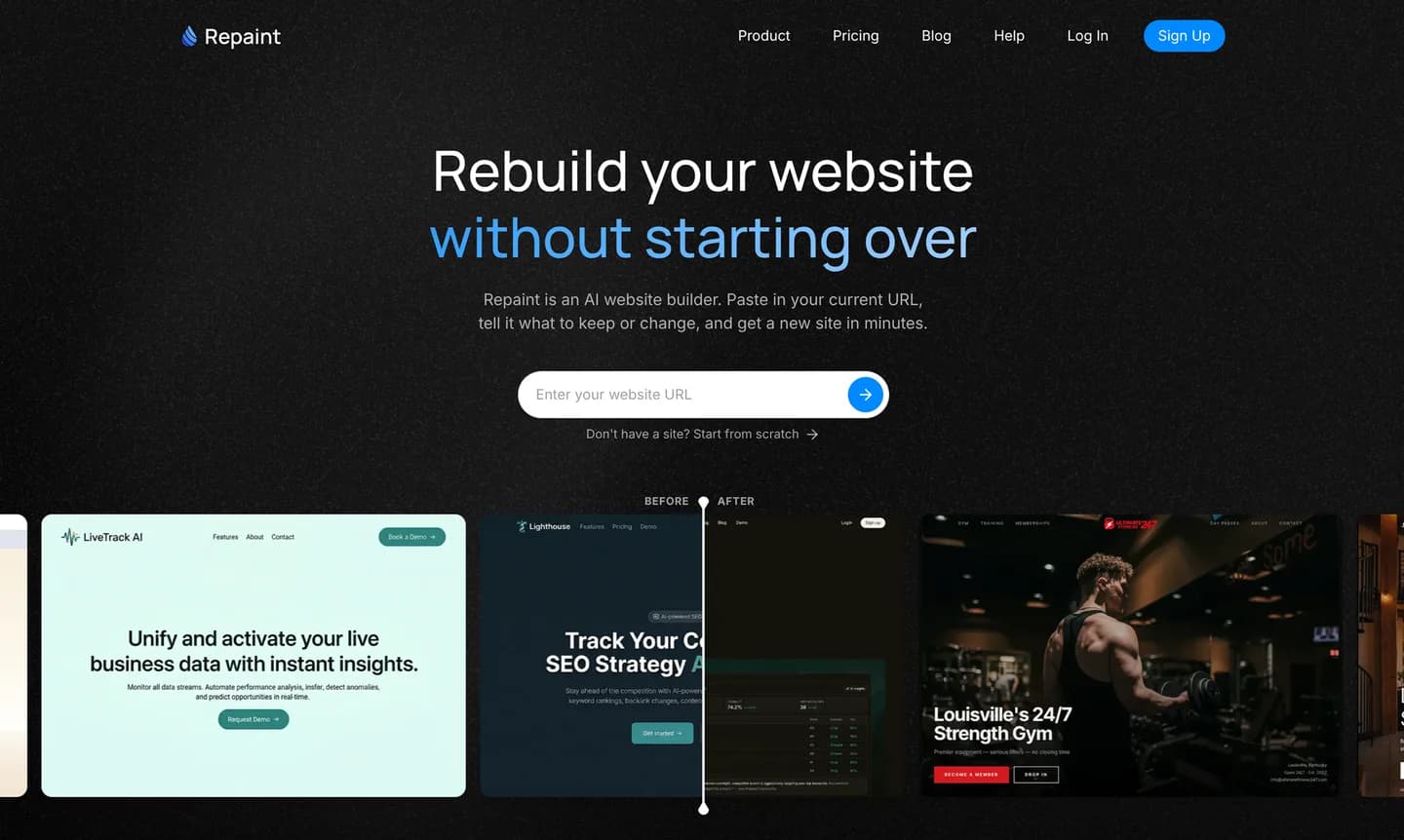
There are two ways you can import your content into Repaint:
- Export your code from Bolt, and import it into Repaint
- Share the live website URL
Exporting your code is free in Bolt, and it gives Repaint the most accurate copy of your original. When Repaint rebuilds from a URL instead, it can drift from the original slightly. That said, if you're planning to redesign the site anyway, exporting the code is overkill, and it's simpler to just share your live URL.
Importing as code
Exporting your code in Bolt is quick once you know where to look:
- Click your website's name in the top left
- Hover over Export in the menu that opens
- Click Download to get a .zip of your project
- Go to Repaint and create your account
- Upload the .zip and submit
Importing from a URL
Repaint can redesign any publicly accessible website on the internet. For this to work, your Bolt site has to be published. Bolt has a Publish button in the top right that puts your site live in one click, at a URL like https://staffing-company-web-j0w6.bolt.host.
First, publish your site in Bolt. Then:
- Copy your published URL
- Go to Repaint, paste the URL, and submit
- Create your Repaint account
Either path starts the website building process. Repaint will scan your site, copy text and images, and take screenshots of each page to understand the design. From there, you just have to talk to Repaint to finish the process.
Step 2: Plan your new website
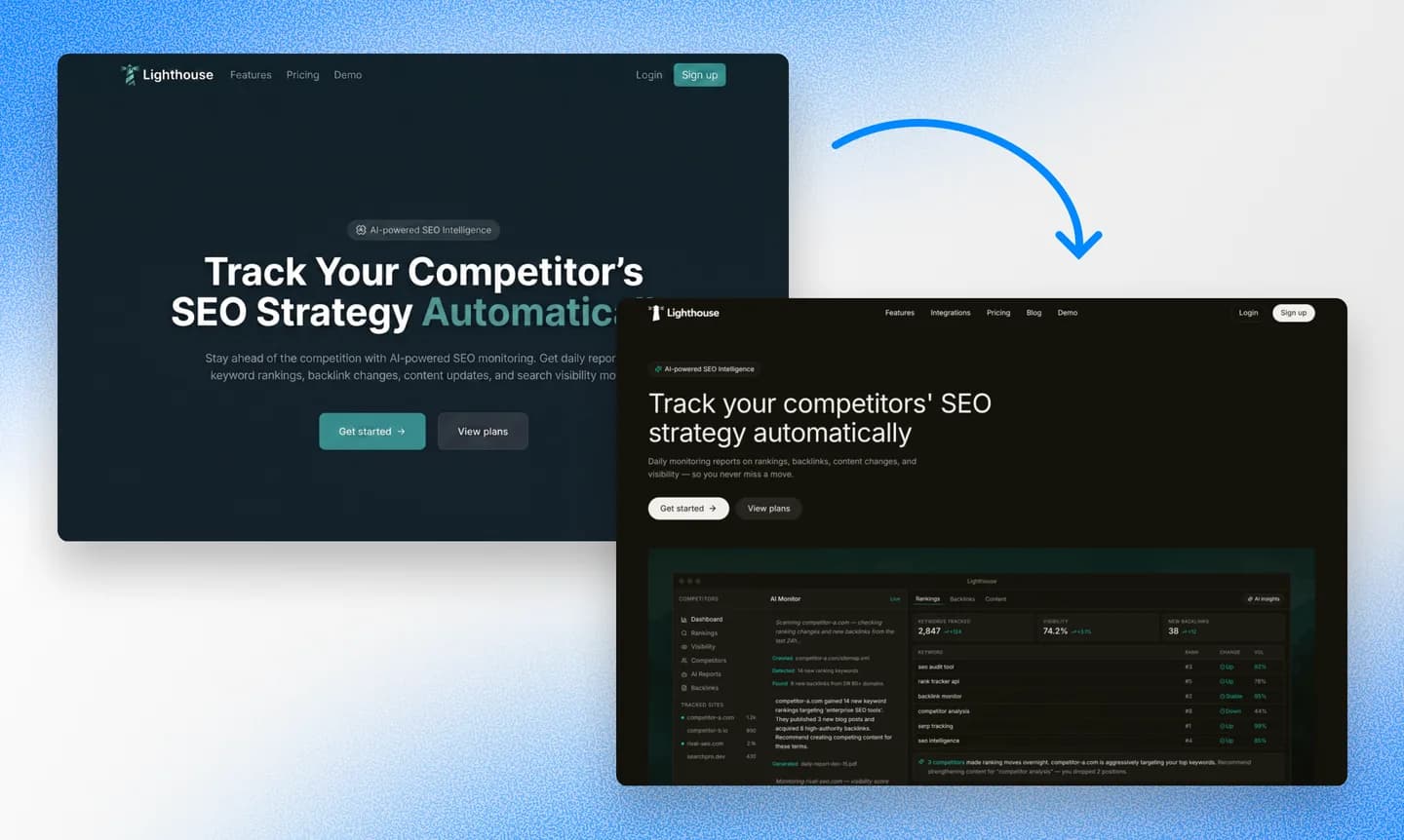
Repaint is capable of copying the original, completely redesigning it, or anything in between. Before it starts building your website, it'll ask you a few questions to understand what you're looking for.
Since you're already rebuilding, it's a good time to experiment with the style to see if there's anything else you want to try. You can have Repaint generate style samples for you to choose from, so you're not locked into the first look you land on.
We have a collection of website examples organized by industry if you want more styles to compare. Any of them can be used as a reference alongside the samples Repaint generates.
Import content
If you have more information to include, share it now. Repaint can use information from other websites, Google businesses, PDFs or other files, and images. The more it learns before building the site, the less you'll have to polish later.
If you have multiple source sites, like an older website in addition to the Bolt one, you should give Repaint both. It can use the old website for information to transfer, and the new one as a style guide. When in doubt, share lots of information and let Repaint figure out how to use it.
Once you and Repaint agree on the plan, it'll build your new website!
Step 3: Generate your website
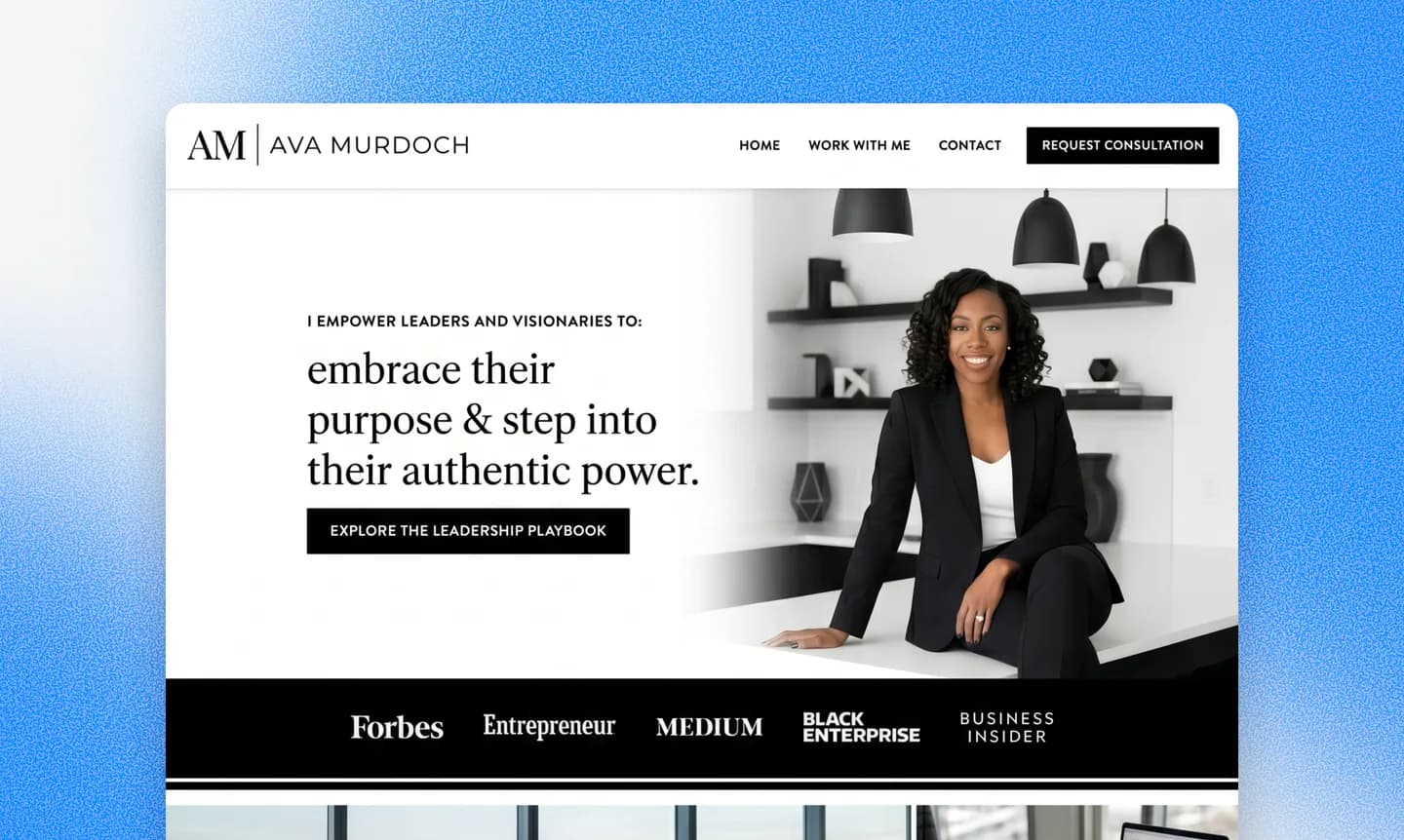
Repaint typically spends a few minutes building the first version of your website. The exact duration varies, depending on how much content it has to migrate and how large the new website is. A large site with dozens of pages might take over ten minutes.
When it's done, Repaint will automatically open a preview of your new website. The first version usually has some rough spots: text that got cut off, images in the wrong place, or spacing that's a bit off. That's expected. You can fix anything that's out of place by chatting with the AI.
If your Bolt project has backend features, those won't come over. Repaint builds the visual website that people see, so it won't migrate the database, server functions, authentication, or file storage. Most marketing websites don't use any of that, so it's not an issue. But if you've built a real app on Bolt, migrating would mean leaving that functionality behind.
Step 4: Make adjustments
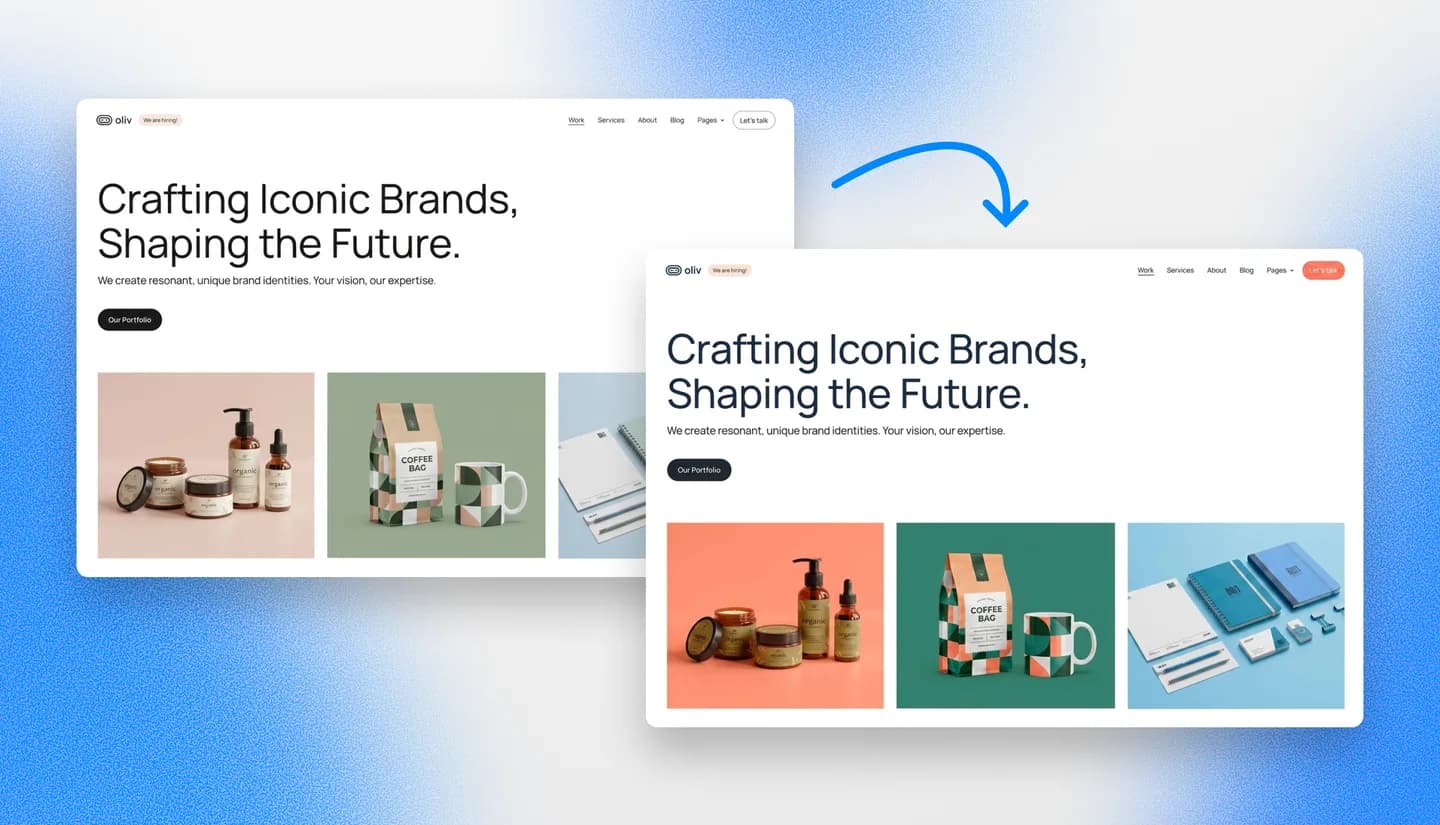
After generating your site, there might be a few quirks to work out. Repaint translates your website into its own format, so it's possible some details will be lost in translation. Or if Repaint redesigned your Bolt site, there will be a lot of new content to review.
The editing workflow is the same as Bolt. You change anything on your website by chatting with AI. "Add an FAQ section." "Swap the hero image for a photo of our team." "Tighten up the spacing in the footer." If you need new images, Repaint can generate them for you on the spot.
You should start by evaluating the visual style. Make sure the colors, fonts, and layouts all look good. Your visual style establishes patterns that the AI will naturally use for any new content it creates, so getting it polished early is faster than polishing it after you build out dozens of pages.
Once you like the style, you can work through the content and make sure the text is accurate, images are in the right places, links work, and everything looks good on mobile.
Review SEO content
If your Bolt site was getting search traffic, it's worth paying attention to SEO during your migration. We have an entire website redesign SEO guide if you want to learn more. At a high level, you just want to make sure the new website has the same page URLs, and the same content on them.
Google builds rankings for individual pages on your website, tied to their URLs. If you move to a new platform and those URLs change or disappear, Google treats them as new pages with no history, and you lose the traffic they were earning. And if you change the content, Google might decide the new versions are no longer relevant to search queries and stop ranking them.
You can ask Repaint to compare the URLs on your new site to the Bolt one to see if there are any differences. If you imported the code directly, it's likely nothing changed. But if there's anything changed or missing, Repaint can help fix it as long as you ask.
When your site looks good and the content is correct, you're ready to publish.
Step 5: Publish your website
When you're ready to publish your new website, open your Repaint project and click Publish in the top right corner. Your site goes live on a Repaint URL that you can share with anyone. It will look similar to your Bolt URL, like this: https://careful-tiger-5jd92kjd.sites.repaint.com
At this point, you have two websites live: one on Repaint, and one on Bolt. If you have a custom domain, it still points to your Bolt site, so nothing has changed for your visitors yet. When you're ready to make the switch, you can transfer your domain.
Step 6: Transfer your domain

When you're ready to officially swap, you just need to point your domain to the new Repaint website. To do this in Repaint, you simply tell the AI to connect your domain. It will give you DNS records to add. This requires a paid plan; you can see pricing details here.
Your domain is separate from your Bolt site. It's likely registered with a separate domain provider like GoDaddy, Namecheap, or Cloudflare. Either way, your domain should stay on that platform. You don't need to move it. You just need to update the settings so your domain points to your new Repaint site instead of the Bolt one.
Don't worry if you've never handled DNS settings before. Repaint can walk you through it. It can give you custom instructions based on your provider. DNS changes can take 20 minutes or more to take effect. Once you set the DNS records, you can have Repaint check your live records to see if it successfully propagated. Once it verifies everything is set up correctly, you're done.
After you transfer your domain, you don't need a paid Bolt plan for hosting anymore. You can cancel your Bolt subscription anytime.
Conclusion
Bolt is a great way to start a simple website quickly, but finishing it can take more work than expected. Repaint gives you a more website-friendly place to bring it over, polish the pages, improve the copy and visuals, and publish when you're ready. You can migrate by exporting your Bolt code or sharing your live URL, then keep editing by chatting with AI instead of managing the code underneath. And since your Bolt site stays live the whole time, there's little risk in trying Repaint before you switch.
FAQ
Why switch from Bolt if Repaint is also an AI builder?
They're similar tools, and both let you describe what you want and build it. The difference is focus. Bolt is more code-oriented and built for complex apps, while Repaint is more website-oriented: simpler language, more efficient multi-page building, and better tools for importing content from existing sites. Bolt is a better platform for advanced apps, but Repaint is better for marketing websites.
Is Bolt too technical for building a website?
Not always. Bolt keeps a lot of the advanced controls tucked away, so the interface itself isn't immediately overwhelming. The harder part is that the conversation still tends to sound like a developer tool: modules, routers, build steps, git, and code changes. If you just want to finish a website, that can feel like noise. Repaint keeps the conversation focused on the website itself, which is much simpler.
Won't I hit the same usage limits in Repaint that I hit in Bolt?
Repaint has usage limits too, but you'll get further on both the free tier and paid tiers. Repaint's AI agent is generally more efficient for editing websites, and it uses cheaper AI models for simpler tasks. You can get more done for less. It also runs on a weekly allowance rather than a monthly credit limit, which is more generous within a month.
Will migrating use up my Bolt tokens?
No. Importing from your live URL just visits your published site like any visitor would, so it never touches your Bolt account. Exporting your code is free too, since you're only downloading files you already have. The migration runs on Repaint's usage, not Bolt's.
What happens to my Bolt site during the migration? Can I keep both?
Nothing happens to your Bolt site. The two are completely separate, so your Bolt project stays live and untouched while you build the new one. Once you're happy with the Repaint version, you can point your domain at it. If you'd rather stick with Bolt, you don't have to do anything.
What if my Bolt project is a full app with a database and logins?
Then Repaint probably isn't the right fit. It rebuilds the visual site people see, not the infrastructure behind it, like the database, server functions, authentication, or file storage. If your project is a real app with that functionality, migrating would mean leaving those pieces behind.
Can Repaint generate images?
Yes, image generation is built in, so you can ask for new visuals as you build. In Bolt, image generation is a paid-plan feature that you also have to switch on in your account settings first.
Can Repaint match my Bolt design exactly?
It depends on how you import. If you export your code, Repaint works from the original and can get very close. If you import from your live URL, it recreates the design from what it can see, so it'll clearly look like your site but it's more likely to drift in a few places. Either way, you can fine-tune anything by chatting with the AI.
How long does the migration take?
The first build usually takes a few minutes, though larger sites with many pages can take ten minutes or more. After that, time-to-publish comes down to how many adjustments you want to make. Most sites can be migrated and polished within a few hours.
How much does it cost to migrate from Bolt to Repaint?
It's free to import your site, edit it, and publish to a sites.repaint.com address. The free plan covers building and launching a simple site, with a weekly editing allowance and a Repaint badge. Paid plans start at $20/month billed annually, or $25/month monthly, which adds a larger allowance, removes the badge, and lets you connect a custom domain. You can see the full breakdown on the pricing page.
Can I migrate just one page to try it first?
Yes. You can import a single page to see how it comes out before committing to the whole site. Once you like what you see, you can ask Repaint to build out the rest.
Will I lose my search rankings when I migrate?
Not if you keep your URLs and content consistent. Google ties rankings to individual page URLs, so you want your new site to reuse the same URLs and largely the same content. You can ask Repaint to compare your new URLs against the original and fix any gaps. There's more in our guide to preserving SEO when you import a site.
What happens when the AI makes a mistake? Can I undo changes?
Yes. Repaint saves a version of your site every time you make a change. If something comes out wrong, you can ask it to go back, or restore an earlier version from the version history yourself. Nothing is permanent, so it's safe to experiment.


