
How to Turn a Notion Doc Into a Real Website With AI
Learn how to turn a Notion doc into a full, customizable website using Repaint. A step-by-step guide to publishing your content in minutes.

Introduction
Notion makes it incredibly easy to make documents, but it isn't a flexible website builder. They offers a way for you to publish pages, but it's only within the rigid Notion system. You can't customize the design or add advanced website features.
That's why Notion "websites" are basically just public documents. It's not ideal for businesses that want to present themselves in a unique and professional way. Notion pages are mostly used for informal projects, not businesses that need custom websites.
In this guide, I'll show you how to turn a Notion page into a real, customizable website using an AI tool called Repaint. It lets you start from your page content, design the style with AI, and publish directly to your own domain.
Why Move Your Content Off Notion?
There are big advantages to using an AI website builder over Notion for your website:
- Escape the Notion look. Publish a site that feels fully branded.
- Add real functionality. Include forms, calculators, and interactive tools.
- Keep your site consistent. Manage navigation, shared sections, and styling across every page.
- Optimize for SEO. Improve structure, metadata, and performance.
Notion is a great tool for simple document editing, but it's limiting for making your web presense. This makes it natural pair for AI website builders like Repaint. You can create your content in Notion, and turn it into a full website in Repaint.
What is Repaint?
Repaint is an AI platform for creating websites. It is built around an intelligent AI agent that you interact with through chat. You can give it a Notion document, ask it to turn the content into a website, and then refine the result using plain English.
Repaint does not simply publish the Notion page with a different URL. It uses the document as a starting point for a new website. The AI can reorganize the content, create a visual design, add pages and navigation, and introduce components that do not exist in the original document.
Once the site is created, you can continue managing it in Repaint. You can update the copy, change the design, add new sections, and expand the site over time without rebuilding it from scratch.
This makes Notion and Repaint useful for different parts of the process. Notion is where you can write and organize the initial content. Repaint is where that content becomes a designed, functional website that you can publish and continue improving.
Step 1: Import Your Content
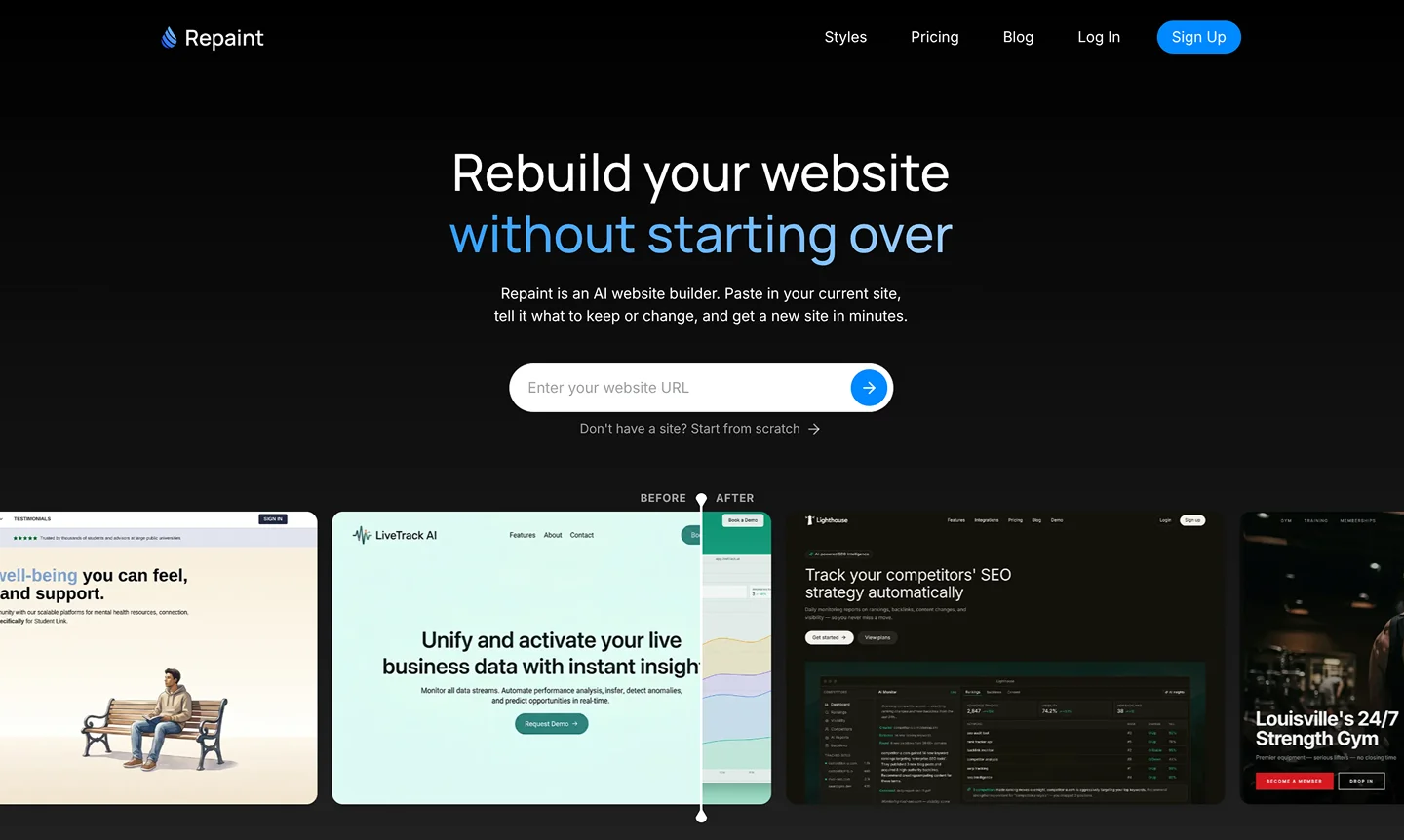
The first step is to give Repaint the content you want to use for your website. You can copy pages directly from Notion or upload an export.
For most pages, copying and pasting is the fastest option:
- Open the page in Notion.
- Click the •• menu.
- Click Copy page contents.
- Open Repaint and click New Website.
- Paste in the content.
You can repeat this for each page you want Repaint to use. Copying a few pages individually is completely fine.
If you would rather bring over several pages at once, you can export them from Notion instead:
- Click the •• menu.
- Click Export.
- Choose an export format. Any of them will work.
- Include subpages if needed.
- Download the export.
- Open Repaint and click New Website.
- Upload the export, including any images or other files you want to use.
If the export includes pages you don't need, you can also upload just the ones you want to use.
Once the content is added, Repaint will read it and help you turn it into a structured website. The Notion pages provide the source material, but they do not lock you into the same layout, organization, or design.
Step 2: Plan Your Website
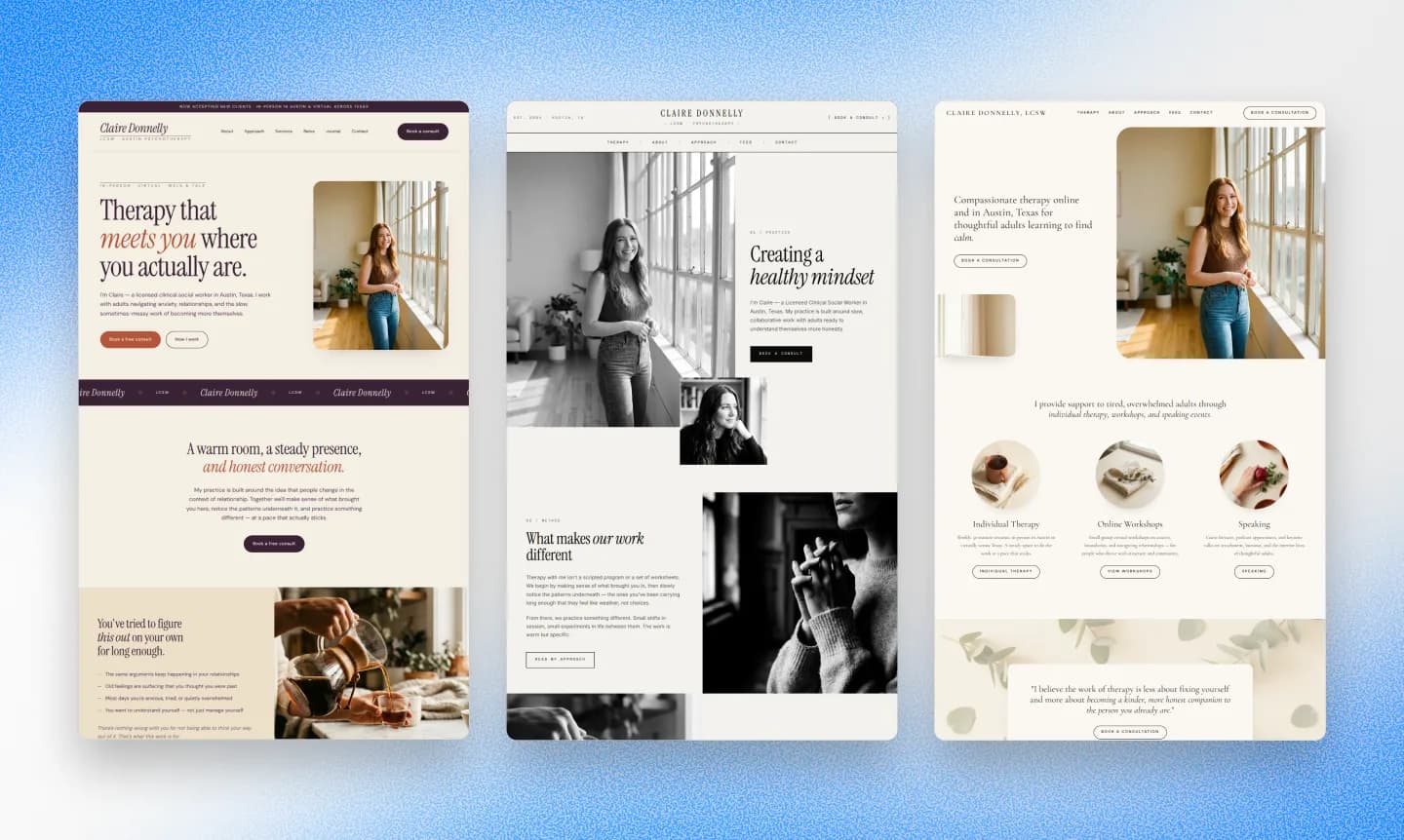
Before Repaint starts building, it will first ask a few questions about how you want to use the Notion content, what the site should look like, and whether anything new should be added.
This usually takes a few messages. Then Repaint writes out a plan for you to review before it generates the website.
Plan the Content
The simplest option is to use the Notion content mostly as-is. Repaint can turn the pages you imported into a website with the same information, just presented in a more polished format.
But Notion documents are not always written with a website in mind. A page may be too long, several pages may belong together, or important sections may be missing. You can ask Repaint to shorten, expand, combine, or reorganize the material as needed.
This is also a good time to add anything that was not in the original documents, such as a contact page, pricing sections, or new pages.
Plan the Style
Your Notion pages provide the content, but they do not give Repaint much of a visual design to preserve. You can choose the direction for the new site:
- Match your existing brand
- Follow the style of another website
- Describe a custom visual direction
- Let Repaint choose for you
You do not need to get the design exactly right on the first try. You can ask for changes or explore another direction after the site is built.
Review the Plan
Before generating anything, Repaint writes out what it is going to build, including the pages, content, features, and visual style. Look it over and make any final changes.
Once you approve the plan, Repaint will build your website.
Step 3: Generate Your Website
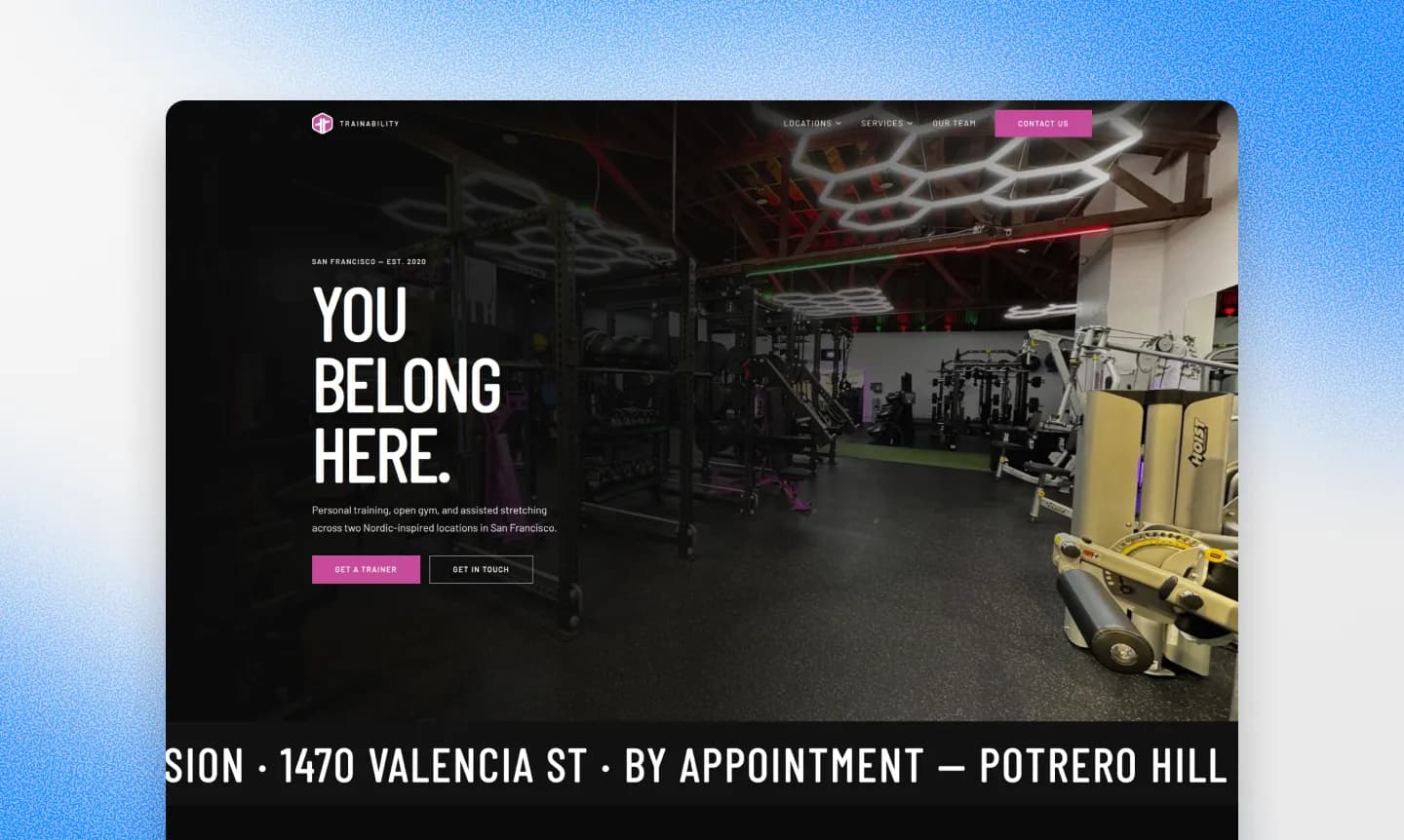
Once you approve the plan, Repaint starts building your site. You will see progress messages as it works through each page and adds the design, content, and features from your plan.
A simple website may take a few minutes. A larger site with more pages, images, or interactive features will take longer.
When it is finished, look through each page and make sure the Notion content came across the way you expected. You may find sections that are too long for the new layout, images that need to be moved or resized, or formatting that made sense in a document but does not work as well on a website.
You do not need to get everything right during the initial plan. The first generation gives you a complete site to react to, and you can make those adjustments in the next step.
Step 4: Make Adjustments
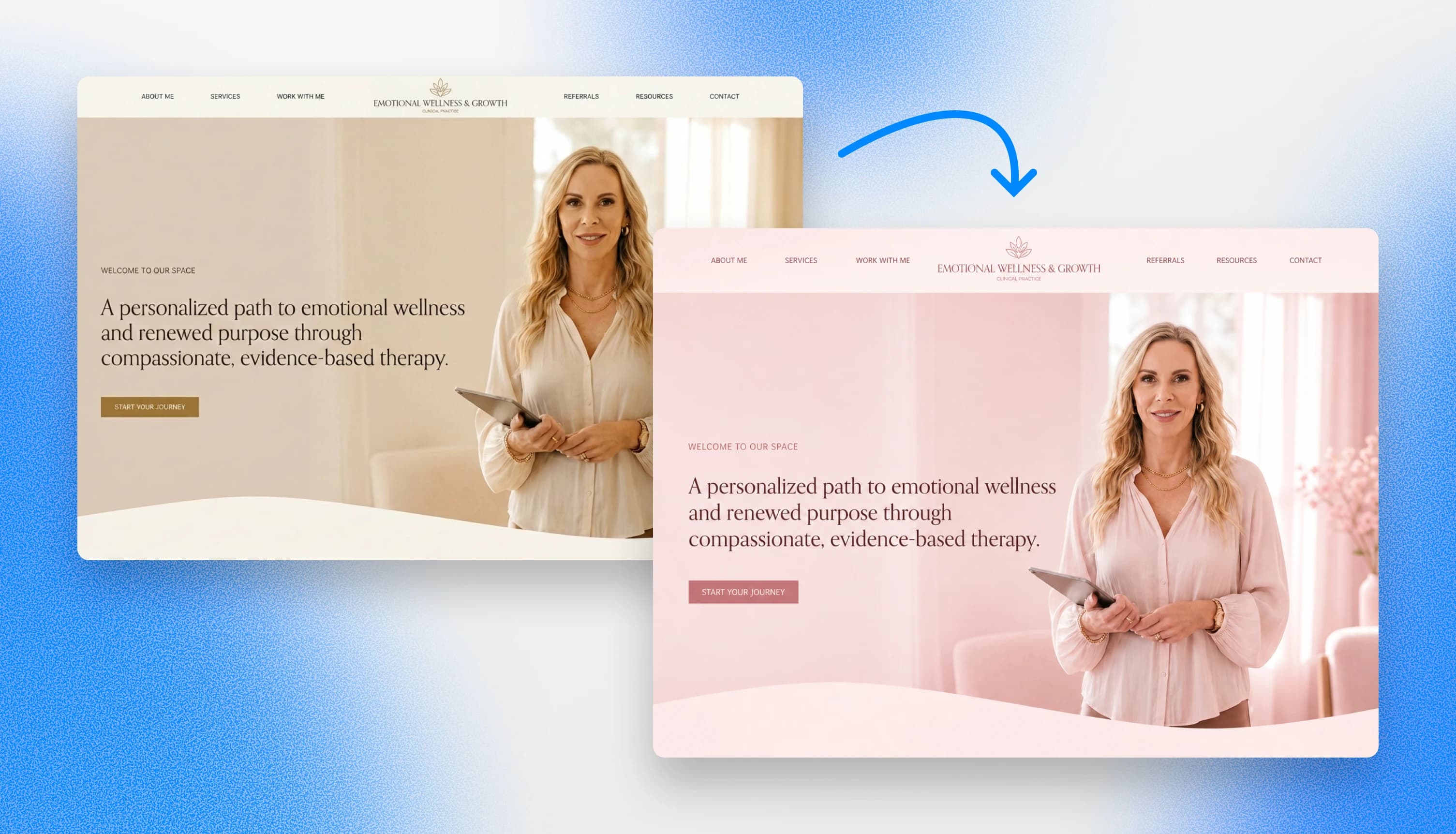
Once Repaint generates the first version, you can make changes by chatting with the AI. Describe what you want changed, Repaint updates the site, and then you review the result.
For example, you can ask Repaint to:
- Change the colors or fonts
- Move or remove a section
- Rewrite part of the text
- Add a contact form
- Create a new page
- Replace or generate images
Start by reviewing the overall design. Make sure you are happy with the colors, typography, layout, and general visual direction before spending time polishing individual details. Changing the overall style later can affect the entire site and undo some of that detailed work.
Once the visual direction feels right, work through the content page by page. Check that the text is accurate, images appear in the right places, buttons and links work, and important content has not been left out.
Notion content can sometimes require extra cleanup when it moves into a website. Tables, callout blocks, columns, databases, and other Notion-specific layouts may need to be redesigned for the web. Instead of trying to recreate those blocks exactly, tell Repaint what information they are supposed to communicate and how you want visitors to use them.
Review SEO
If your Notion pages were already public, some of them may be appearing in search results or receiving traffic. Moving the content to new URLs can disrupt that traffic because search engines treat each URL as a separate page.
Ask Repaint to review the site's page titles, descriptions, headings, internal links, and URL structure. For pages that already receive traffic, give Repaint the current URLs so it can preserve the paths where possible or create redirects when they need to change.
When the design looks good, the content is correct, and Repaint has reviewed the SEO setup, you are ready to publish.
Step 5: Publish Your Website
When the site is ready, click the Publish button in the top-right corner. Repaint will put the site online and give you a live URL you can share with anyone.
This is the point where your Notion content becomes a real website on the internet. You can open it on your phone, send it to someone for feedback, or test it in a normal browser.
Publishing the Repaint site does not automatically remove or change the original Notion pages. You can keep them private, continue using them internally, or leave the public versions online until you are ready to replace them.
You can also keep writing in Notion after the site is published. When you update a document or create a new page, give the new content to Repaint and ask it to add or replace the corresponding content on the website.
Step 6: Connect Your Domain
When you are ready to use your own URL, just tell Repaint to connect your domain, and it will give you the DNS records to add. Custom domains are included in the free trial and every paid plan. You can see pricing details here.
Your domain is managed separately from your Notion pages and Repaint website. It may be registered with a provider like GoDaddy, Namecheap, or Cloudflare. You do not need to transfer it to Repaint. You only need to update its settings so it points to the new site.
If you have never done this before, ask Repaint to walk you through it. It can tell you what to change based on your domain provider. If the domain currently points to Notion, Repaint will have you clear those records so it fully moves to your new site.
The change can take a few hours to take effect. Once Repaint shows the domain as verified, your website is live at your own domain.
Conclusion
Notion is an excellent place to create and organize content, but publishing a Notion page is not the same as building a complete website. The design, functionality, and site management options are still limited by the Notion system.
Repaint lets you use the work you have already done instead of starting over. You can bring in your Notion pages, decide how the content should be presented, create a custom visual design, and continue editing the finished site with AI.
That means Notion can remain part of your writing process without defining what the final website looks like. Repaint turns those documents into a site that feels designed for your business, runs on your own domain, and can continue growing over time.
FAQ
Why not just publish the page directly through Notion?
Publishing through Notion works well when all you need is a public document. But it's limited as a full website builder. You have much less control over how the site looks, how pages connect to each other, and what visitors can do.
Repaint is a more complete website platform. You can create a distinct visual identity, keep navigation and shared sections consistent across pages, add features like forms or calculators, and control SEO details such as page titles, descriptions, URLs, and site structure. It's better for most professional business websites.
How long does it take to turn a Notion page into a website?
For a small site, importing the content, planning the site, and generating the first version usually only takes a few minutes. Larger sites with dozens of pages, images, or complex features may take five to ten minutes or more. After that, the time to publish depends on how many changes you want to make. Most people spend at least an hour polishing little details so everything is right.
Can I turn multiple Notion pages into one website?
Yes. You can paste pages into Repaint one at a time or export several pages from Notion and upload them together. Repaint can use those pages as separate website pages, combine them, or reorganize them into a structure that makes more sense for the site.
Do I need to export my Notion pages, or can I copy and paste them?
Either works. Copying and pasting is usually fastest for a small number of pages. For a larger set of pages, uploading a Notion export is easier, and Repaint can use whichever format you export in.
Can I keep using Notion to write and update my content?
Yes. You do not have to stop using Notion. You can continue writing and organizing content there, then paste or upload the new version to Repaint and ask it to update the corresponding part of the website. The content does not sync automatically, so you need to give Repaint the updated material when something changes.
What happens to Notion-specific blocks like databases, tables, and callouts?
Repaint adapts them into website content instead of trying to reproduce every Notion block exactly. A small pricing table might become a set of pricing cards. A database could become a grid, list, or collection of pages. If the source contains something that does not make sense on a public website, such as a spreadsheet with a thousand rows, Repaint may suggest a simpler way to present it. The best format depends on the content, so the AI handles these cases individually.
Can Repaint use the images and files from my Notion pages?
Yes. You can upload images and other files from your Notion export alongside the page content. If you copy and paste the text instead, you can add the images separately. Giving Repaint the original image files helps it use them at full quality.
Can I add forms, calculators, or other features that were not in Notion?
Yes. The Notion page is only the starting material. You can ask Repaint to add contact forms, newsletter signups, pricing sections, calculators, interactive tools, or entirely new pages. These features do not need to exist in the original document.
Do I need to know how to code?
No. Repaint is designed for people who do not code. You describe what you want in plain English, review the result, and keep asking for changes until the site looks right. Repaint handles the implementation for you.
Can I use my own domain?
Yes. You can publish on a Repaint URL or connect your own domain during the free trial and on any paid plan. You do not need to move the domain to Repaint. You only update its settings so it points to the new site.
How much does it cost to turn a Notion page into a website?
You can try Repaint free for 14 days, including building, editing, publishing, and connecting a custom domain. Paid plans start at $25 per month and include hosting and a weekly AI usage allowance.
When the trial ends, your workspace pauses until you start a paid plan. Your work stays saved, and you can reactivate it anytime. See our pricing page for details.


