
How to Rebuild a Canva Website With AI
A step-by-step guide on how to rebuild your Canva website on a more flexible AI platform without recreating every page by hand.

Introduction
Canva makes it easy to design and publish a simple website. If you already use it for presentations, social media graphics, or marketing materials, you can turn those same visual tools into a landing page or small business site without learning another platform.
The limitations become clearer when the site needs to grow. Canva is built around arranging content visually, which works well for simple pages but becomes harder to manage across a larger website. Adding more pages, keeping navigation and shared sections consistent, or introducing custom functionality can quickly push beyond what the editor was designed for.
Fortunately, you do not have to rebuild the site manually. AI tools can scan the published Canva website, collect its text and images, and use the existing design as the starting point for a new site.
In this guide, I will show you how to migrate a Canva website into Repaint, where you can manage the site by chatting with AI, add more advanced features, and continue expanding it over time.
Why Rebuild a Canva Website With AI?
Canva is useful for getting a small website online quickly. Repaint is designed for turning that first version into a complete website.
With Repaint, you can:
- Grow beyond a simple site. Add pages, navigation, and shared sections.
- Add real functionality. Include forms, calculators, and interactive tools.
- Make site-wide changes. Update repeated content and styling across every page.
- Improve your SEO. Manage metadata, URLs, redirects, and performance.
The main advantage is not simply that Repaint can produce a different design. It gives you a more flexible way to manage the entire website after the initial design is finished.
How AI Website Migration Works
Canva does not provide a complete export that you can import into another website builder. Instead, Repaint scans the published website from its URL. Repaint visits each page, reads the text, saves the images, and takes screenshots to understand the current design. It then uses that material as the starting point for the new site.
You can ask for a close recreation, preserve only the brand and content, or use the migration as a chance to improve the structure, add functionality, and choose a new visual direction. To get started, you just have to give Repaint the URL of the Canva site.
Step 1: Import Your Content
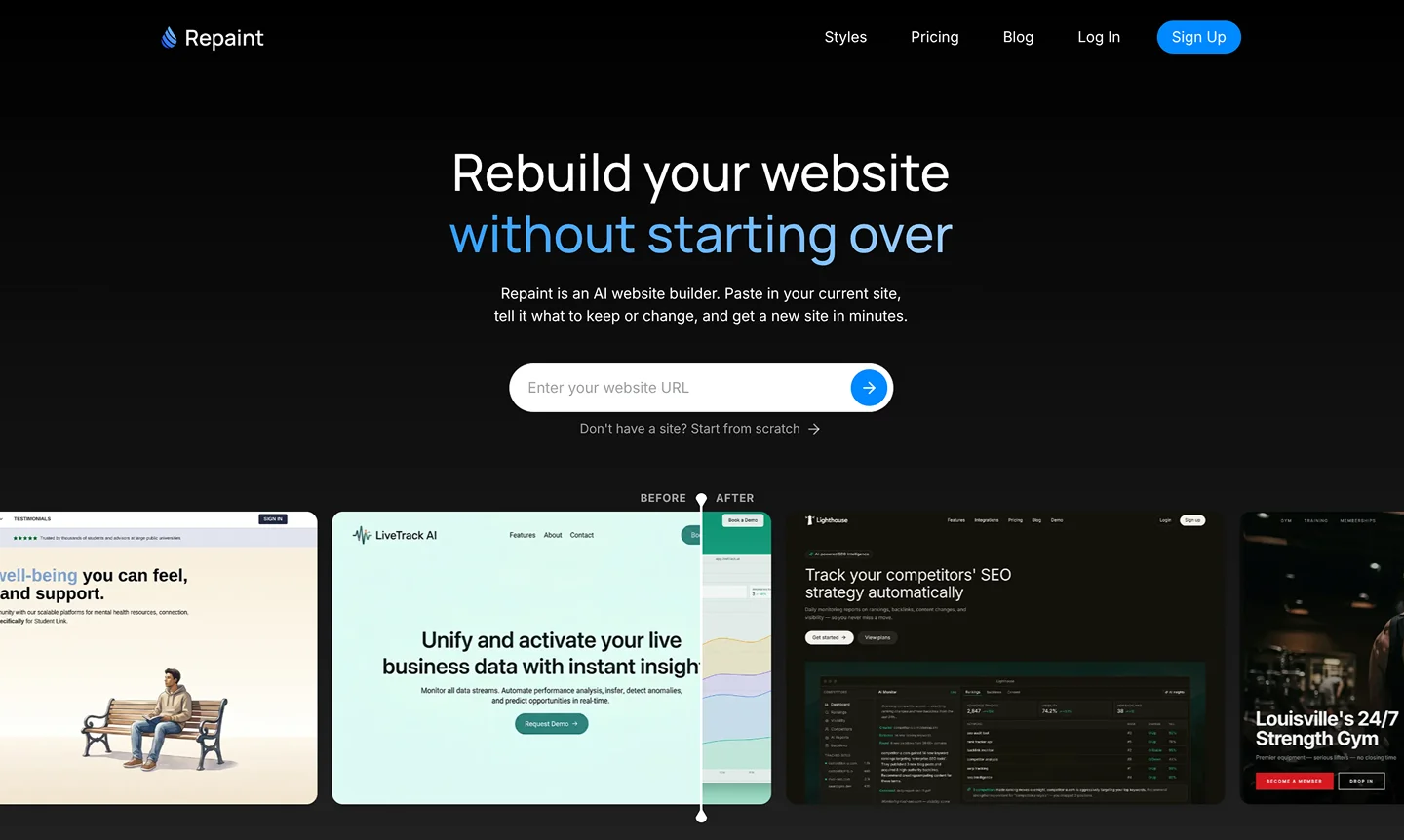
Start by opening the published Canva website you want to rebuild and copying its URL. Then:
- Go to the AI website redesign tool.
- Paste in your Canva website URL and submit.
- Create a Repaint account.
This starts the rebuild. Repaint will scan the published site, pull in the text and images it can find, and take screenshots to understand the current design. Make sure you use the public website URL, not the editing link from inside Canva. A free Canva domain is fine. If the site uses a custom domain, use that URL instead.
Once Repaint has scanned the site, it will start asking questions to plan the rebuild. You do not need to prepare anything in advance.
Step 2: Plan Your Website
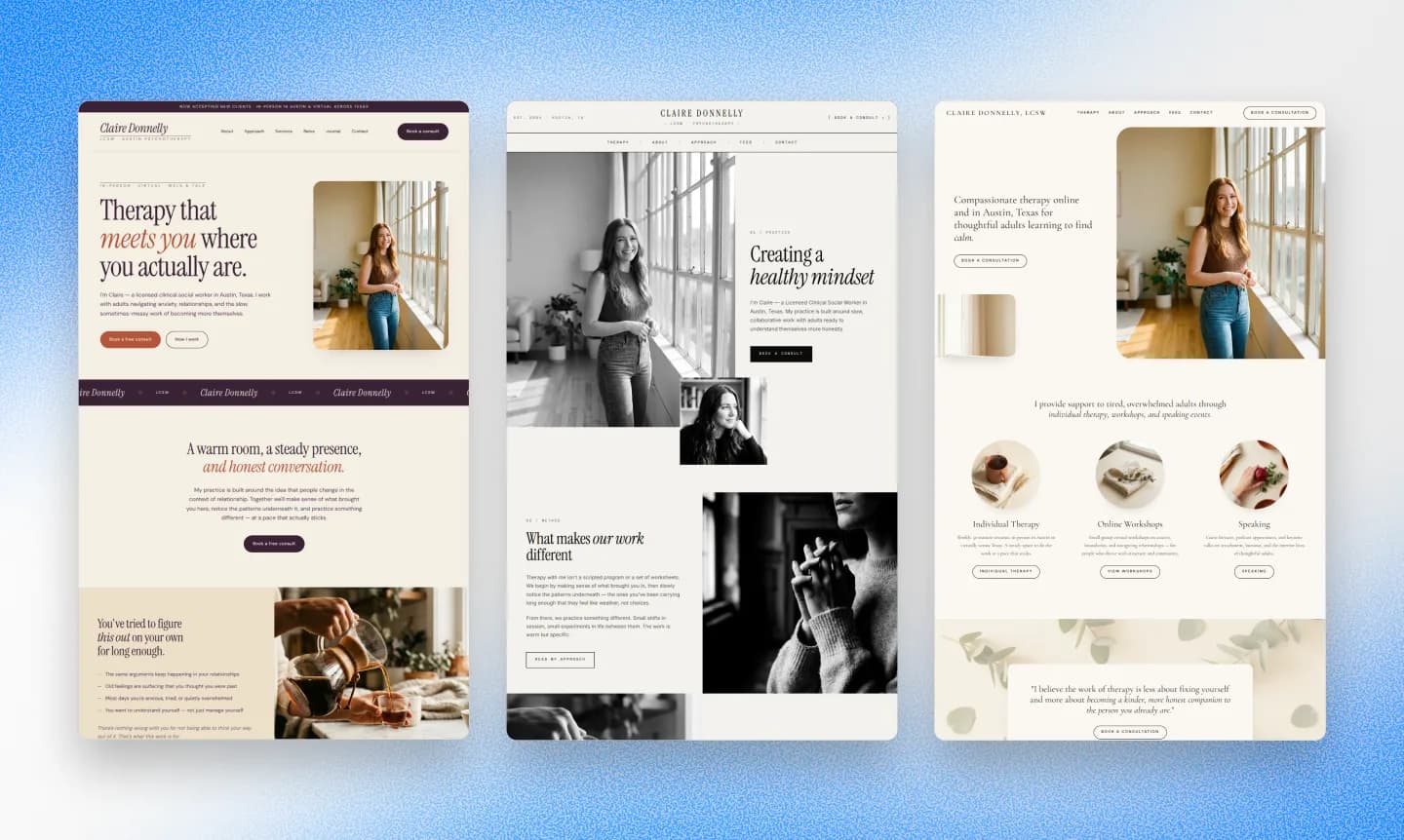
Before Repaint starts building, it asks a few questions about what you want to keep from the Canva site, what you want to change, and whether the new website should be larger or more functional.
This usually takes a few messages. If you are not sure what you want, Repaint can propose a direction based on the site it scanned.
Plan the Content
The simplest option is to recreate the same content and pages from the original.
But Canva websites are often minimal and built around a single scrolling page. This is a good opportunity to decide whether some sections should become separate pages, whether anything is missing, and whether the site needs features that were not possible in Canva.
You might add a contact page, service pages, a blog, pricing information, forms, or other interactive elements. Repaint can keep the original content while expanding it into a more complete site.
Plan the Style
Canva gives Repaint a clear visual reference, so you can preserve as much of the original design as you want. You can:
- Match your existing brand
- Follow the style of another website
- Describe a custom visual direction
- Let Repaint choose for you
Even when you keep the same design, Repaint can rebuild it as a more responsive website instead of scaling the entire Canva composition up and down with the browser width.
We have a collection of website examples organized by industry if you want to explore a different direction from the Canva design. Any of them can be used as another visual reference.
Review the Plan
Before generating anything, Repaint writes out exactly what it plans to build, including the pages, content, features, and visual direction. Look it over and make any final changes.
Once you approve the plan, Repaint will build your new website.
Step 3: Generate Your Website
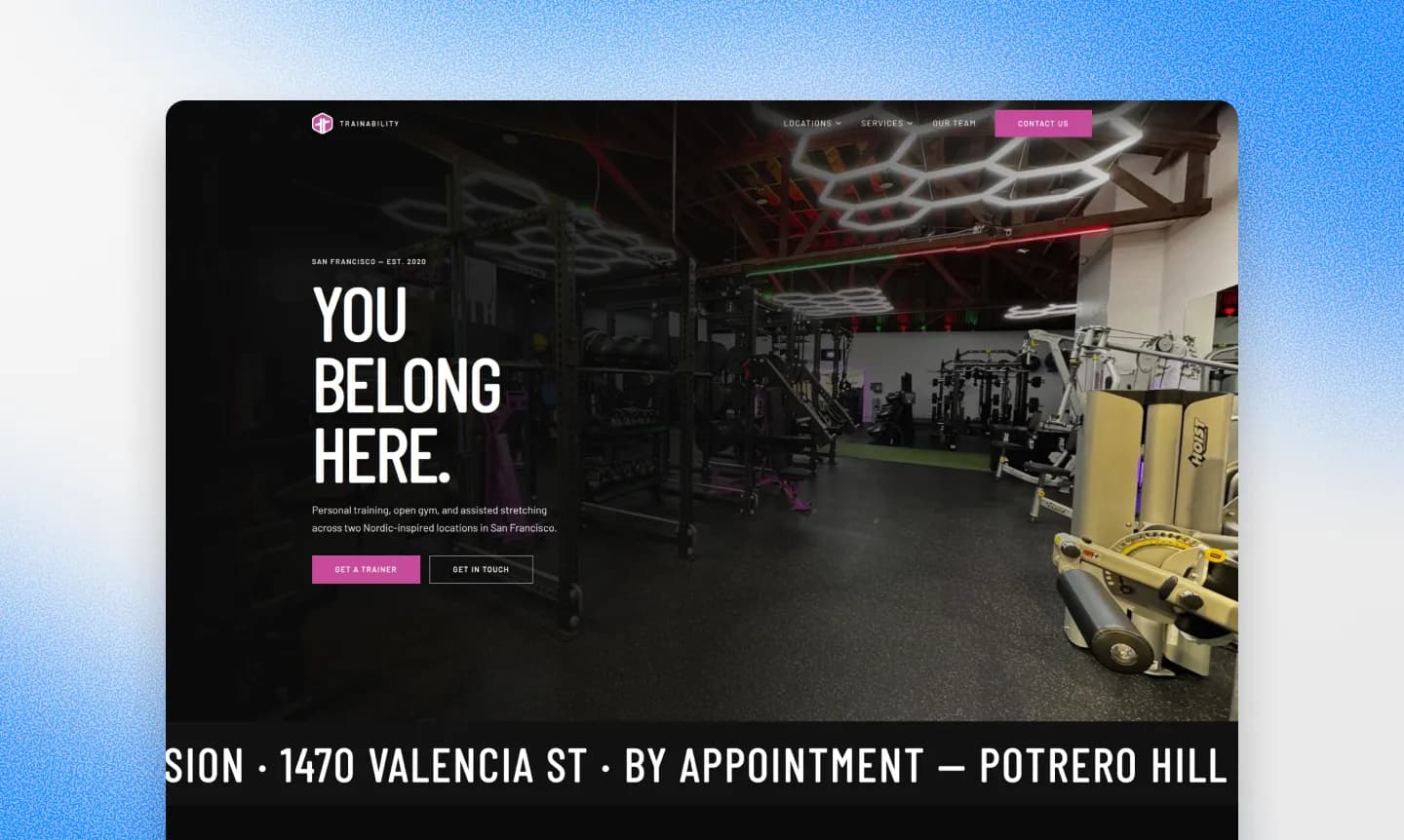
Once you approve the plan, Repaint starts building your site. You will see progress messages as it works through each page. A small website usually takes a few minutes. A larger site with more pages, images, or interactive features may take five to ten minutes or longer.
When it is finished, look through the result and compare it with the original Canva site. The first version may have a few differences, such as text wrapping differently, images appearing in different spots, or sections needing more spacing.
Canva layouts are built more like visual compositions than traditional responsive websites. Repaint translates the design to adapt naturally across every screen size, so some sections may not match the original position-for-position. If anything seems off, you can adjust it in the next step.
Step 4: Make Adjustments
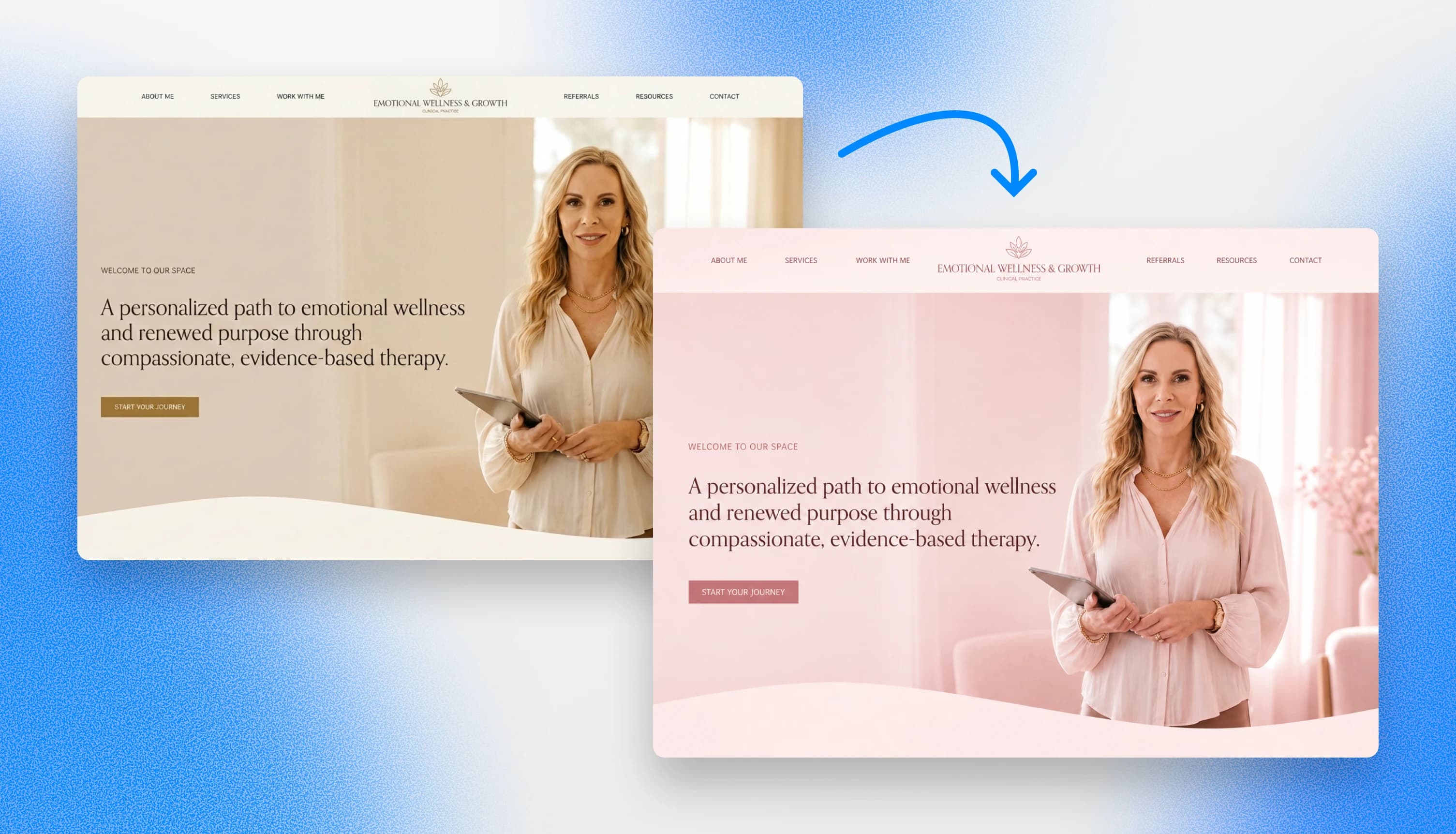
Once the first version is ready, you can make changes by chatting with Repaint. Describe what you want changed, Repaint updates the site, and then you review the result.
For example, you can ask it to:
- Make a section taller or shorter
- Change the colors or fonts
- Move or remove content
- Add a new page
- Create a contact form
- Rewrite text
- Replace or generate images
Start by reviewing the overall visual style. Make sure the colors, typography, spacing, and layouts feel right before spending time on small details. A major style change later can affect the whole site and undo some of that polishing work.
After the core visual style, you can work through each page and check the finer details. Make sure the text is accurate, the images are in the right places, links work, and the site looks good on both desktop and mobile.
Some Canva effects may need to be described again. If the original site used animations, overlapping elements, or unusual positioning, tell Repaint how you want those parts to behave. It can recreate the effect in a way that works across different screen sizes instead of scaling the whole composition up and down.
Review SEO
If the Canva site was already public, some pages may be appearing in search results or receiving traffic. Moving the content to different URLs can disrupt that traffic because search engines treat each URL as a separate page.
Ask Repaint to review the site's page titles, descriptions, headings, internal links, and URL structure. For pages that already receive traffic, give Repaint the current URLs so it can preserve the paths where possible or create redirects when they need to change.
When the design looks good, the content is correct, and Repaint has reviewed the SEO setup, you are ready to publish.
Step 5: Publish Your Website
When the site is ready, click the Publish button in the top-right corner. Repaint will put the site online and give you a live URL you can share with anyone.
This gives you a real website you can open on your phone, send to someone for feedback, or test in a normal browser.
At this point, the original Canva site is still live. Publishing in Repaint does not change anything for your existing visitors, and you can keep both versions online while you review the new one.
You also do not need to stop using Canva for your other design work. You can keep creating graphics, images, and marketing materials there, then upload those assets to Repaint whenever you want to use them on the website.
Step 6: Connect Your Domain
When you are ready to use your own URL, just tell Repaint to connect your domain, and it will give you the DNS records to add. Custom domains are included in the free trial and every paid plan. You can see pricing details here.
Your domain is separate from the Canva website itself. It may be registered through Canva or through another provider like GoDaddy, Namecheap, or Cloudflare. You do not need to move it. You only need to update its settings so it points to Repaint.
If you have never done this before, ask Repaint to walk you through it. It can tell you what to change based on your domain provider.
The change can take a few hours to take effect. Once Repaint shows the domain as verified, your website is live at your own domain. Then you can unpublish the old Canva website.
Conclusion
Canva makes it easy to publish a simple website, but it becomes limiting when the site needs more pages, better responsive behavior, or custom functionality. Repaint lets you rebuild the site from its existing URL, keep the content and branding you want, and manage the new version by chatting with AI.
FAQ
Why not just keep the website in Canva?
Canva works well for simple landing pages and small websites, especially when the design is the main focus. The limitations become more noticeable when you need a larger site, more advanced functionality, better SEO control, or layouts that adapt more naturally across different screen sizes.
Repaint gives you a more complete website platform. You can manage multiple pages, keep navigation and shared sections consistent, add forms and interactive features, and make site-wide changes by chatting with AI.
How long does it take to rebuild a Canva website with Repaint?
Most Canva websites only take a few minutes to scan, plan, and generate. The exact time depends on how many pages the site has and how much you want to change during planning. After generation, the time to publish depends on how many adjustments you want to make.
Will the new website look the same as the Canva version?
It can. If you ask Repaint to recreate the original design, it will use screenshots, text, images, colors, and typography from the Canva site as references. You can also keep the same branding while changing the layout, or use the migration as a chance to create a completely different visual direction.
Will the new website work better on mobile and different screen sizes?
Yes. Canva websites scale the desktop composition up and down with the browser width, then switch to a stacked layout at a mobile breakpoint. This can make typography and spacing feel too small or too large on different screens. Repaint can adjust typography, spacing, columns, and components independently at different screen sizes, so the site behaves more like a traditional responsive website.
Can Repaint migrate every page from my Canva website?
Repaint starts from one public URL and follows the pages linked from the site, so you do not need to submit every page separately. After the scan, you can decide which pages to keep, remove, combine, or expand before Repaint builds the new site.
What happens to Canva animations and overlapping elements?
Repaint works from the published site and static screenshots. It can usually infer obvious interactions, such as FAQ dropdowns, menus, and buttons. Animations that are not visible in a screenshot, such as an element appearing while you scroll, may not transfer automatically, but you can describe the original behavior and ask Repaint to recreate it. Overlapping elements can also be rebuilt in a way that adapts more reliably across screen sizes.
Will my forms, buttons, and links still work?
Repaint can preserve links and rebuild buttons as part of the new site. Canva's native forms do not transfer directly, but Repaint can rebuild them using its own form system. If the Canva site uses an embedded form from another service, share the embed code with Repaint so it can add the same form to the new site.
Can I add pages or features that were not in the Canva site?
Yes. The Canva website is only the starting point. You can ask Repaint to add service pages, a blog, contact forms, calculators, integrations, or other interactive features. You can also turn sections from a single scrolling Canva page into separate pages with full navigation.
What happens to my Canva website during the migration?
Nothing changes while Repaint builds the new site. The Canva version stays online and continues working normally. Once the Repaint site is ready, you can publish it on a temporary Repaint URL and review it before changing your domain. If you decide not to switch, you do not need to make any changes to the Canva site.
Can I keep using a domain I connected through Canva?
Yes. You do not need to buy a new domain or move it to Repaint. You only need to update the domain's DNS settings so it points to the Repaint site instead of Canva. If the domain was purchased through Canva, you can manage those settings there. If it was purchased through another provider, you make the change through that provider.
How much does it cost to rebuild a Canva website with Repaint?
You can try Repaint free for 14 days, including building, editing, publishing, and connecting a custom domain. Paid plans start at $25 per month and include hosting and a weekly AI usage allowance.
When the trial ends, your workspace pauses until you start a paid plan. Your work stays saved, and you can reactivate it anytime. See our pricing page for details.


