
How to Redesign a Framer Website With AI
Learn how to redesign an existing Framer website with AI and migrate your content without rebuilding everything from scratch.

Introduction
Framer is a website builder with a high design ceiling. It's the favorite among professional designers who want to make a top-tier website without coding. But the design freedom comes with tradeoffs. Most people find it challenging to use, because it's made for professionals who want precise control over every detail. They recently added an AI chat that can make edits for you, but the tool around it is still built for designers.
Most people would be better served on an AI platform like Repaint, which is made for a more general audience. You edit by describing what you want, and you work on your real website instead of a design canvas. And if you already have a Framer site, you can migrate your existing content automatically so you don't have to start from scratch.
In this guide, I'll show you how to redesign your Framer website on Repaint.
Why Redesign a Framer Website with AI?
The biggest difference is the editing experience. Framer was originally a professional design tool, and that's still its core. You work on a 2D canvas where you select elements, adjust their settings, and add overrides for each screen size. The new AI chat is genuinely capable, but it edits within that same system. Clicking anything still selects it instead of navigating the site.
Repaint was built around AI editing from day one. You can achieve the same level of design quality, but entirely through chat. You type what you want and the AI does the design work, handling layout, spacing, and responsiveness for you. It also writes real code instead of assembling blocks, so it has all the freedom a developer would have. And the editor shows you your live website rather than a canvas, so you can read it and click through it the way a visitor would.
How AI Website Migration Works
Repaint visits your live Framer site the way a customer would. It reads your text, downloads your images, and takes screenshots of every page to learn the layout. From that material, it rebuilds your site. Afterward, you make changes by chatting with AI. It doesn't need access to your Framer account, and nothing in Framer is modified.
You also don't commit to anything by starting. Your Framer site stays live while you build, and your visitors keep seeing it until you point your domain at the new site. If you stop halfway through, nothing has changed.
Step 1: Import Your Content
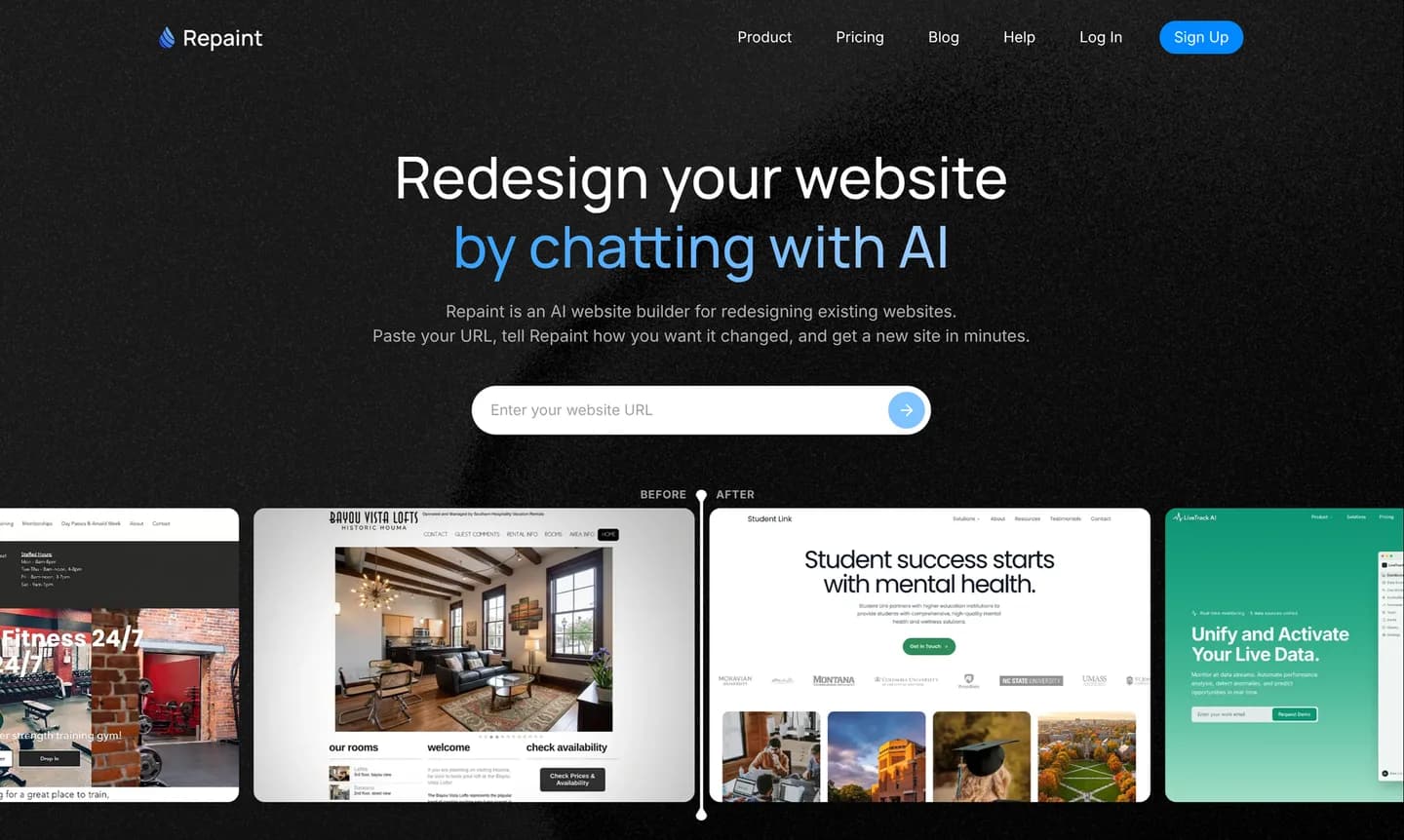
To begin, you'll need the URL of your live Framer website:
- Go to the AI tool for redesigning websites.
- Paste in your Framer website URL and submit.
- Create a Repaint account.
Any publicly available Framer site works, whether it's on a custom domain or a free framer.website address. If the scan misses anything, you can add it through the chat or upload it as a file.
For a large site, importing the main pages and a few representative CMS items first usually works best. Repaint accounts for the size of your existing website when it makes the plan, so it may not rebuild everything in the first pass. The remaining blog posts or portfolio entries can come over in batches once the layouts look right. This also keeps one large import from using the trial's AI allowance before you have reviewed the design.
Step 2: Generate Your Website
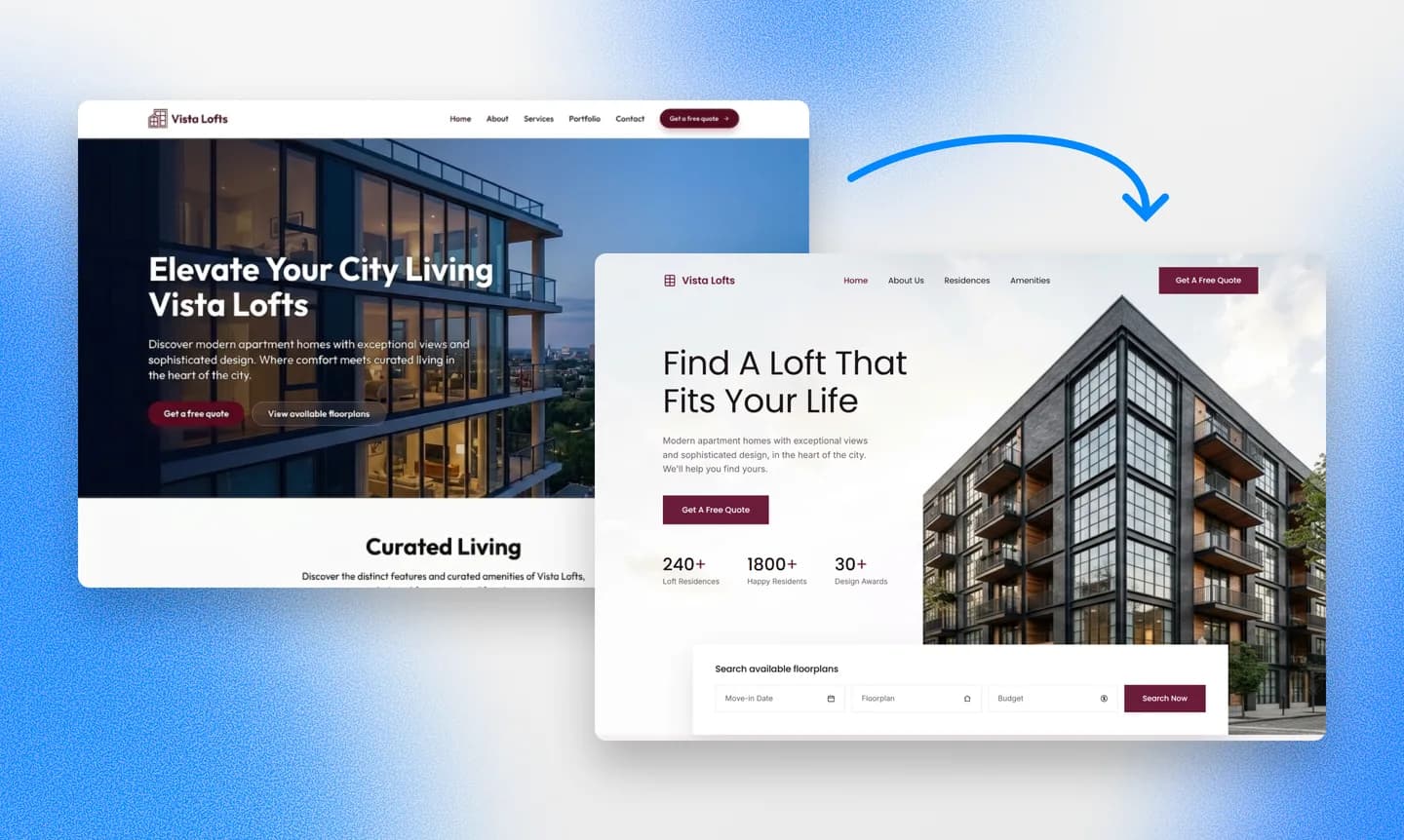
Repaint starts a conversation about your website and what you want to change. Then it uses your instructions and content to build the first version of your new website. You do not have to settle every decision upfront. Once Repaint builds the first version, you can keep shaping it through the chat.
Pick a Style
Repaint can take design direction from many different sources, including:
- Your current Framer design
- Another website you like
- Style samples generated by Repaint
- Your content from Facebook, Instagram, or Google Business
- Files such as a PDF or PowerPoint
- A description of the style you want
Repaint can combine these sources while keeping your brand colors and logo, so the site still feels like your business.
We have a collection of website examples organized by industry if you don't already have another website in mind.
Review the Result
The first version of a small business site usually takes a few minutes to generate. A site with many pages or CMS items takes longer.
When the first version is ready, you can see how your existing Framer content fits into the new layout. It is normal for some details to need adjustment, and you can make them through the chat.
Step 3: Make Adjustments
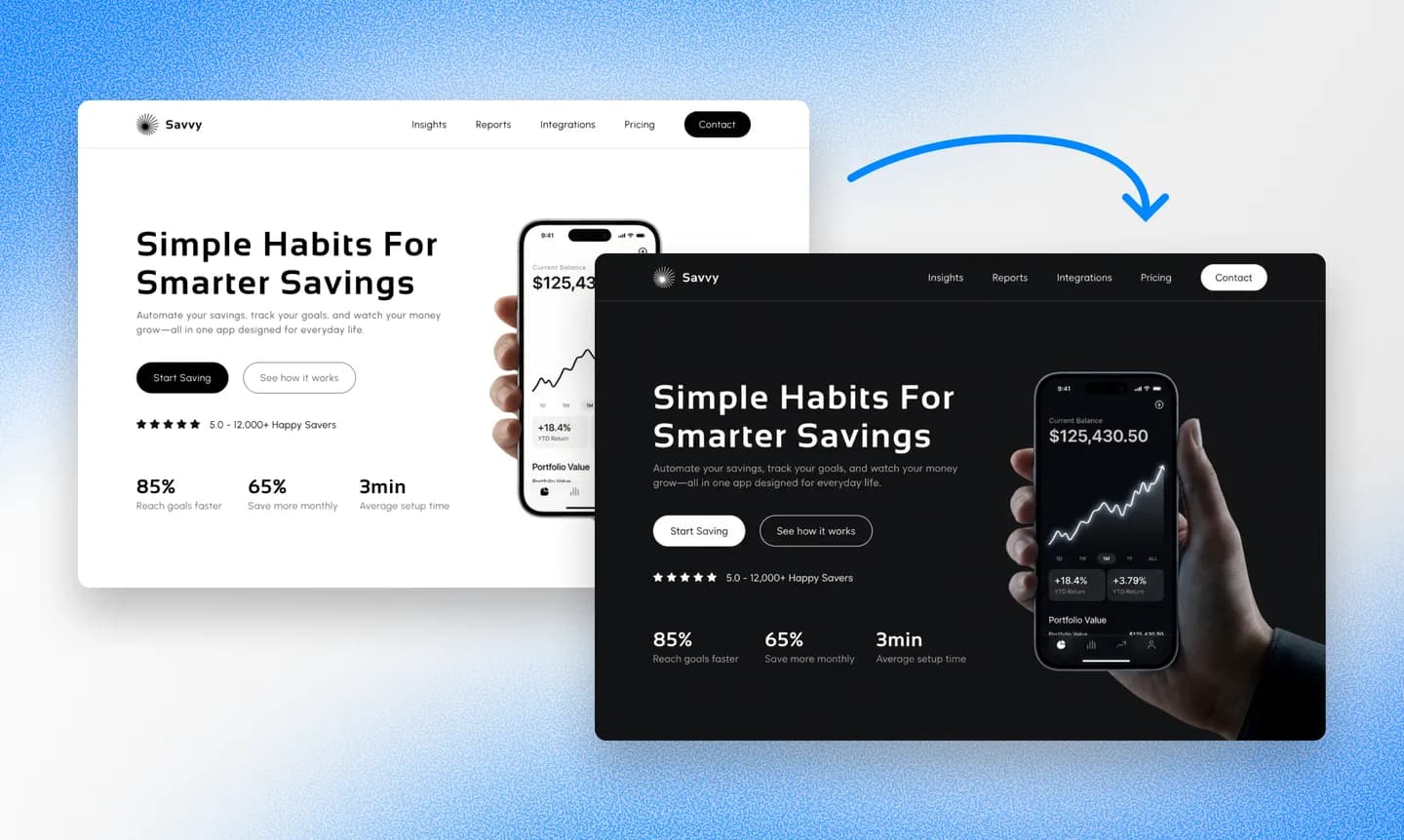
Most adjustments happen through the same conversation that created the site. You describe what should change and Repaint shows you the result. If it misunderstood, you can explain what should be different.
It helps to settle the overall structure and visual style first, because those larger choices affect everything that follows. Smaller details are easier to address once the foundation feels right. A final check on desktop and mobile can catch anything that did not adapt as expected.
Animations deserve their own pass. They are Framer's signature, and because Repaint works from screenshots of the finished page, motion is the one thing it cannot see. Scroll effects, hover states, and transitions that matter to you can be described in the chat, and Repaint will recreate them. Framer forms can be replaced with a new form that saves submissions, and third-party services can usually be reconnected by sharing their embed code or link.
Review SEO
Preserving URLs matters more than preserving anything about how the site was built. Search rankings belong to individual page URLs, so changing a working URL while moving the site can cost the history that page has earned.
A useful final check is to compare the paths on the old and new sites. Repaint can recreate any that do not match. Page titles and descriptions also deserve attention if you had customized them in Framer's page settings. Our SEO guide for changing your website explains the full process.
Step 4: Publish
Until you publish, the new site is a private draft that only you can see. Click Publish in the top right corner and Repaint puts it online at a Repaint URL. It is a real, working website that you can open on your phone or share with other people for feedback.
After that, each time you publish, your latest changes go live at the same Repaint address. These updates only affect the new website. They never change your Framer site. Both sites remain live at different addresses while you work. Visitors keep seeing the Framer site on your main domain until you switch it to the new website.
Step 5: Connect Your Domain

The final step is pointing your domain to Repaint. Framer sells domains inside its editor, so yours may be registered through Framer or through an outside registrar like GoDaddy, Namecheap, or Cloudflare. Either way, the domain can stay registered where it is. You only need to update the records that control where the website loads.
When you're ready to connect the domain, Repaint provides the exact DNS records and instructions for your provider. It can also walk you through the process step by step based on where your domain is registered. You can connect a custom domain during the free trial or on any paid plan, with current details on the pricing page.
The update usually takes effect within about 20 minutes, though it can occasionally take longer. Repaint can confirm when the new website is live on your domain. After the switch is working, you can cancel the Framer plan for that site. If the domain is registered through Framer, keep the domain renewal active. The domain registration is separate from the site plan, so canceling one does not affect the other.
Conclusion
Framer makes beautiful websites, but keeping one current means working a professional design tool every time something changes. Repaint imports your existing content, redesigns the website around it, and lets you make future changes through chat. Your Framer site stays live until you choose to switch the domain.
FAQ
How long does it take to migrate from Framer?
Importing the content and generating the first version usually takes 3-10 minutes. The rest depends on the size of the Framer site and how much you want to change. Most small business websites can be finished the same day.
Can I keep my current Framer design?
Yes. Repaint uses the live Framer site as a visual reference and can recreate the same general look. For Framer sites, the main gap is usually motion. The layout, colors, and typography carry over well, but animations have to be described in chat before Repaint can recreate them. If your design leans heavily on motion, the first version will look like your site but feel more still until you add the animations back.
Do Framer animations and interactions transfer?
Partially. Repaint infers the obvious interactions, like FAQ dropdowns, mobile menus, and hover states on buttons. But it works from screenshots of the finished pages, so it has much less visibility into motion than into layout. Custom scroll effects and transitions usually don't come over on their own. You can recreate any of them by telling Repaint how the original behaved.
Can I migrate a Framer CMS blog or portfolio?
Yes. Repaint imports CMS content the same way it imports pages. Blog posts and portfolio items come over with their text and images, and the new site gets matching article and portfolio layouts. For a large collection, it works best to import a few items first, check the layout, and then bring over the rest in batches. The new URLs should match the old ones to protect their search history.
Will my forms still work?
Repaint can replace a Framer form with a new form that saves submissions and emails you when someone fills it out. A form connected to another service will need that connection set up again. Most third-party form tools offer an embed code that you can share with Repaint in the chat.
Can I migrate a Framer site with e-commerce?
Yes. Repaint can rebuild your storefront and handle checkout, payments, orders, and inventory. You can give it your product information and describe how you want the store to work. You can also keep an existing checkout service by sharing its link or embed code.
I bought my domain through Framer. Can I still switch?
Yes. The domain can stay registered with Framer after the website moves. Its DNS records change so it points to Repaint, while the domain renewal stays active. The site plan and the domain registration are billed separately, so you can cancel one and keep the other.
What happens to my existing Framer site?
Nothing while you build. Repaint creates a separate website and never changes the Framer site. The old site stays live until the domain points somewhere else. If you decide not to switch, it can stay exactly where it is.
How much does it cost to switch from Framer to Repaint?
You can try Repaint free for 14 days, including building, editing, publishing, and connecting a custom domain. Paid plans start at $25 per month and include hosting and a weekly AI usage allowance.
When the trial ends, your workspace pauses until you start a paid plan. Your work stays saved, and you can reactivate it anytime. See our pricing page for details.
What if the AI gets something wrong?
Repaint saves a new version of the website with every change. You can ask it to go back or restore an earlier version from the version history. Nothing you try is permanent.
Do I still need my Framer subscription afterward?
No. The new website runs entirely on Repaint, which manages the hosting for you. Once your domain points to the new site, the Framer plan for the old one can be canceled. If you use Framer for other websites, those keep their own plans.


