
How to Rebuild a WordPress Website With AI
Learn how to rebuild your WordPress site using a new AI tool called Repaint. A step-by-step guide to migrating off WordPress without starting from scratch.

Introduction
A lot of people have WordPress sites that are years old and painful to update. They'd love to move to something easier, but they don't want to lose a decade of content. Starting from scratch has never been worth it.
AI tools changed that. You can point an AI at your live WordPress site and it will pull everything in automatically, then build you a new site around your existing content.
In this guide, I'll show you how to migrate a WordPress website into a new AI tool called Repaint.
Why Rebuild a WordPress Website?
AI website builders are dramatically easier to use than WordPress. Instead of navigating a complex dashboard, configuring plugins, and editing theme files, you just describe what you want and it happens. That makes it realistic to actually keep your site up to date instead of treating it as something you set up once and try not to touch.
The reason most people haven't switched is that leaving WordPress has always meant starting from scratch. Years of pages, blog posts, and images felt impossible to move. AI tools changed that too. You can now migrate your existing content automatically and build a new site around it, so you don't have to choose between your old content and a better tool.
How AI Website Migration Works
Repaint scans your live site the way a visitor would. It visits each page, downloads your images, reads your text, and takes screenshots to understand the layout. Then it rebuilds everything in a new platform that you can edit by chatting with AI. Once you're happy with it, you transfer your domain and you're done.
This works the same way whether you're on WordPress.com or self-hosted WordPress. Repaint doesn't need admin access or database exports. It just needs your site to be live on the internet.
If you try to clone the original exactly, it will only be an 80% replica. The AI usually loses details in translation. But it will migrate your content, recreate your layouts, and get you much closer than starting from a blank page. Then you can fix all the details by asking the AI to make changes.
If your site is years old and feeling stale, this is a natural moment to change the design. Repaint can take your existing content and build a completely new design around it.
Step 1: Import Your Content
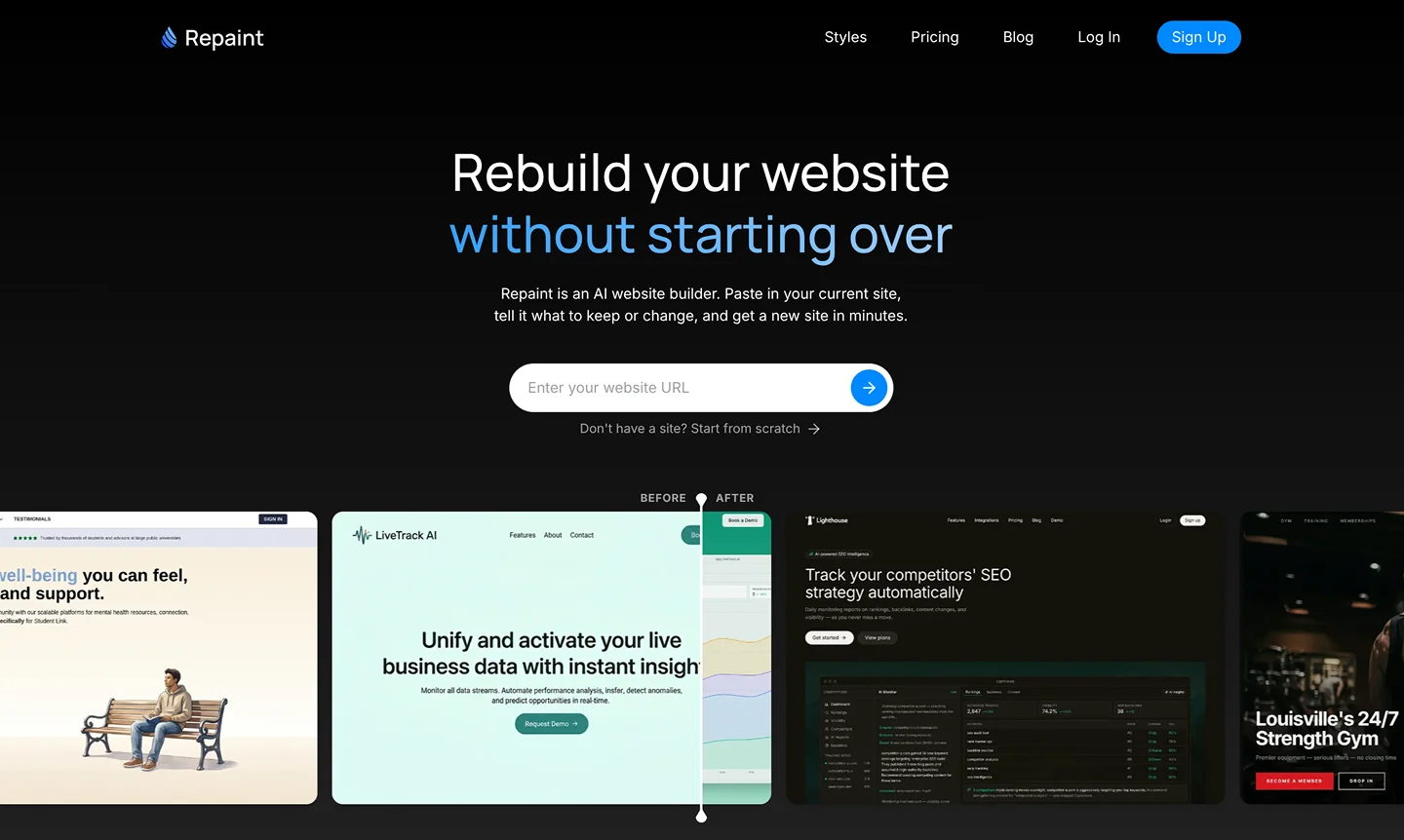
Start by opening your published WordPress website and copying its URL. Then:
- Go to the AI website redesign tool.
- Paste in your WordPress website URL and submit.
- Create a Repaint account.
This starts the rebuild. Repaint will scan your published site, pull in your text and images, and take screenshots of each page.
Your site just needs to be live on the internet. It doesn't matter if you're self-hosted, on WordPress.com, or using managed WordPress hosting like WP Engine or Flywheel. If you can visit it in a browser, Repaint can scan it. A free WordPress.com subdomain like yoursite.wordpress.com works too.
Once Repaint has a good picture of your site, it'll start asking questions to plan the rebuild. You don't need to prepare anything.
Step 2: Plan Your New Website
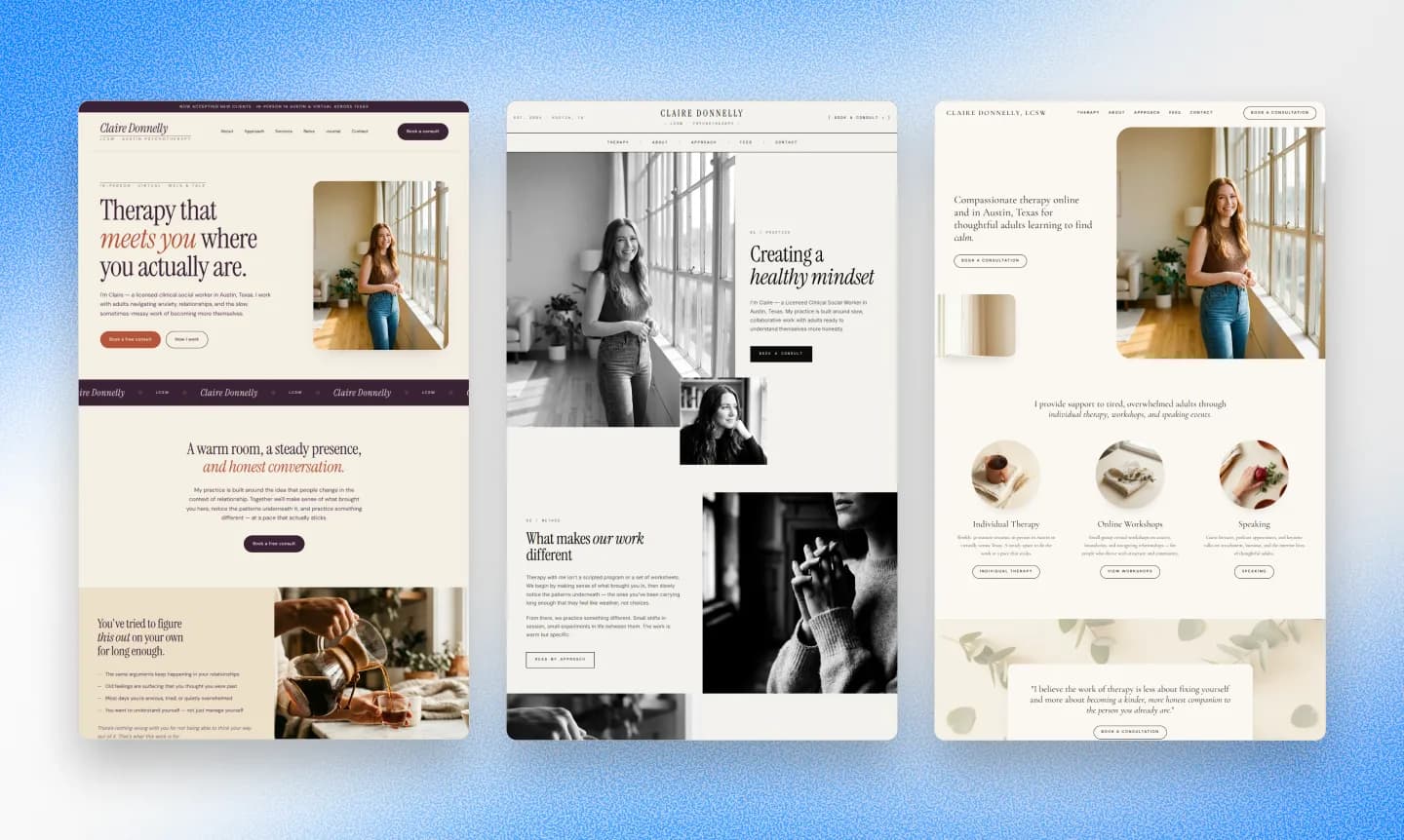
Repaint won't jump straight into building. It asks a few questions first to understand what you want: which pages to keep, whether to reorganize anything, and what style to go for. This takes about 3-5 messages. Then it writes out a plan for you to review before generating anything.
If you're not sure what you want, that's fine. You can let Repaint propose a plan. If you don't like what it makes, you can always ask it to try again. You're not locked into your first attempt.
Plan the Content
The simplest approach is to bring everything over as-is. Same pages, same text, same images. If your current site structure works and you just want a better tool to manage it, this is the way to go.
But if your site has grown messy over time, this is a chance to clean it up. WordPress sites tend to accumulate pages over the years: old blog posts, landing pages from past campaigns, plugin-generated pages you forgot about. You can tell Repaint which pages to keep and which to skip, or ask it to suggest a simpler structure based on what it found.
If your WordPress site has a blog, you can bring those posts over too. Start with just a few posts to make sure the layout looks right, then import the rest. More broadly, if your site has more than 20 pages, importing all of them in one shot will likely hit the free tier usage limit. You'll be prompted to upgrade to continue. For large sites, start with a small sample, then bring over the rest after you've seen the initial site.
Plan the Style
You can do a WordPress rebuild without a redesign. If you liked your theme, ask Repaint to recreate the look, and you keep the same design on a platform that's easier to update. But if you've been wanting to redesign your existing WordPress site and couldn't justify the cost of a new theme, this is your chance. You have a few options:
- Recreate your current look
- Match the style of another website you like
- Describe a custom style
- Let Repaint decide
Repaint can pull in your existing brand colors and fonts regardless of which direction you go.
We have a collection of website examples organized by industry if you don't already have another website in mind. Repaint can use any of them as a reference for the new visual style.
Review the plan
Before generating anything, Repaint writes out exactly what it's going to build: which pages, what content, and what style. Look it over and make any last changes. It's a lot faster to fix the plan than to regenerate the whole site.
Once you confirm, Repaint will build your new website!
Step 3: Generate Your Website
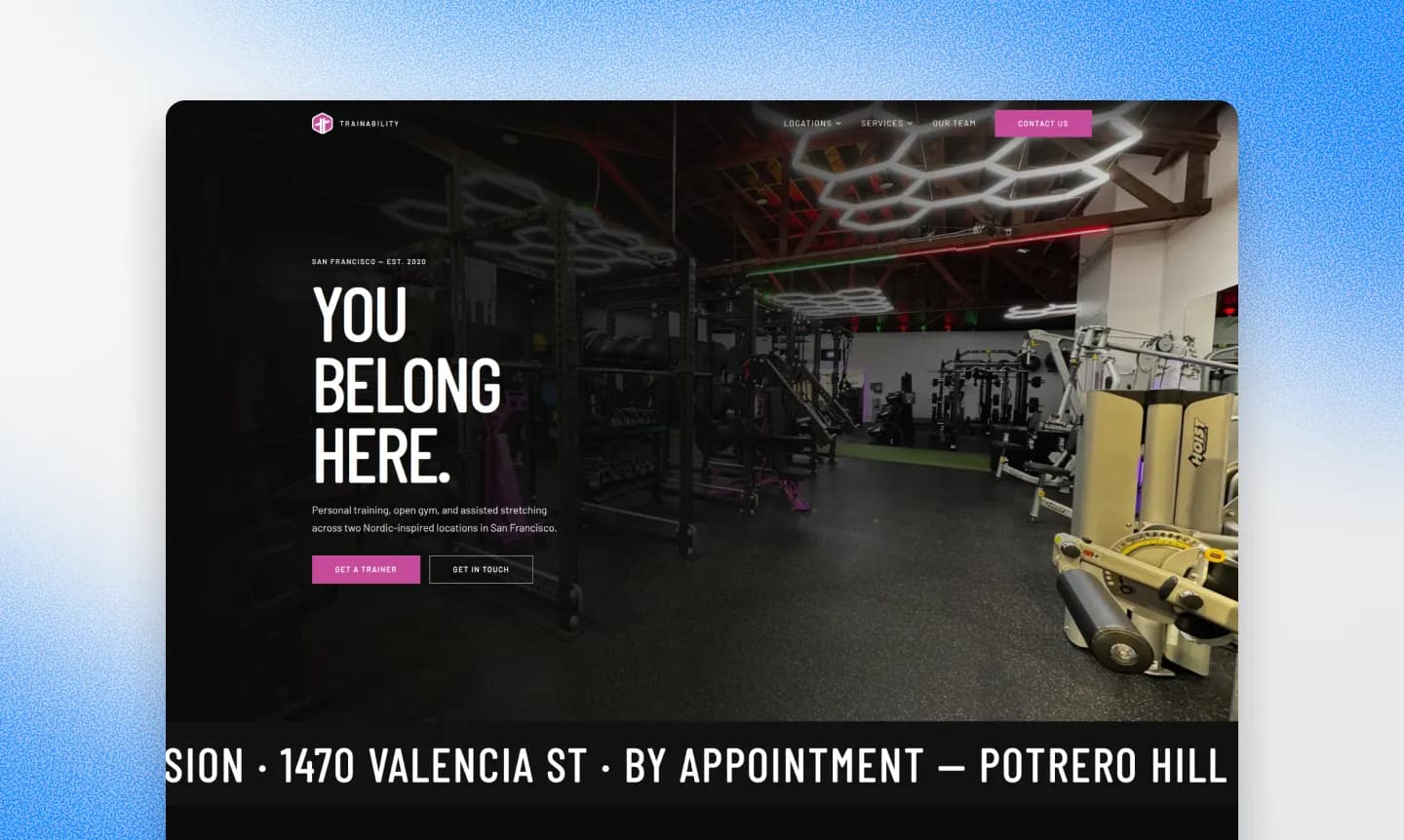
Once you approve the plan, Repaint builds your site. A few pages takes a couple minutes. A larger site with dozens of pages can take ten minutes or more.
When it's done, take a look through the result. The first version usually has some rough spots: text that got cut off, images in the wrong place, or spacing that's a bit off. That's expected. You'll fix these in the next step.
The biggest thing to watch for with WordPress migrations is plugin functionality. If your site relied on plugins for things like contact forms, image galleries, testimonials, or FAQ accordions, Repaint will try to recreate the visible result. But it's building these from scratch rather than running the same plugin, so check that everything works the way you expect.
Step 4: Make Adjustments
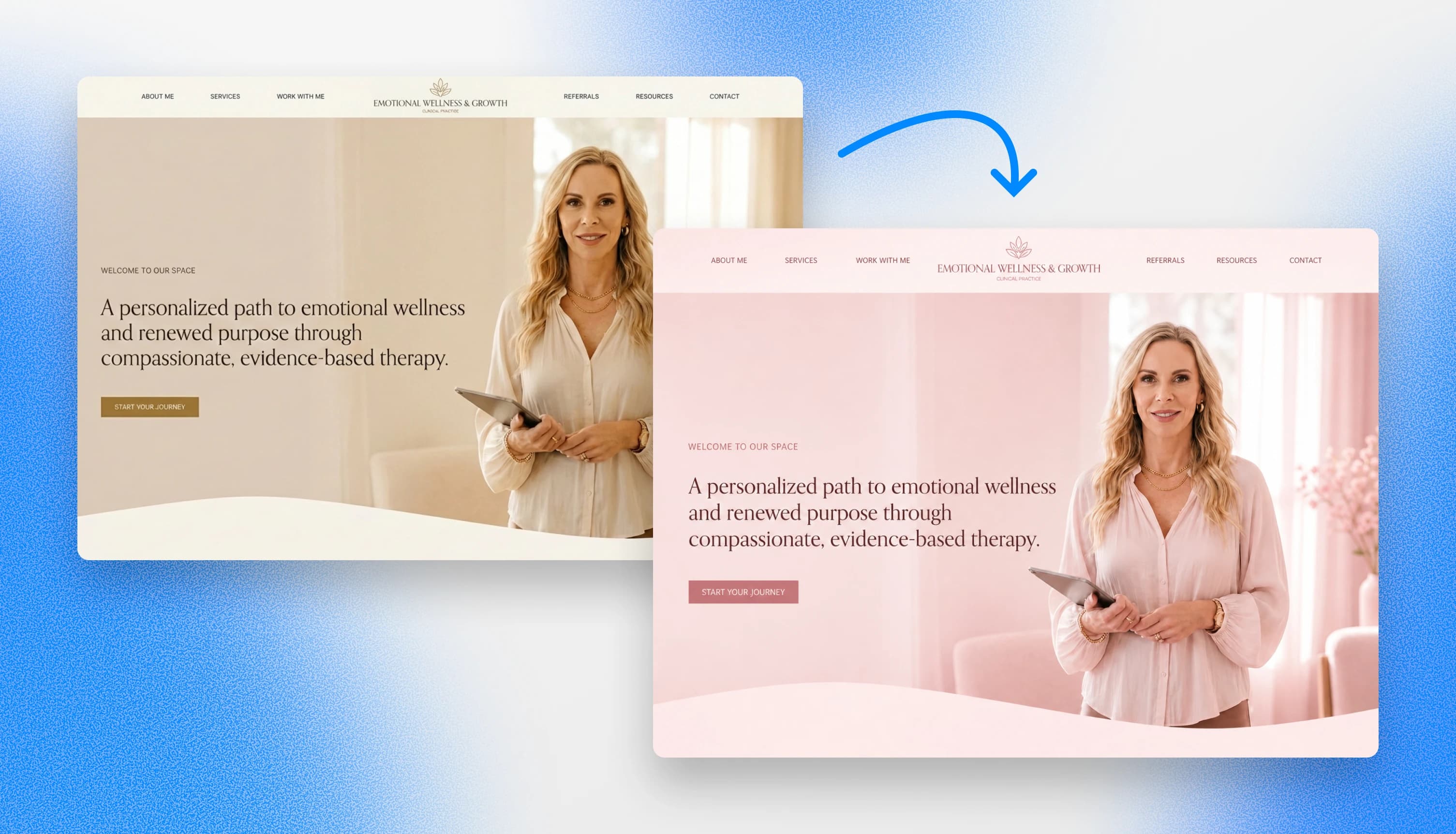
After generating your site, you make changes by chatting with Repaint. No Gutenberg blocks, no plugin settings, no theme files. You just describe what you want. "Add a contact form to the bottom of this page." "Make the blog grid three columns instead of two." "Add a banner at the top announcing our summer sale." Things that used to require finding, installing, and configuring a plugin are now just a sentence.
Start by evaluating the overall visual style, like colors, fonts, and layouts. It's the foundation that everything is built on. If you decide to change it later, it can reshape the whole site and effectively undo any detail-polishing work you did.
Once you're happy with the overall style, you can work through the finer details: making sure text is accurate, images are in the right places, links work, and spacing looks right on every page.
Review SEO
If your WordPress site was getting search traffic, SEO is worth paying attention to during your migration. Google ranks individual pages, not websites. Each page on your site has built up its own ranking over time, and that ranking is tied to its specific URL. If you move to a new platform and those URLs change or disappear, Google treats them as new pages with no history, and you lose the traffic they were earning.
WordPress permalink structures vary a lot. Some sites use /blog/post-name, others use /year/month/post-name, and others just use /post-name. Ask Repaint to compare the URLs on your old site with the new one. If any changed, set up redirects from the old paths to the new ones. Repaint can help with this. If you were using an SEO plugin like Yoast or Rank Math, make sure your meta titles and descriptions made it over too.
When your site looks good and the content is correct, you're ready to publish.
Step 5: Publish
When you're ready, hit the Publish button in the top right corner. Your site goes live on a Repaint URL that you can share with anyone. It will look something like this: https://xxxxxx-xxxxxx-xxxxxx.sites.repaint.com
This makes it a real website on the internet. You can open it on your phone, send it to a friend, or post it on social media.
At this point, you have two websites live: one on Repaint, and one on WordPress. Your domain is still pointing to your WordPress site, so nothing has changed for your visitors yet. When you're ready to make the switch, you can transfer your domain to point to the new one.
Step 6: Transfer Your Domain

When you're ready to go live, you need to point your domain to Repaint. Just tell the AI to connect your domain, and it will give you the DNS records to add. This requires a paid plan. You can see pricing details here.
Your domain is separate from your WordPress site. It's registered with a domain provider, which might be WordPress.com itself, or it might be a separate company like GoDaddy, Namecheap, or Cloudflare. Either way, your domain stays where it is. You don't need to move it. You just update the settings so your domain points to Repaint instead of WordPress.
If you've never touched DNS settings, ask Repaint to walk you through it. It'll tell you exactly what to do based on your provider, step by step.
DNS changes can take a few hours to take effect. Once Repaint shows your domain as verified, you're live. You can cancel your WordPress hosting or subscription whenever you're ready. Your domain registration is separate and stays active.
Conclusion
WordPress is powerful, but for many businesses it's more infrastructure than they need. If you're spending more time on plugin updates and security patches than on actually improving your website, that's a sign. AI tools let you keep your content, drop the maintenance, and update your site by just describing what you want. No hosting, no plugins, no worrying about what might break.
FAQ
How long does a WordPress migration take?
It usually takes 3-15 minutes to plan the site, import your content, and generate the new website. Afterwards, time-to-publish depends on how many adjustments you need to make, and if you have to import more content. Most sites can be migrated within a few hours at most.
Does this work for self-hosted WordPress and WordPress.com?
Yes, both. Repaint scans your live site, so it doesn't matter where it's hosted. Self-hosted, WordPress.com, WP Engine, Flywheel, or any other host all work the same way.
What happens to my plugins?
Plugin functionality doesn't transfer directly. Repaint recreates the visible result, not the underlying plugin. For things like contact forms, galleries, and FAQ sections, the output usually looks the same. For more complex plugins like booking systems or e-commerce, you may need to connect a third-party service.
Can I rebuild my WordPress site without redesigning it?
Yes. If you want the same look on an easier platform, Repaint can recreate your current theme's design nearly exactly. You keep your content and design, and drop the plugins, updates, and hosting maintenance.
What about my blog posts?
Blog posts carry over. If you have a large blog, start with a small sample to get the layout right, then import the rest. Repaint will preserve your text, images, and general structure.
Will my site look the same on mobile?
Repaint automatically builds your site so it adapts to different screen sizes. Most of the time, you don't need to worry about it. But if you notice anything that's off, you can ask Repaint to make changes for specific device sizes.
Will my forms still work after migrating?
Yes. Repaint can create contact forms that send emails to your inbox. If you were using a WordPress plugin like Contact Form 7, Gravity Forms, or WPForms, Repaint will recreate the form. If you use a third-party form tool, you may need to share the embed code.
What happens to my WordPress site during the migration?
While you're migrating, nothing happens to your WordPress site. It's completely separate. All you're doing is building a new site in Repaint. Then once you're happy with the new site, you can transfer your domain to point to the new one. Or if you decide to keep your WordPress site, there's no need to do anything.
Can I migrate a WordPress site with WooCommerce?
Partially. Repaint can build product pages and a storefront, but it doesn't handle checkout or payments. You'd need to connect a service like Shopify or Stripe for that. If you have a small catalog, this can work well. If e-commerce is the core of your business, you might want a dedicated e-commerce platform alongside Repaint. If your store uses embeddable checkout widgets, share the embed code with Repaint and it will integrate it.
Can I migrate just one page to try it out?
Yes. You can import just one page to try it out. This is a good way to see if Repaint is a good fit for your business. Once you're happy with the result, you can ask Repaint to build the rest of your site.
How much does it cost to migrate from WordPress to Repaint?
It's free to generate a site and start editing. The main restrictions of free plans are that you have limited usage, can't add a custom domain, and the site will have a Repaint badge. Paid plans start at $20/month billed annually, or $25/month billed monthly. That includes expanded usage, custom domain support, and it removes the Repaint badge.
What happens when the AI makes a mistake? Can I undo individual changes?
As you make updates, Repaint saves every version of your site. You can ask Repaint to go back, and it will revert to a previous version. Or if you want to go back to a specific point in time, you can restore any previous versions manually.
Will I still need to worry about security updates?
No. Repaint is a managed platform. There are no plugins to update, no server to patch, and no security vulnerabilities to monitor. That's all handled for you.


