
How to Redesign a Google Sites Website With AI
Learn how to redesign your Google Sites website using an AI tool called Repaint. A step-by-step guide to upgrading your website without starting from scratch.

Introduction
Google Sites is the easiest free way to put a website online, which is why so many small businesses, clubs, and side projects start there. The tradeoff is control. You arrange content in a fixed grid and pick from a handful of themes. That's roughly the full extent of your design choices. When you want the site to look a specific way, there's usually no setting for it.
That's a fine deal for a project page. It gets uncomfortable when the site becomes the public face of a business. If your Google Site has reached that point, you don't have to rebuild by hand on a new platform. AI tools can import what you already have and design a real website around it.
In this guide, I'll show you how to redesign a Google Sites website with an AI tool called Repaint.
Why Redesign a Google Sites Website with AI?
The main thing you gain is design control. Repaint isn't built from a grid and a theme. It designs your site around your content and your instructions, so the layout, colors, and structure are up to you. And it isn't limited to a fixed set of parts. If you can describe something, Repaint can usually build it, including features Google Sites has no equivalent for.
The second upgrade is ease of use. You tell Repaint what to change, in ordinary words, and it makes the change and shows you the updated site. You don't have to learn where settings live or guess at whether something is possible.
None of this requires redoing your website by hand. Repaint pulls the content from your existing site automatically and builds the new one around it.
How AI Website Migration Works
Repaint visits your live site like any visitor. It reads the text, downloads the images, and takes screenshots of each page to understand what it's working with. Then it builds a new site from that material. Afterward, you refine the site by chatting with AI. Your Google account is never involved, and your Google Site is never edited.
Starting doesn't commit you to anything. The old site stays published and unchanged while you build the new one, and visitors won't see anything different until you deliberately switch over. Walking away at any point leaves everything as it was.
Step 1: Import Your Content
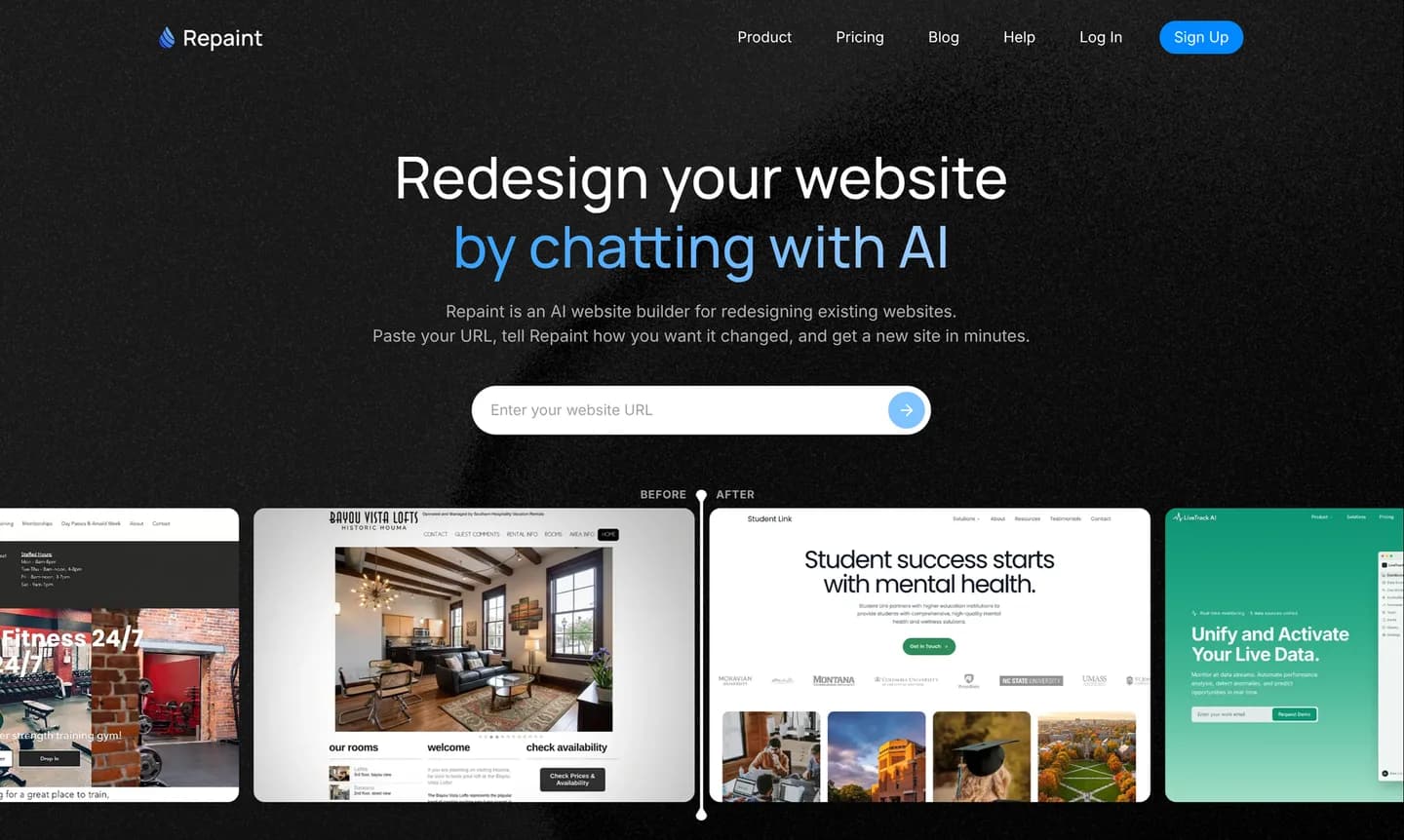
Start by copying the URL of your live Google Site. Then:
- Go to the AI website redesign tool.
- Paste in your Google Sites URL and submit.
- Create a Repaint account.
Both address types work, whether your site lives at a sites.google.com address or on a custom domain. One requirement is that the site must be published so that anyone on the web can view it. If yours is restricted to your organization or to specific people, open the publish settings in Google Sites and make it public before importing.
Repaint then works through the site, reading text, saving images, and screenshotting each page. Google Sites tend to be light on content, so consider giving Repaint more to work with. You can paste text into the chat, upload photos and files, or share another source like your Google Business profile. Repaint uses everything you provide as material for the new site.
Step 2: Generate Your Website
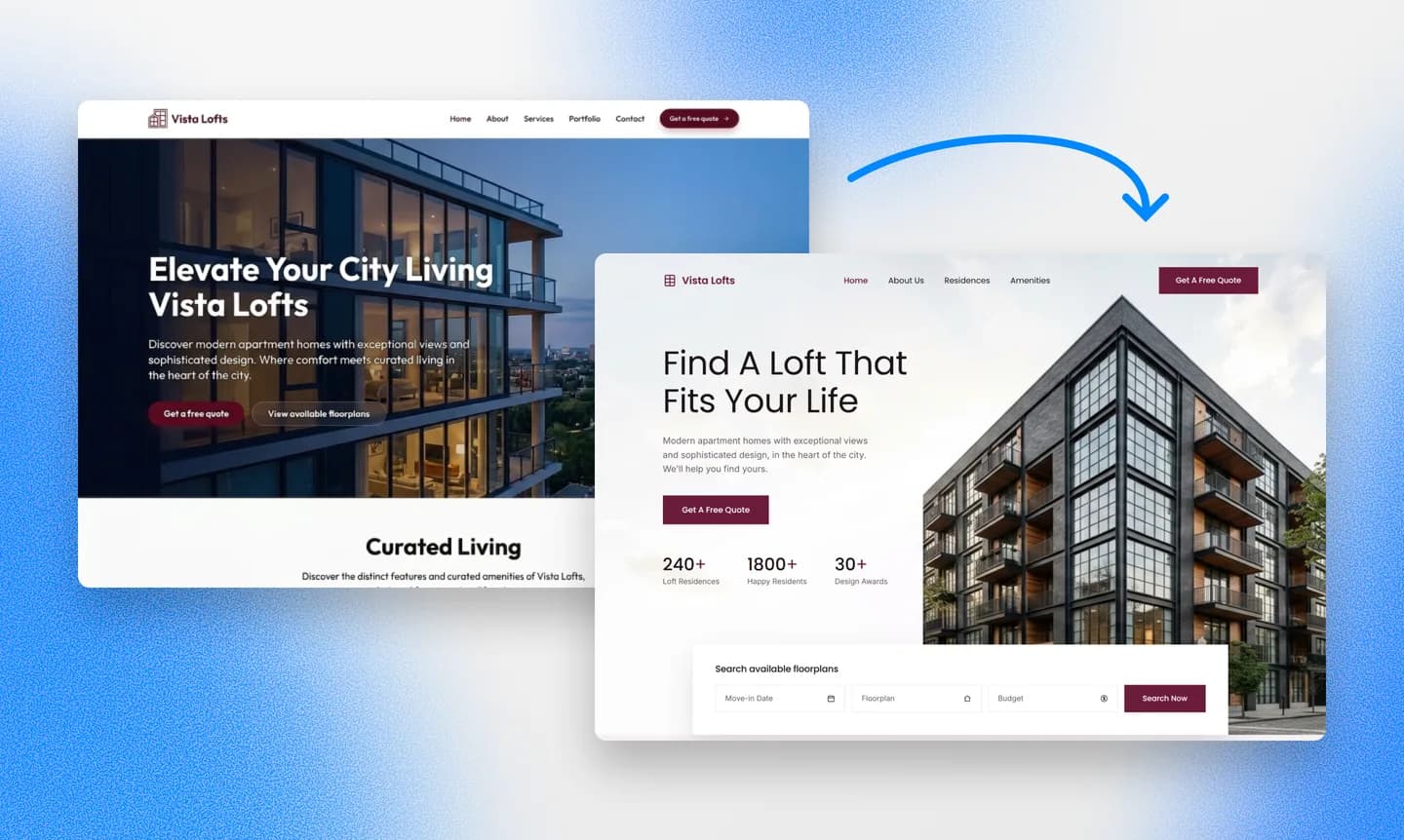
After the scan, Repaint asks a few questions before building anything. This is your chance to decide what the new site includes. You can add what Google Sites never made easy, like a proper services page, a gallery, or a blog. If you're not sure what you want, Repaint can propose a structure and you adjust it from there.
Pick a Style
Most of the time, Repaint will generate a few style samples before building, so you can compare real options instead of imagining them. You can also steer the style directly. You have a few options:
- Choose one of the generated style samples
- Match another website you like
- Describe the style you want in your own words
- Keep your current look as the starting point
Whichever you choose, Repaint can pull your colors and logo from the old site. If your logo or colors never made it onto the old site, you can share them in the chat and Repaint will design around them instead.
We have a collection of website examples organized by industry if you want to explore more design directions. Any of them can be used as a visual reference for the new site.
Review the Result
Once you've settled the direction, Repaint generates the site. A typical Google Site takes a couple of minutes. A larger site with many pages can take five minutes or more.
When it finishes, Repaint opens a preview of your new site. The first version might have some rough spots, like a heading that reads strangely or a photo in the wrong spot. That's normal, and everything is adjustable in the chat. One thing to check closely is anything your old site embedded from Google tools, like a Form, a Calendar, or a Map. Those don't carry over automatically, but they're easy to add back by sharing their embed codes.
Step 3: Make Adjustments

You make changes by telling Repaint what you want, using the same chat that built the site. Describe the change in plain language, and Repaint applies it and shows you the updated page. If the result isn't what you meant, say so and it will adjust. This works at every scale, from renaming a heading to restructuring a page, and Repaint handles the layout, spacing, and mobile sizing for you.
You can make these edits in any order, but polishing the style first usually saves work. Style changes reshape every page at once, so making them late can undo detail work you've already finished. Repaint also uses your existing pages as the pattern for anything new it builds, so the nicer the site already is, the nicer new additions come out.
Once the style feels right, the rest is a page-by-page pass. Check that the text is accurate, the images sit where they should, the links work, and everything reads well on a phone.
Review SEO
If your site lives at a sites.google.com address, you have nothing to lose in the move. Those addresses give you almost no control over how pages appear in search, and your new site comes with its own real domain options, individual pages, and editable titles and descriptions for each one.
If your Google Site already uses a custom domain and gets search traffic, keep the page paths the same on the new site. Ask Repaint to compare the new URLs against the old ones and recreate any that differ. If you want the deeper version, we wrote a full website redesign SEO guide.
Step 4: Publish
Up to this point, your new site is a draft that only you can see. Publishing is what puts it on the internet. Hit Publish in the top right corner, and your site goes live at a Repaint URL. It's a real, working website, so you can open it on your phone or send it to anyone for feedback.
Publishing doesn't replace your Google Site. The two run side by side, and visitors keep seeing the old site at its own address. There's no rush at this stage. You can keep editing and publish updates until the new site is ready to take over. When it is, the last step makes the swap.
Step 5: Connect Your Domain

If your site is at a sites.google.com address, there's nothing to switch. Your new site already has its own address, and you can share that, or buy a domain and connect it whenever you're ready. Custom domains are included in the free trial and every paid plan, and the details are on the pricing page.
If your Google Site uses a custom domain, the last step is pointing it at the new site. A domain works like an address book entry. Right now it tells browsers to load your website from Google Sites, and you're going to update it to load from Repaint instead. The domain itself stays registered with your current registrar.
To make the switch, tell Repaint in chat that you want to connect your domain. It will give you the exact DNS records to add and instructions for your registrar. If you get stuck, describe what you're seeing and Repaint will walk you through it.
The update usually takes effect within about 20 minutes, though it can occasionally take longer. You can ask Repaint to check on it, and it will confirm once the new site is live on your domain. Everything else in your Google account is unaffected, from Gmail to Drive to the old site itself.
Conclusion
Google Sites is a good way to get a website online free. It's a harder place to stay once the site's appearance starts to matter, because the grid and the themes only allow so much. Repaint takes the content you already wrote, designs an actual website around it, and lets you make changes by describing them.
There's no cost to trying it. Your Google Site keeps running throughout, and nothing switches until you say so. If the new site isn't clearly better, you can keep the one you have.
FAQ
How long does a Google Sites migration take?
Importing and generating usually takes 3-10 minutes, and Google Sites are typically small, so reviewing the result is quick too. Finishing the same afternoon is normal. If you connect a custom domain at the end, the DNS update usually adds about 20 minutes of waiting.
My site is restricted to my organization. Can Repaint still import it?
Repaint can only scan sites that are publicly viewable. Open your site's publish settings and set it so anyone on the web can see it, at least while the import runs. If making it public isn't an option, you can instead paste the content into the chat and upload the images directly.
Will my Google Forms, Calendars, and Maps still work?
Yes. Each of those tools provides an embed code from its share menu. Share that code with Repaint and it places the embed on the new site. For contact forms, you can also switch to Repaint's forms, which save submissions and email you when someone fills one out, without needing Google Forms.
Is Repaint free like Google Sites?
You can try Repaint free for 14 days, including building, editing, publishing, and connecting a custom domain. Paid plans start at $25 per month and include hosting and a weekly AI usage allowance.
When the trial ends, your workspace pauses until you start a paid plan. Your work stays saved, and you can reactivate it anytime. See our pricing page for details.
What about internal sites, like a team wiki or intranet?
Those should stay on Google Sites. Sharing a site only with people in your Google Workspace organization is exactly what Google Sites does well. This guide is for sites meant to be seen by the public.
I don't own a domain. Do I need one?
No. Your published site works at its Repaint address. A custom domain makes sense when you want an address that's easier to share and remember, and you can add one at any point without redoing anything.
Do I need to move my domain away from my current registrar?
No. Wherever the domain is registered, it stays there, and your ownership of the name doesn't change. You only update its DNS records to point at the new site, and Repaint supplies the records along with steps for your registrar.
What happens to my Google Site during the migration?
Nothing. Repaint reads the published site and never touches your Google account. The old site stays up until you point your domain at the new one, and if you never do, nothing changes.
What if the AI gets something wrong?
Repaint saves a version of your site with every change. Tell it to go back, or open the version history and restore any earlier point yourself. Experiments are always reversible.


