
How to Redesign a Hostinger Website With AI
Learn how to redesign your Hostinger site using an AI tool called Repaint. A step-by-step guide to migrating off Hostinger without starting from scratch.

Introduction
Most people pick Hostinger for the price. As a budget host, it's genuinely hard to beat. But the website builder that comes with it is limited. You pick a template, drag blocks around, and make every change by hand. The result tends to look like a template with your logo on it.
AI website builders work differently. You describe what you want in plain language, and the AI designs and builds it. And since AI tools can migrate your existing content automatically, switching doesn't mean starting over.
In this guide, I'll show you how to redesign a Hostinger website with an AI tool called Repaint.
Why Redesign a Hostinger Website with AI?
The biggest difference is the editing experience. In Hostinger's builder, every update means opening the editor and dragging blocks around by hand. In Repaint, you type what you want changed and the AI does the work. Updates that used to take an afternoon are done in a couple minutes.
The second difference is what you can build. A template editor limits you to what the template supports. An AI builder designs around your actual business, so you can get a site that's custom down to the layout instead of a preset with your text swapped in.
None of this requires redoing your website by hand. Repaint pulls the content from your existing site automatically, and it works no matter how the site was built. You could be using Hostinger's website builder, or running WordPress on a Hostinger hosting plan. If your site is live, Repaint can work with it.
How AI Website Migration Works
Repaint visits your live site the same way a visitor would. It reads your text, downloads your images, and takes screenshots of every page to understand the design. Then it rebuilds the site in Repaint, where you make edits by chatting with AI. You don't need to export anything or give Repaint access to your Hostinger account. All it needs is your URL.
Your Hostinger site stays live and untouched the whole time. Nothing switches over until you point your domain at the new site. If you don't like what Repaint builds, you don't have to do anything. Your current site keeps running, and your domain and email stay right where they are.
Step 1: Import Your Content
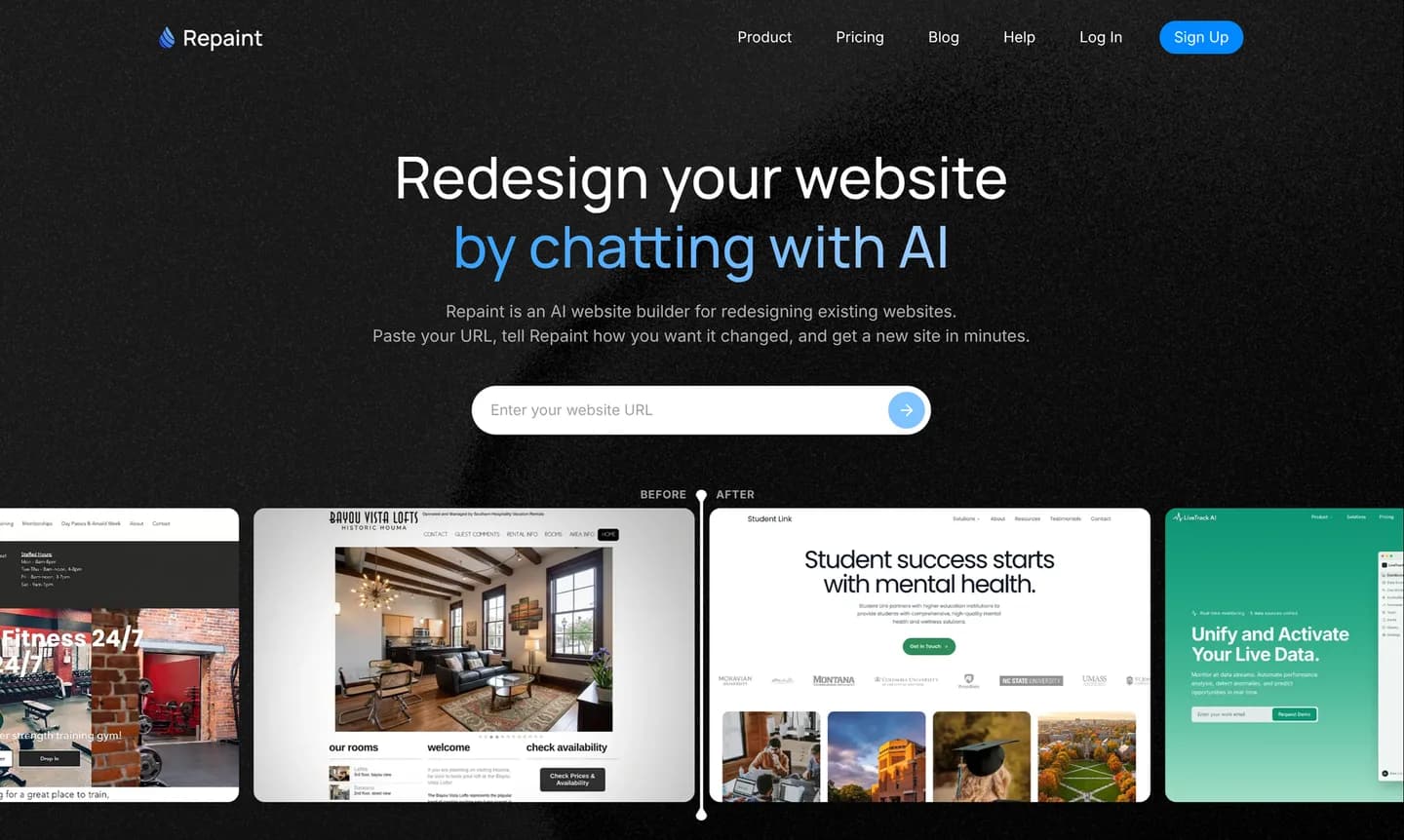
Start by copying the URL of your live Hostinger site. Then:
- Go to the AI website redesign tool.
- Paste in your Hostinger website URL and submit.
- Create a Repaint account.
Use whatever URL your visitors use, whether that's your custom domain or the address Hostinger gave you when you published.
Once you submit, Repaint starts scanning your site. It works through your pages one by one, reading the text, downloading the images, and taking screenshots to capture the design. The goal is a complete picture of your current site, both the content and how it's presented. That becomes the source material for the rebuild.
If the scan misses anything, you can paste the missing text into the chat later or upload files directly. Repaint can also pull information from sources beyond your website, like a Google Business profile or a PDF price list. The more it has to work with before building, the less you'll need to fix afterward.
Step 2: Generate Your Website
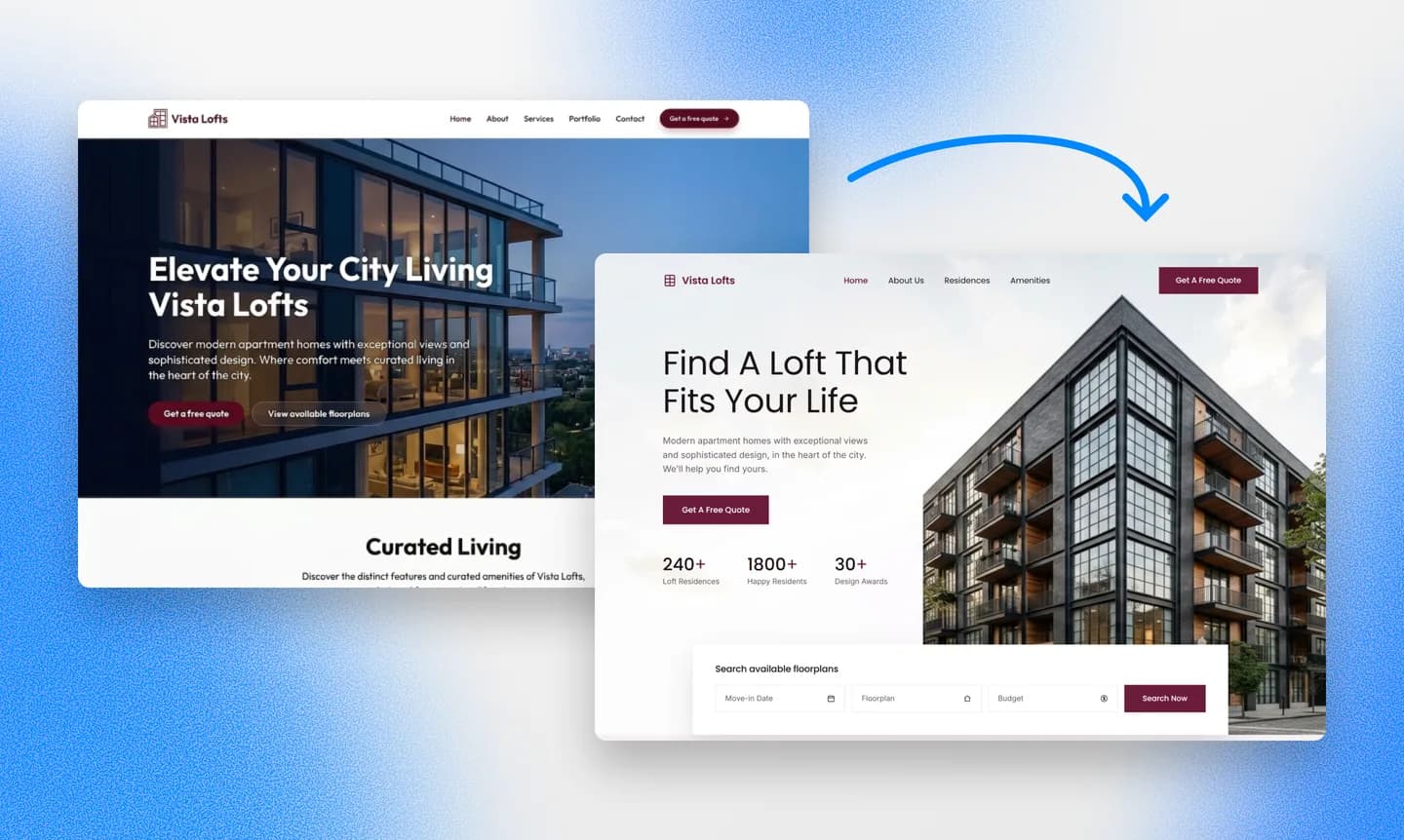
After the scan, Repaint asks a few questions before it starts building. This is where you decide how close the new site should stay to the old one. You can keep the same pages and content and just upgrade the design. Or you can go further and remove pages you no longer need, add pages your old site was missing, or have Repaint rewrite text that's out of date. If you're not sure what you want, Repaint can propose a direction and you react to it.
Pick a Style
Your new site doesn't have to look anything like a Hostinger template. Most of the time, Repaint will generate a few style samples before building, so you can compare real options instead of imagining them. You can also steer the style directly. You have a few options:
- Choose one of the generated style samples
- Keep the look of your current site
- Match another website you like
- Describe the style you want in your own words
Whichever way you go, Repaint can pull your brand colors and logo from the old site.
We have a collection of website examples organized by industry if you want to explore more design directions. Any of them can be used as a visual reference for the new site.
Review the Result
Once you've settled the direction, Repaint generates the site. A typical Hostinger site takes a few minutes. A larger site with dozens of pages can take five minutes or more.
When it finishes, Repaint opens a preview of your new site. The first version might have some rough spots, like a cut-off headline or an image in an odd spot. If your Hostinger site had features like appointment booking or a store checkout, Repaint can rebuild those too. You can ask for them along with any other fixes in the next step.
Step 3: Make Adjustments

You make changes by telling Repaint what you want, using the same chat that built the site. Describe the change in plain language, and Repaint applies it and shows you the updated page. If the result isn't what you meant, say so and it will adjust. This works at every scale, from rewording a sentence to adding an entire page, and Repaint handles the layout, spacing, and mobile sizing for you.
You can make these edits in any order, but polishing the style first usually saves work. Style changes reshape every page at once, so making them late can undo detail work you've already finished. Repaint also uses your existing pages as the pattern for anything new it builds, so the nicer the site already is, the nicer new additions come out.
Once the style feels right, the rest is a page-by-page pass. Check that the text is accurate, the images sit where they should, the links work, and everything reads well on a phone.
Review SEO
If your Hostinger site earns search traffic, it's worth protecting during the switch. Google ranks individual pages by their URLs, so a page that moves to a new URL starts over with no history. The way to avoid that is to keep the same paths on the new site. Ask Repaint to compare the new site's URLs against the old ones and recreate any paths that don't match. Most Hostinger sites are small enough that this takes a few minutes. If you want the deeper version, we wrote a full website redesign SEO guide.
When the site looks right and the content checks out, you're ready to publish.
Step 4: Publish

Up to this point, your new site is a draft that only you can see. Publishing is what puts it on the internet. Hit Publish in the top right corner, and your site goes live at a Repaint URL. It's a real, working website, so you can open it on your phone or send it to a friend for feedback.
Publishing doesn't replace your Hostinger site. The two run side by side, and your domain still points at Hostinger, so your visitors keep seeing the old site. There's no rush at this stage. You can keep editing and publish updates until the new site is ready to take over. When it is, the last step makes the swap.
Step 5: Connect Your Domain

The last step is pointing your domain at the new site. A domain works like an address book entry. Right now it tells browsers to load your website from Hostinger, and you're going to update it to load from Repaint instead. The domain itself stays registered at Hostinger, and nothing about owning it is different.
To make the switch, tell Repaint in chat that you want to connect your domain. It will give you a short list of settings, called DNS records, along with instructions for where to enter them in your Hostinger account. If you get stuck, describe what you're seeing and Repaint will walk you through it. You can connect a custom domain during the free trial or on any paid plan, and the details are on the pricing page.
The update usually takes effect within about 20 minutes, though it can occasionally take longer. You can ask Repaint to check on it, and it will confirm once the new site is live on your domain. Your email keeps working as before, since it runs on separate settings that you're not touching. After the switch is confirmed, you can cancel the website builder part of your Hostinger subscription and keep anything you still use, like your domain registration and email.
Conclusion
Hostinger is a cheap way to get a website online, and there's nothing wrong with starting there. But when the template starts limiting you, you don't have to rebuild everything by hand to move past it. Repaint imports your content straight from the live site, designs a new website around it, and handles every update afterward through the same chat.
There's also no commitment in trying it. Your Hostinger site stays live while you build, your domain and email stay where they are, and your visitors see nothing until you point the domain at the new site. If you don't like the result, you can leave everything exactly as it is.
FAQ
How long does a Hostinger migration take?
Importing your content and generating the new site usually takes 3-10 minutes. After that, it depends on how much you want to adjust. Most Hostinger sites are small, so most people finish the same day.
My Hostinger site runs WordPress. Does this still work?
Yes. Repaint scans your live site, so it doesn't matter what software is behind it. A WordPress site on Hostinger hosting imports the same way as a site made with Hostinger's website builder. We also have a dedicated WordPress migration guide if you want the WordPress-specific details.
Do I need to move my domain away from Hostinger?
No. Your domain stays registered at Hostinger. You just add DNS records so it points at your new site. Repaint gives you the records and walks you through adding them.
My email runs through Hostinger. Will it keep working?
Yes. Email is controlled by separate DNS records that don't change when you connect your domain to Repaint. Keep the Hostinger email service you're paying for, and nothing about your email changes.
What about Hostinger Horizons?
Horizons is Hostinger's newer AI builder, a prompt-based tool closer to app builders like Bolt or Lovable. In our testing, the designs are weaker and generation is slower. Its main draw is the same cheap hosting as the rest of Hostinger, so unless that's what matters most to you, you're likely better off with Repaint. Either way, this guide works the same for a Horizons site. Publish it, then paste the published URL into Repaint like any other import.
Will my contact forms still work?
Yes. Repaint builds contact forms that save submissions and email you when someone fills one out. If your old form came from Hostinger's builder, Repaint recreates it. If you used an outside tool like Typeform, Repaint can add it to the new site using its embed code.
Can I migrate a Hostinger online store?
Yes. Repaint can rebuild your storefront and handle checkout, payments, orders, and inventory. You can give it your product information and describe how you want the store to work. You can also keep an existing checkout service by sharing its link or embed code.
What happens to my Hostinger site during the migration?
Nothing. Repaint never touches it. You're building a separate site, and your Hostinger site stays live until you point your domain at the new one. If you change your mind, you can simply keep using your Hostinger site.
How much does it cost to switch from Hostinger to Repaint?
You can try Repaint free for 14 days, including building, editing, publishing, and connecting a custom domain. Paid plans start at $25 per month and include hosting and a weekly AI usage allowance.
When the trial ends, your workspace pauses until you start a paid plan. Your work stays saved, and you can reactivate it anytime. See our pricing page for details. Hostinger will usually be cheaper. What you're paying for is a better website and the ability to update it yourself by chatting.
What if the AI gets something wrong?
Repaint saves a version of your site with every change. Ask it to go back and it reverts, or open the version history and restore any point yourself. Nothing is permanent, so experimenting is safe.


