
How to Redesign a Divi Website With AI
Learn how to redesign an existing Divi website with AI without rebuilding all of its content from scratch.

Introduction
Divi is a popular tool for making a WordPress website without writing code. But if you want to redesign an existing Divi site, it's extremely manual. You have to open the Visual Builder and make every change yourself through its module settings.
AI tools are good enough now that you can build a website without manually managing WordPress. You can change anything on the website by asking AI in a chat window. And if you already have a Divi site, you can migrate your content automatically instead of starting from scratch.
In this guide, I'll show you how to redesign a Divi website with a new AI tool called Repaint.
Why Redesign a Divi Website with AI?
The biggest difference is the editing experience. In Divi, you select a section, row, or module and make changes through its settings panel. In Repaint, you type what you want changed and the AI applies it. It can update one part of a page or make the same change throughout the site.
The second difference is maintenance. Repaint manages the platform for you. You no longer have to maintain a hosting account or keep WordPress plugins up to date.
Divi can export layouts, but those files are designed to move between Divi websites. Leaving Divi for a different platform still meant rebuilding the site manually. Repaint works from the live website instead, so it can migrate the content without requiring a Divi export.
How AI Website Migration Works
Repaint visits your live Divi site the way a customer would. It reads your text, downloads your images, and takes screenshots of every page to learn the layout. From that material, it rebuilds your site. Afterward, you make changes by chatting with AI. It doesn't need a Divi export or access to your WordPress dashboard, and nothing in Divi is modified.
You also don't commit to anything by starting. Your Divi site stays live while you build, and your visitors keep seeing it until you point your domain at the new site. If you stop halfway through, nothing has changed.
Step 1: Import Your Content
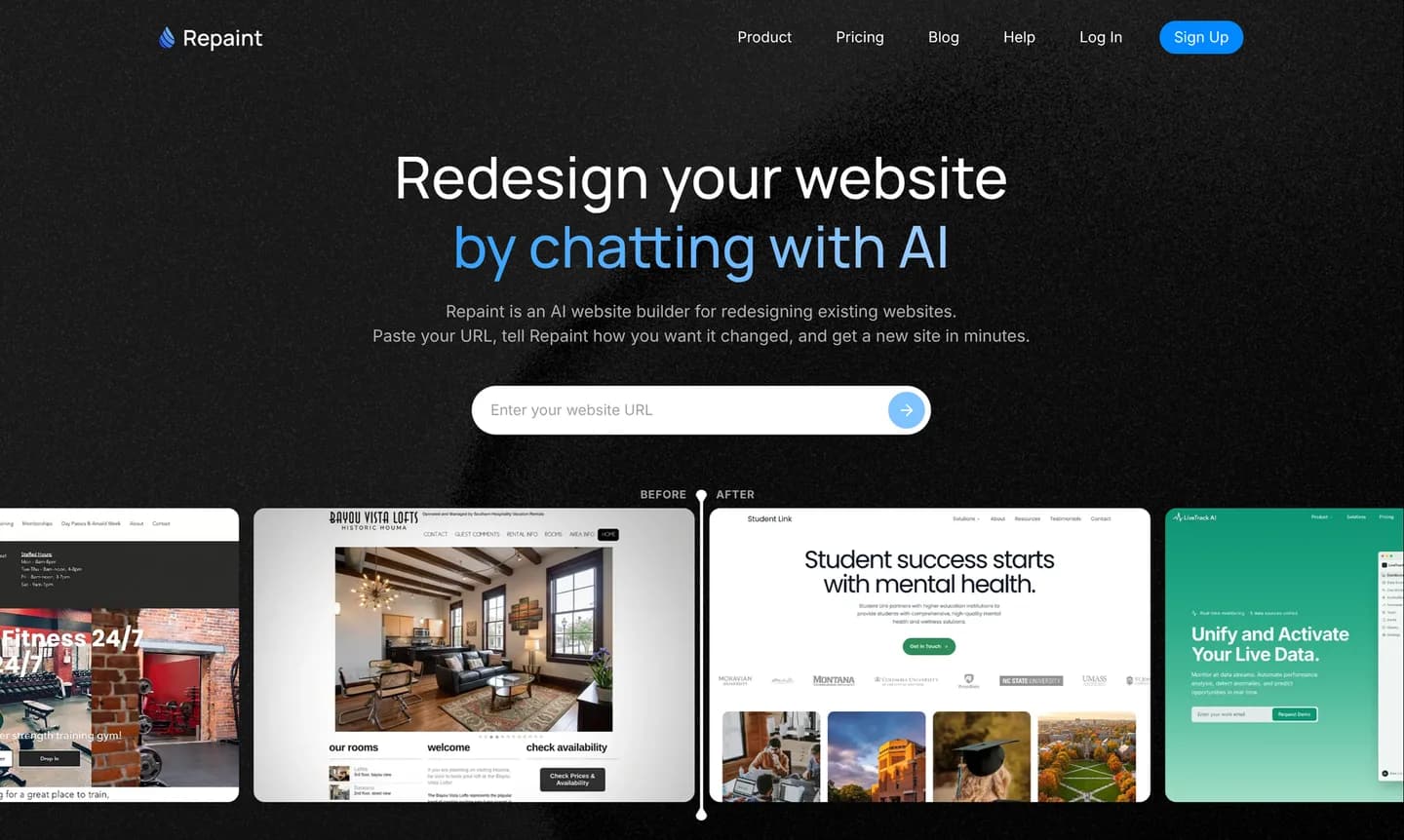
To begin, you'll need the URL of your live Divi website:
- Go to the AI tool for redesigning websites.
- Paste in your Divi website URL and submit.
- Create a Repaint account.
Any publicly available Divi site works, whether it uses the Divi Theme or the Divi Builder plugin with another WordPress theme. The hosting provider does not matter. If the scan misses anything, you can add it through the chat or upload it as a file.
For a large site, importing the main pages and a few representative blog posts first usually works best. Repaint accounts for the size of your existing website when it makes the plan, so it may not rebuild everything in the first pass. The remaining posts can come over in batches once the layouts look right. This also keeps one large import from using the trial's AI allowance before you have reviewed the design.
Step 2: Generate Your Website
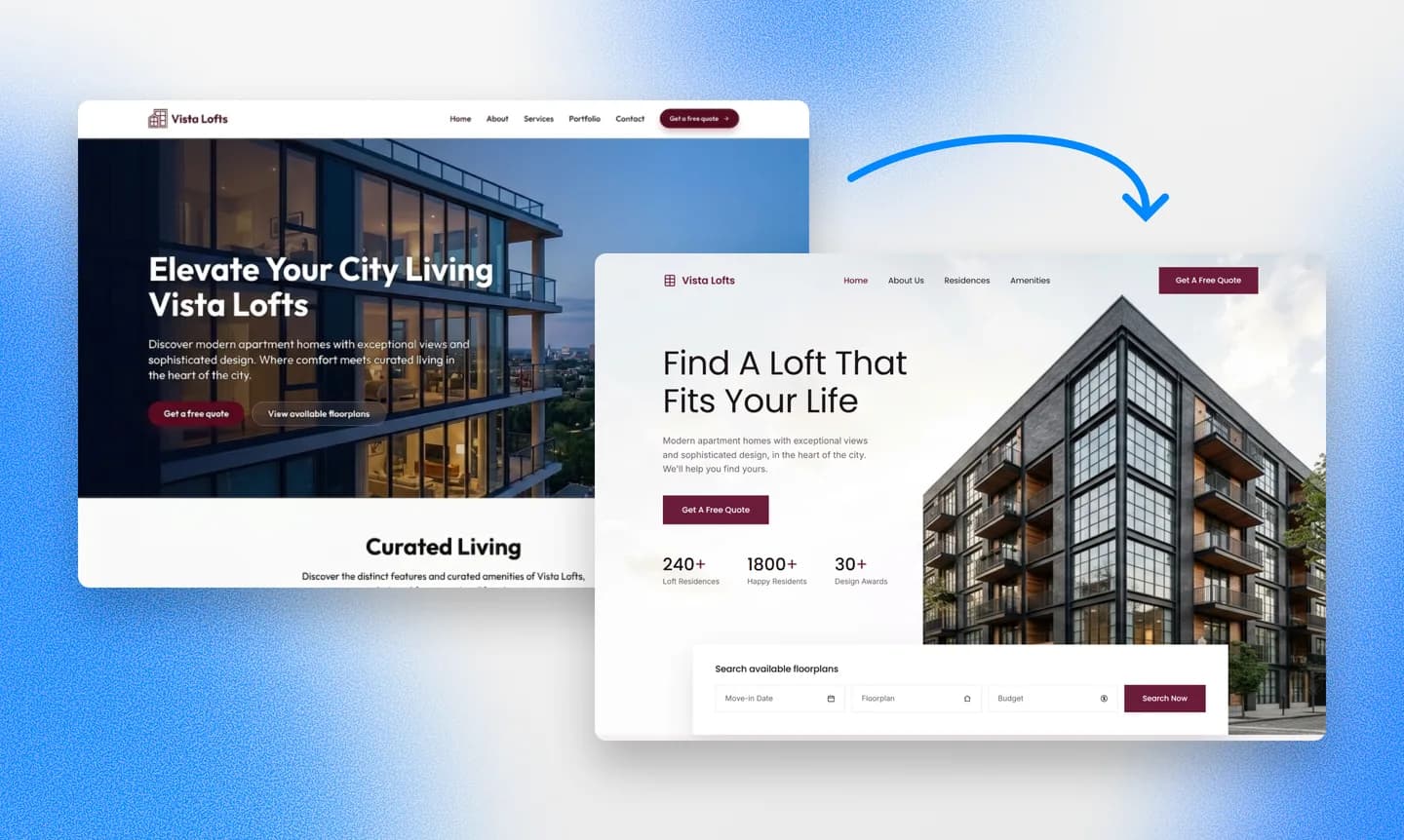
Repaint starts a conversation about your website and what you want to change. Then it uses your instructions and content to build the first version of your new website. You do not have to settle every decision upfront. Once Repaint builds the first version, you can keep shaping it through the chat.
Pick a Style
Repaint can take design direction from many different sources, including:
- Your current Divi design
- Another website you like
- Style samples generated by Repaint
- Your content from Facebook, Instagram, or Google Business
- Files such as a PDF or PowerPoint
- A description of the style you want
Repaint can combine these sources while keeping your brand colors and logo, so the site still feels like your business.
We have a collection of website examples organized by industry if you don't already have another website in mind.
Review the Result
The first version of a small business site usually takes a few minutes to generate. A site with many pages or posts takes longer.
When the first version is ready, you can see how your existing Divi content fits into the new layout. It is normal for some details to need adjustment, and you can make them through the chat.
Step 3: Make Adjustments
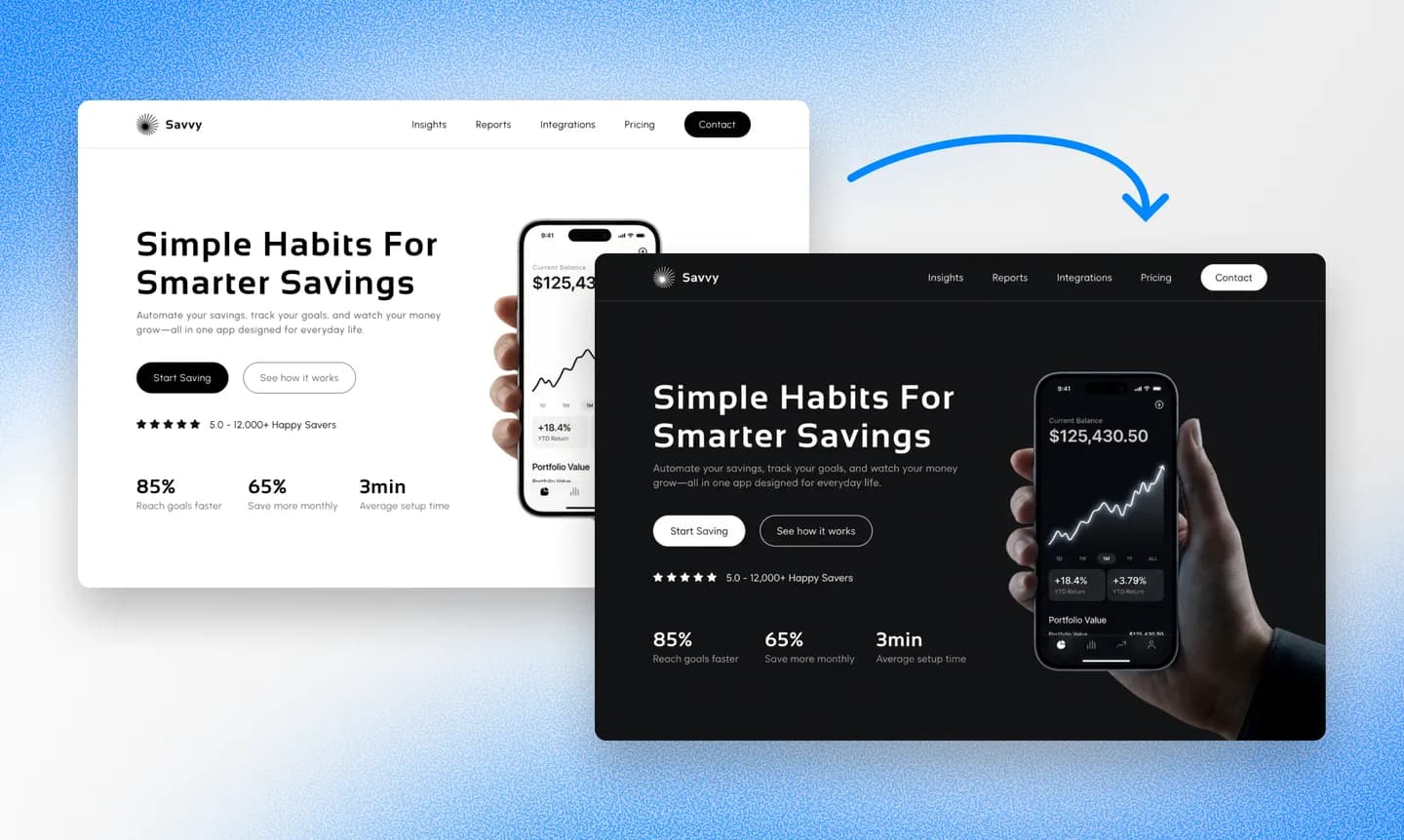
Most adjustments happen through the same conversation that created the site. You describe what should change and Repaint shows you the result. If it misunderstood, you can explain what should be different.
It helps to settle the overall structure and visual style first, because those larger choices affect everything that follows. Smaller details are easier to address once the foundation feels right. A final check on desktop and mobile can catch anything that did not adapt as expected.
Repaint rebuilds the public website instead of copying the Divi modules or WordPress plugins behind it. A Divi contact form can be replaced with a new form that saves submissions. Features from outside services can usually be reconnected by sharing their embed code or link in the chat.
Review SEO
Repaint does not need to preserve the way each page was assembled in Divi, but it should preserve the public URLs. Search rankings belong to individual page URLs, so changing a working URL while moving the site can cost the history that page has earned.
A useful final check is to compare the paths on the old and new sites. Repaint can recreate any that do not match. Page titles and descriptions also deserve attention if a WordPress SEO plugin controlled them. Our SEO guide for changing your website explains the full process.
Step 4: Publish
Until you publish, the new site is a private draft that only you can see. Click Publish in the top right corner and Repaint puts it online at a Repaint URL. It is a real, working website that you can open on your phone or share with other people for feedback.
After that, each time you publish, your latest changes go live at the same Repaint address. These updates only affect the new website. They never change your Divi site. Both sites remain live at different addresses while you work. Visitors keep seeing the Divi site on your main domain until you switch it to the new website.
Step 5: Connect Your Domain

The final step is pointing your domain to Repaint. Divi is a WordPress theme and page builder, so it does not manage the domain itself. Divi Hosting is also provided by hosting partners rather than Elegant Themes. Your DNS settings will be with that hosting company or a separate domain registrar. The domain can stay registered where it is. You only need to update the records that control where the website loads.
When you're ready to connect the domain, Repaint provides the exact DNS records and instructions for your provider. It can also walk you through the process step by step based on where your domain is registered. You can connect a custom domain during the free trial or on any paid plan, with current details on the pricing page.
The update usually takes effect within about 20 minutes, though it can occasionally take longer. Repaint can confirm when the new website is live on your domain. After the switch is working, the old WordPress hosting can be canceled if it is not also providing email or another service you still use. You can also cancel any Divi subscription you no longer need. The domain registration needs to remain active.
Conclusion
Leaving Divi no longer means rebuilding the website inside another WordPress setup. Repaint imports the site you already have and lets you reshape it through chat, while the Divi version remains live until you move the domain.
FAQ
How long does it take to migrate from Divi?
Importing the content and generating the first version usually takes 3-10 minutes. The rest depends on the size of the Divi site and how much you want to change. Most small business websites can be finished the same day.
Can Repaint import sites that use the Divi Theme or Divi Builder plugin?
Yes. Repaint works from the public website, so it can import a site built with the Divi Theme or the Divi Builder plugin on another WordPress theme. The new website runs on Repaint rather than WordPress.
Does Repaint make WordPress websites?
No. Repaint is an alternative to WordPress, not a tool for generating WordPress themes. It hosts the new website and lets you edit it through chat while keeping your existing domain and content. Unless your site depends on a specific WordPress plugin, you do not need WordPress underneath it.
Do I need to export my Divi layouts?
No. Repaint scans the live website and does not need a Divi layout export, WordPress backup, or access to the dashboard. The public site is the source.
Can Repaint copy my current Divi design?
Yes. Repaint can use the live Divi site as a visual reference and recreate the same general look. The first version will not be a pixel-perfect copy, but any differences can be refined through chat. You can also ask Repaint for a completely new design.
Do Divi modules and extensions transfer?
Divi modules are the building blocks used to add content and features to a page. Repaint recreates the parts visitors can see, including their content and design. Anything that sends data or connects to another service does not transfer automatically, but Repaint can usually rebuild it or reconnect it with an embed code or link.
Will my Divi contact forms still work?
Repaint can replace a normal Divi contact form with a new form that saves submissions and emails you when someone fills it out. If the form delivered submissions to a CRM or automation, that connection needs to be set up again. Most third-party form tools offer an embed code that you can share with Repaint in the chat.
Can I migrate a Divi blog?
Yes. For a large blog, Repaint may start with a few posts to establish the article and archive layouts. It can bring over the rest in batches once those layouts are working. The new post URLs should match the old ones to protect their search history.
Can I migrate a Divi WooCommerce site?
Yes. Repaint can rebuild your storefront and provide checkout, payments, order management, and inventory without WooCommerce. You can give it your product information and explain how you want the store to work. See our online store builder for more about selling through Repaint.
Can I cancel Divi and my WordPress hosting after the move?
Yes. Once the new website is working on your domain, you can cancel the old WordPress hosting if it is not also providing email or another service you still use. Any Divi subscription that is not used on another website can be canceled as well. The domain registration and renewal need to remain active wherever they are managed.
What happens to my existing Divi website?
Nothing while you build. Repaint creates a separate website and never changes the Divi site. The old site stays live until the domain points somewhere else. If you decide not to switch, it can stay exactly where it is.
How much does it cost to switch from Divi to Repaint?
You can try Repaint free for 14 days, including building, editing, publishing, and connecting a custom domain. Paid plans start at $25 per month and include hosting and a weekly AI usage allowance.
When the trial ends, your workspace pauses until you start a paid plan. Your work stays saved, and you can reactivate it anytime. See our pricing page for details.
Can I undo an AI edit?
Repaint saves a new version of the website with every change. You can ask it to go back or restore an earlier version from the version history. Nothing you try is permanent.
Will I still need to maintain WordPress or Divi?
No. The new website runs on Repaint rather than WordPress, so it does not use the old Divi installation. Repaint manages the hosting and software updates for you. If you use Divi on other websites, those sites will still need their existing subscriptions and maintenance.


