
How to Redesign a Square Website With AI
Learn how to redesign your Square Online site using an AI tool called Repaint. A step-by-step guide to migrating off Square Online without starting from scratch.

Introduction
Most Square Online sites exist because the business already runs on Square. The payments work, the point of sale works, and the website came along as part of the package. As a website builder, though, Square Online is weak. You assemble pages from a small set of section types with fixed blocks inside them. Basic changes are often impossible, like repositioning an image or adding a second button.
Whether you should leave depends on how deeply your website uses Square's commerce features. If your store, inventory, and online ordering all run through the website, that integration is the point. No outside builder replaces it. But many Square Online sites don't use any of that. They're plain business sites paying commerce prices. If that's your situation, you can move the website somewhere much better.
In this guide, I'll show you how to redesign a Square Online website with an AI tool called Repaint.
Why Redesign a Square Online Website with AI?
The biggest upgrade is design freedom. Square Online limits you to its section types and their built-in options. If the change you want isn't among them, there's no way to make it. In Repaint, you describe what you want in plain language and the AI builds it. If you want one card in a row to have an extra button, that's a sentence, not a workaround.
The second upgrade is ease of use. In Square Online, options are scattered through side panels, and it's often unclear whether a change is even possible. You can spend an hour on something before discovering it isn't. In Repaint, there's nothing to figure out. You ask for what you want and the AI makes the edit. If you're wondering whether something is possible, you can ask that too.
There's also the price. Square Online's plans bundle in the commerce features whether you use them or not. If you're not using those features, Repaint is usually just cheaper.
How AI Website Migration Works
Repaint visits your live site the way a customer would. It reads your text, downloads your images, and takes screenshots of every page to learn the layout. From that material, it rebuilds your site. Afterward, you make changes by chatting with AI. It doesn't need access to your Square account, and nothing in Square is modified.
You also don't commit to anything by starting. Your Square Online site stays live while you build, and your visitors keep seeing it until you point your domain at the new site. If you stop halfway through, nothing has changed.
Step 1: Import Your Content
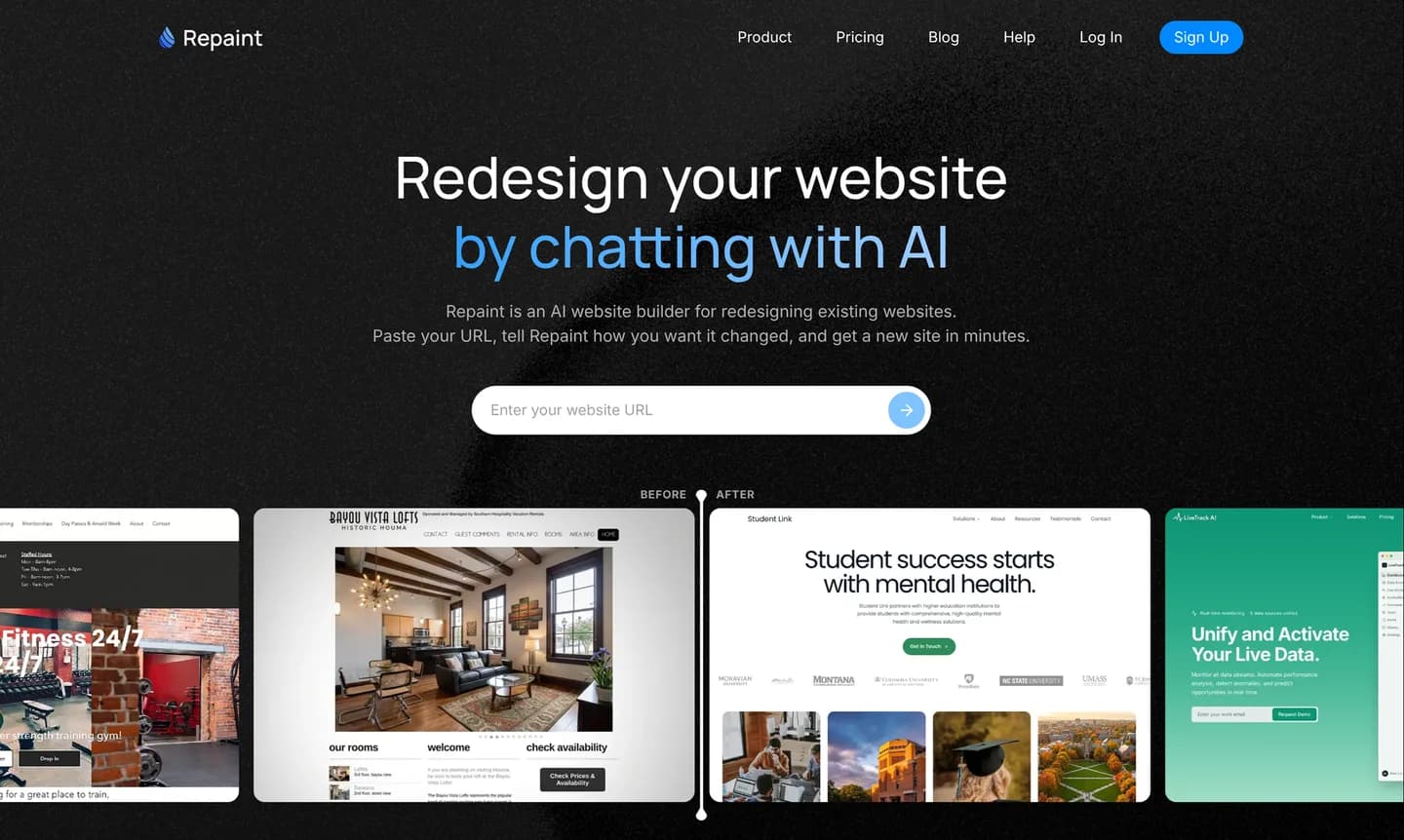
Start by copying the URL of your live Square Online site. Then:
- Go to the AI website redesign tool.
- Paste in your Square website URL and submit.
- Create a Repaint account.
Your custom domain works, and so does a free square.site address. Repaint scans the site, reads the text on each page, saves your images, and takes screenshots to capture the design. That collection becomes the raw material for the new site.
You can also add material the scan couldn't see. You can paste text into the chat, upload photos and files, or share another source like your Google Business profile. Repaint uses everything you provide as material for the new site.
Step 2: Generate Your Website
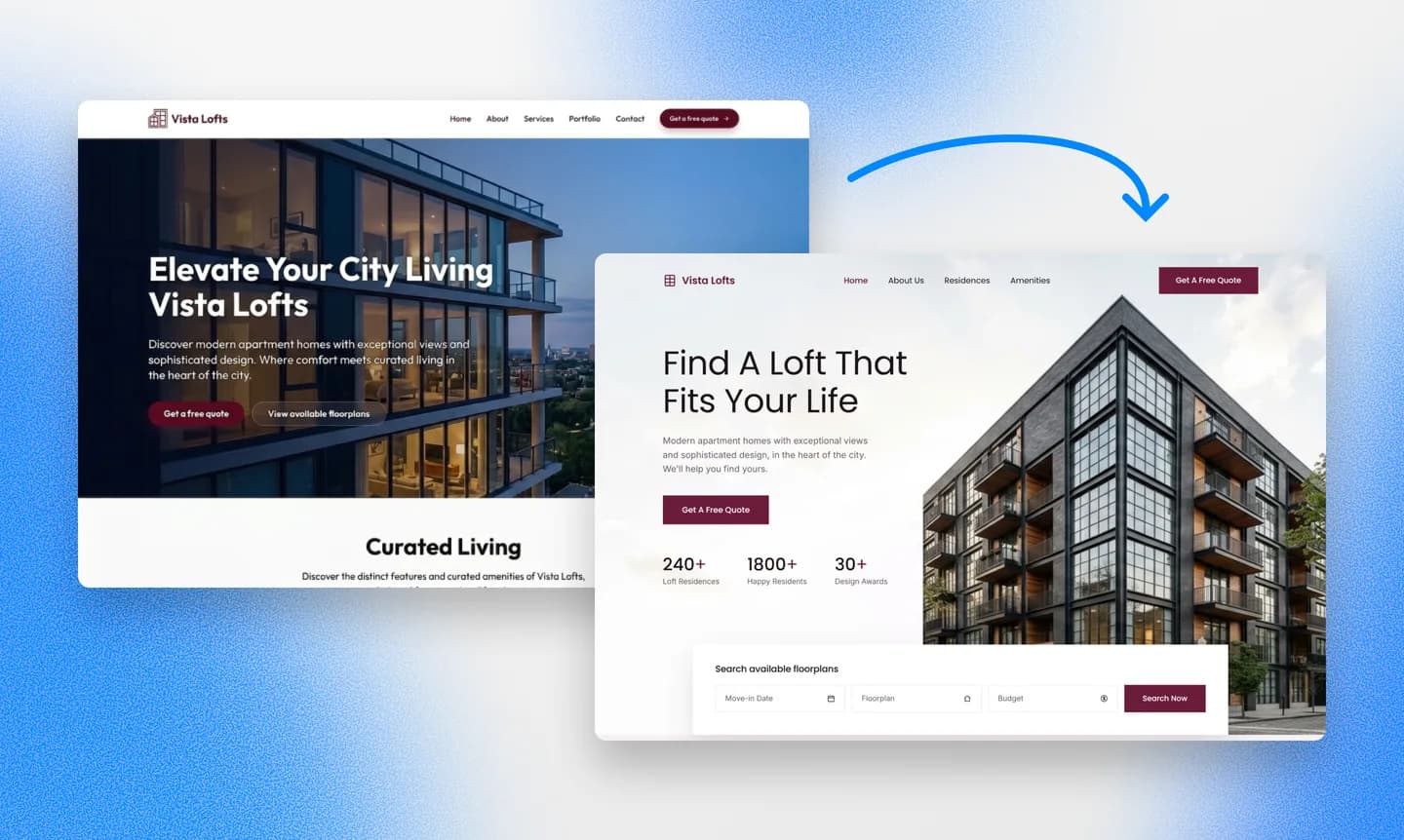
After the scan, Repaint asks a few questions before building. This is where you choose what the new site includes. Everything can come over as-is with a new design. Or you can finally make the changes Square Online made difficult, like reorganizing pages or splitting a crowded page in two. If you're unsure, Repaint can propose a structure and you adjust from there.
Pick a Style
Before it builds, Repaint will usually generate a few style samples so you're choosing between designs you can actually see. You have a few options:
- Choose one of the generated style samples
- Match another website you like
- Describe the style you want in your own words
- Keep your current look in a more flexible tool
Whichever you choose, Repaint can hold onto your brand colors and logo so the site still feels like your business.
We have a collection of website examples organized by industry if you want to explore more design directions. Any of them can be used as a visual reference for the new site.
Review the Result
Once the plan is set, Repaint generates the site. A few pages take a couple of minutes, and larger sites take five or more.
The first version might have some rough spots, like text that landed oddly or an image in the wrong place. Widgets from outside services, like booking tools or payment links, also won't be connected yet. All of it is fixable by chatting with Repaint.
Step 3: Make Adjustments

You make changes by telling Repaint what you want, using the same chat that built the site. Describe the change in plain language, and Repaint applies it and shows you the updated page. If the result isn't what you meant, say so and it will adjust. This works at every scale, and it includes the changes Square Online couldn't make, like moving an image or changing a layout.
Outside services reconnect through embeds or links. Share the embed code from your booking tool and Repaint places the widget on the page. If you'd rather link out to the service, it can add a button instead. If you sell through Square payment links, those work the same way.
You can make these edits in any order, but polishing the style first usually saves work. Style changes reshape every page at once, so making them late can undo detail work you've already finished. Repaint also uses your existing pages as the pattern for anything new it builds, so the nicer the site already is, the nicer new additions come out.
Once the style feels right, the rest is a page-by-page pass. Check that the text is accurate, the images sit where they should, the links work, and everything reads well on a phone.
Review SEO
If your Square Online site earns search traffic, it's worth protecting during the switch. Google ranks individual pages by their URLs, so a page that moves to a new URL starts over with no history. The way to avoid that is to keep the same paths on the new site. Ask Repaint to compare the new site's URLs against the old ones and recreate any that don't match. Most Square Online sites have few pages, so this check is quick. If you want the deeper version, we wrote a full website redesign SEO guide.
Step 4: Publish
Up to this point, your new site is a draft that only you can see. Publishing is what puts it on the internet. Hit Publish in the top right corner, and your site goes live at a Repaint URL. It's a real, working website, so you can open it on your phone or send it to anyone for feedback.
Publishing doesn't replace your Square Online site. The two run side by side, and your domain still points at Square, so your visitors keep seeing the old site. There's no rush at this stage. You can keep editing and publish updates until the new site is ready to take over. When it is, the last step makes the swap.
Step 5: Connect Your Domain
The last step is pointing your domain at the new site. A domain works like an address book entry. Right now it tells browsers to load your website from Square, and you're going to update it to load from Repaint instead. The domain stays registered where it is, whether that's through Square or an outside company like GoDaddy or Namecheap.
To make the switch, tell Repaint in chat that you want to connect your domain. It will give you the exact DNS records to add and instructions for your provider. If you get stuck, describe what you're seeing and Repaint will walk you through it. You can connect a custom domain during the free trial or on any paid plan, and the details are on the pricing page.
The update usually takes effect within about 20 minutes, though it can occasionally take longer. You can ask Repaint to check on it, and it will confirm once the new site is live on your domain. After that, you can cancel the Square Online subscription. If you use Square for anything else, like in-person payments, that continues exactly as before, because it was never part of the website.
Conclusion
Square Online makes sense when the store runs through the website itself. If nothing is actually sold through your site, you're paying commerce prices for a builder that can't make ordinary changes. Repaint imports the site you have, redesigns it around your content, and makes every edit after that a plain-language request.
Starting is free and doesn't change anything by itself. The old site stays up until you point your domain at the new one, and that only happens when you choose it.
FAQ
How long does a Square Online migration take?
Importing your content and generating the new site usually takes 3-10 minutes. Square Online sites tend to be small, so the review and polish often fit in an afternoon. If you connect a custom domain at the end, the DNS update usually adds about 20 minutes of waiting.
Can I keep using Square for payments?
Yes. Square payments, point of sale, invoices, and payment links are separate from the website and keep working untouched. Plenty of businesses take payments through Square with a website built elsewhere. You're only replacing the Square Online website itself.
My whole store runs through my Square Online site. Should I still switch?
It depends on whether you also sell in person. Square Online's biggest advantage is that it syncs with your Square item library and point of sale, so your online and in-store inventory stay in one place. Repaint can build an online store with its own checkout, orders, and inventory, but it doesn't sync with Square. If you mainly sell online, switching can work well. If your store and your register share the same inventory, keeping Square Online is usually simpler.
What happens to my item library and store data?
Nothing. All of that lives in your Square account, not in the website, and Repaint never touches it. If you want to sell from the new site, you can add Square payment links or checkout buttons to it, or have Repaint build a store with its own checkout.
What about my booking tool?
Booking and scheduling tools carry over well. Share the embed code from a tool like Calendly or Acuity and Repaint places the widget on the new site, or it can add buttons that link to your booking portal. Both patterns are common and take minutes to set up.
Do I need to move my domain?
No. Your domain stays registered wherever it is now, including at Square. Moving your website doesn't move the domain itself. You only update its DNS records to point at the new site, and Repaint provides the records with steps for your provider.
Will my contact forms still work?
Yes. Repaint builds forms that save submissions and email you when someone fills one out. If your old form came from Square Online's builder, Repaint recreates it as part of the migration. If you used an outside tool like Typeform, Repaint can add it to the new site using its embed code.
What happens to my Square Online site during the migration?
Nothing. Repaint works from a scan of the live site and never touches your Square account. Your Square Online site stays exactly as it is until you point your domain at the new one. If you change your mind partway through, there's nothing to undo, because nothing was changed.
How much does it cost to switch from Square Online to Repaint?
You can try Repaint free for 14 days, including building, editing, publishing, and connecting a custom domain. Paid plans start at $25 per month and include hosting and a weekly AI usage allowance. Depending on your Square Online plan, that's often a price cut rather than an added cost.
When the trial ends, your workspace pauses until you start a paid plan. Your work stays saved, and you can reactivate it anytime. See our pricing page for details.
What if the AI gets something wrong?
Repaint saves a version of your site with every change. Tell it to go back, or open the version history and restore any earlier point yourself. Nothing you try is permanent.


