
How to Redesign a Small Business Website With AI
A step-by-step guide to redesigning your small business website with AI. Learn how to rebuild your site and make updates through chat.

Introduction
Millions of small businesses have outdated websites because making updates is either laborious or requires outside help. New AI tools make it possible to manage your website by talking to a chat window. It's much simpler, and anyone can do it. In this guide, I'll show you how to redesign your website with an AI tool called Repaint.
Why Redesign Your Website With AI
The main reasons to redesign your website with AI are:
- To modernize the design
- To make management much simpler
AI models are constantly getting better at web design. They can't make award-winning studio websites yet, but they're getting close to the average web design contractor. And if the quality meets your bar, then using AI is dramatically better. It's orders of magnitude cheaper than hiring someone, and you can make updates whenever you want without going through anyone else. For most small businesses today, using an AI tool is much better than hiring someone.
Tools like Repaint also make managing a website much more approachable. Every website builder from before 2023 was built around manually editing everything. But with new tools, you can just ask for changes, and the AI does all the work. There's almost no learning curve. And on top of that, the AI can teach you what to do, and serve as a partner in creative work.
And perhaps best of all, it's risk free. You can redesign your website on Repaint for free, and see if you like the platform before committing to anything. That's why you should try redesigning your website with AI tools before spending thousands on a contractor.
How It Works
Repaint rebuilds your website from the public version that's already online. You give it the URL, and it visits each page, reads your text, downloads your images, and takes screenshots to understand the design. Then it uses that material to build a new website. You review the result and make changes by chatting with AI.
During this process, you have two separate websites. Your current website stays live and untouched while you work on the new one in Repaint. Visitors won't see anything different until you're ready to switch.
When the new website is finished, you publish it and point your existing domain to Repaint. Until you make that switch, nothing about your current website changes. The entire process is gradual and risk free.
Step 1: Import Your Website
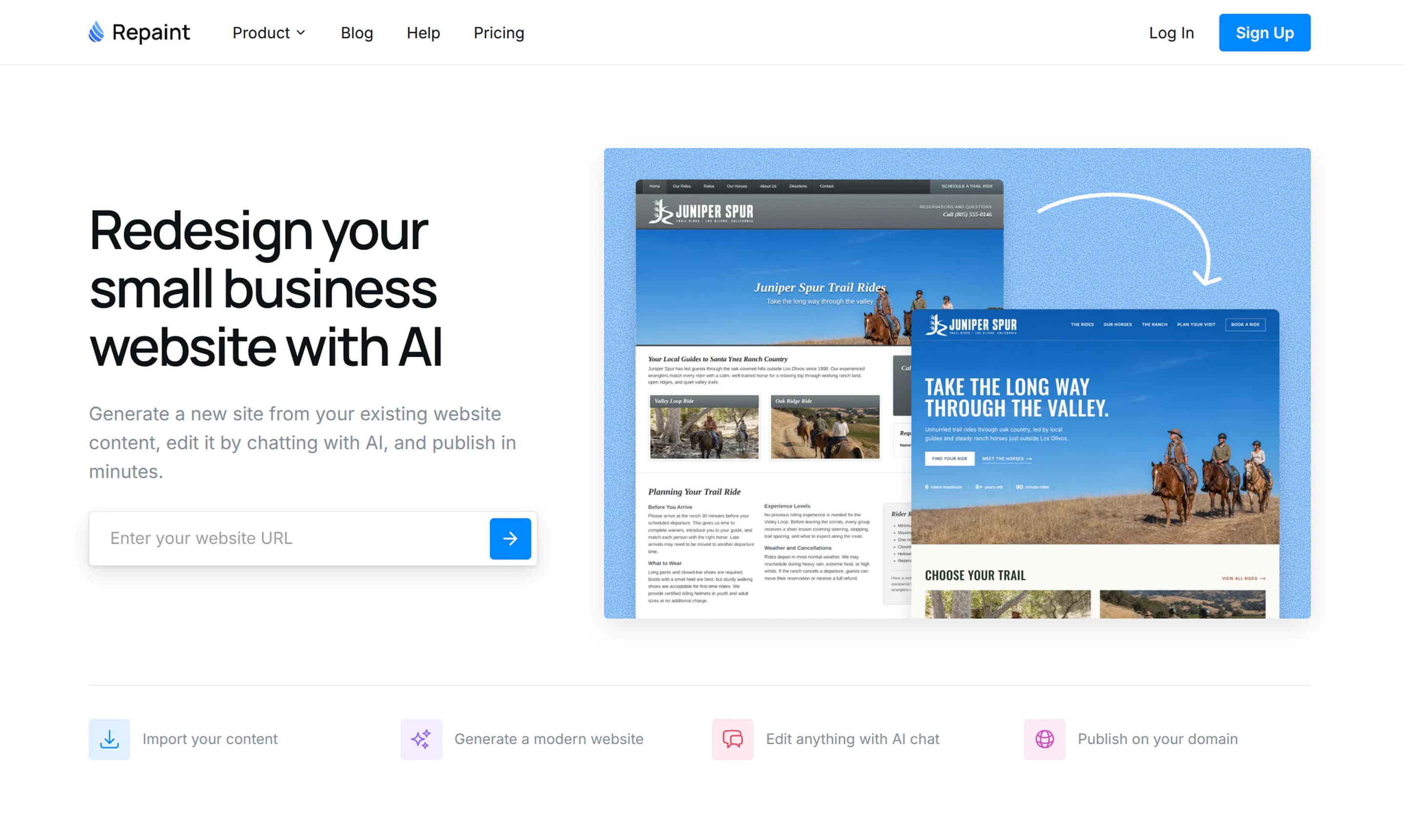
You start the process by giving Repaint the link to your existing website.
- Open the redesign tool
- Paste in your website's public URL
- Create an account
With that, it will visit your website, map the pages, and start collecting content like text and images.
The process should work with any publicly available website, regardless of how it was built. You can redesign a website from Wix, WordPress, Squarespace, or even custom-coded sites. If someone else originally made your site, you can redesign it even if you don't have the account login or know how it was built.
Steer the Process
Repaint will give you a chance to give it instructions. It can closely mirror the original, completely redesign it, or anything in between. All you have to do is describe what you want, and Repaint will design a website to match.
You can also direct what information Repaint should include. By default, it uses lots of information from your original site like service descriptions, customer testimonials, and business info. So if that was outdated before, it will be outdated in the new site.
Of course, you don't have to get everything right on the first draft. It just has to be close enough. Once you generate a website, you can edit anything by chatting with the AI. Most of the time, you'll need to make a few edits before the site is 100% ready to publish.
Step 2: Generate Your Website
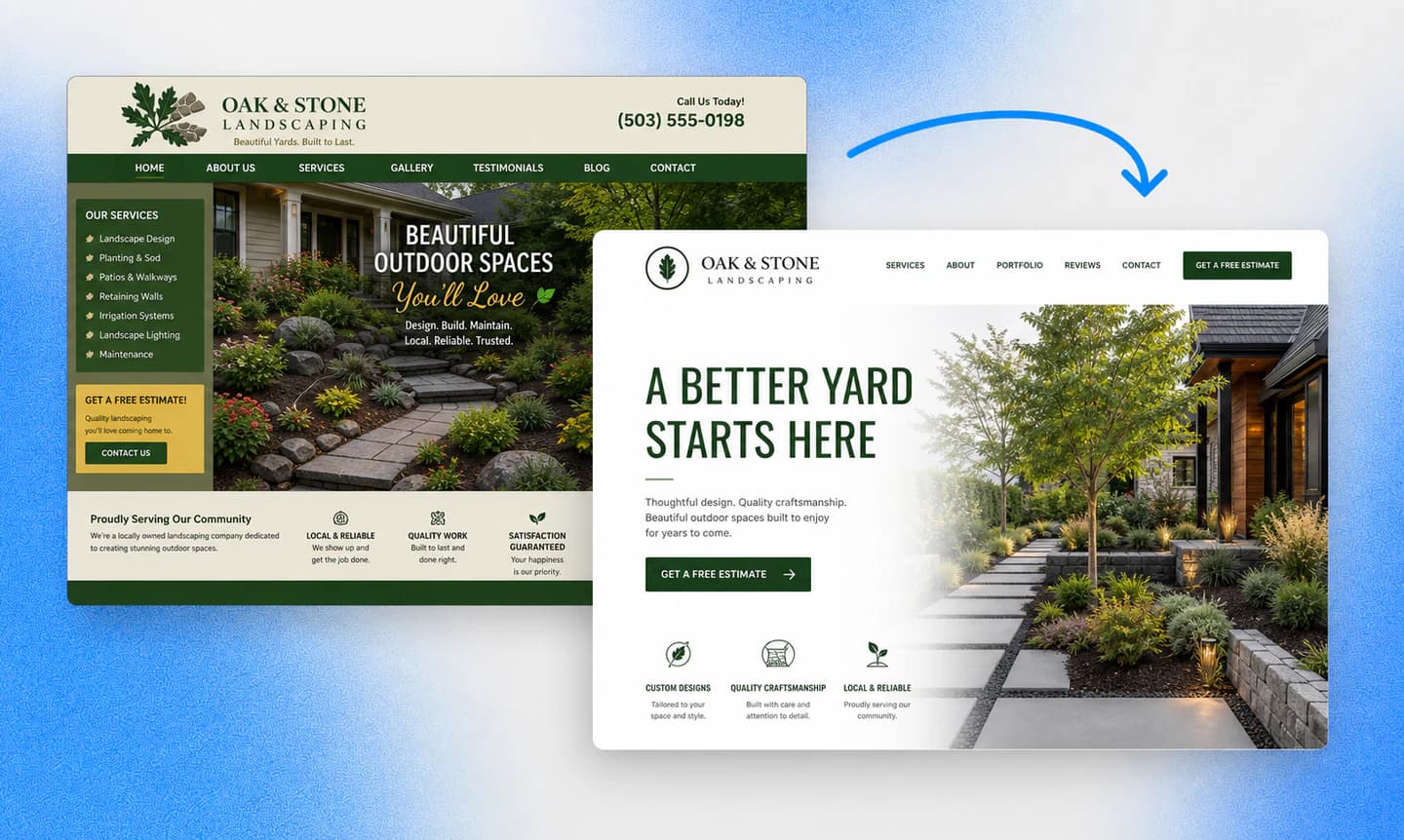
Once you're happy with the plan, Repaint will start generating your website. It uses the content from your old site along with the instructions you gave it to build a complete new version. A small business website with a handful of pages usually takes a few minutes. Larger sites take longer depending on how many pages, images, and blog posts they have.
For a large site, Repaint may start with the main pages and a few representative blog posts instead of trying to build everything at once. This gives you a chance to review the layouts before importing dozens or hundreds of similar pages. Once the design looks right, the rest of the content can be added in batches.
When the first version is ready, Repaint will automatically open a preview directly in the editor. This is a real website you can click through, not a screenshot or static mockup.
What Carries Over
Repaint can recreate the parts of your website that a visitor can see. That includes pages, text, images, navigation, forms, and the visual design. It is building a new website from that material rather than transferring the original code or copying the project from your old website builder.
Animations do not always come over automatically because the AI cannot see movement in a screenshot. If the old website has an animation you want to keep, you can describe how it works and ask Repaint to recreate it.
Backend functionality also does not transfer with the visible website. Repaint can recreate contact forms using its own form system, and you can reconnect outside tools by sharing an embed code. But databases, customer accounts, booking history, and other information stored in the old platform will stay there. An ecommerce website can have its marketing pages and storefront rebuilt, but the products, checkout, orders, and inventory will still need an ecommerce platform behind them.
Most small business websites aren't very complicated, so Repaint can usually build the majority of the site in the first version. Anything that comes out differently can be fixed in the next step.
Step 3: Edit With AI
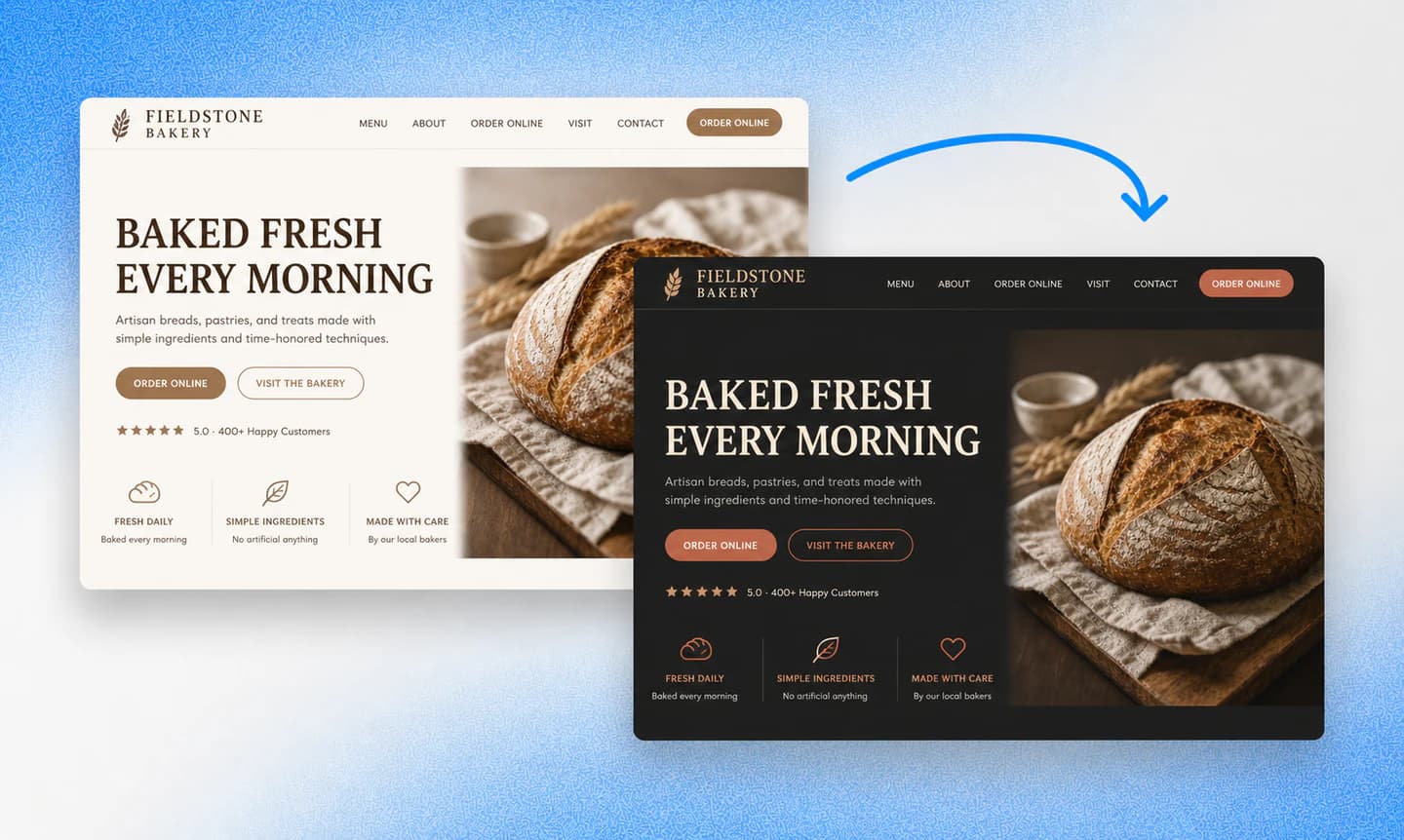
Once the first version is ready, you can edit anything on the website by talking to Repaint. Describe what you want to change in the chat, and it will update the website and show you the result. You can make a small change to one section or ask it to restyle the entire site.
If Repaint misunderstands a request, you can explain what was wrong and have it try again. It also saves a new version of the website as you work, so you can restore an earlier version if you don't like where the edits are going.
Editing Tips
It usually works best to start with larger changes to the style and structure, then work your way down to smaller details. If you polish every page and change the overall design afterward, you may have to revisit work you already finished.
It also helps to be specific about where a change should happen and what the result should accomplish. If something is difficult to describe, you can share a screenshot or another website as a visual reference. Images are usually much more effective than trying to explain a visual style with words.
You don't need to write perfect prompts. Treat it like a conversation. Make a request, look at what changed, and explain what should be different in the next message.
Review Before Publishing
Before publishing, click through the whole website on desktop and mobile. Look for anything that was missed during the import or changed unexpectedly while editing. It is also worth testing the navigation, links, forms, and any outside tools you reconnected.
Changing the design of a website should not hurt its search rankings. Problems usually happen when pages are removed, their URLs change, or important content disappears. Repaint can compare the old and new websites, restore any missing page paths, and add redirects when a URL truly needs to change.
Page titles, descriptions, and main headings are also worth checking before launch. Our website redesign SEO guide explains everything you should review before making the switch.
Step 4: Publish and Test

Publishing puts your Repaint website online at a free address ending in sites.repaint.com. This is a real public website, not just a preview inside the editor. You can open it on different devices and share it with anyone you want.
This does not replace your existing website. Your business domain will still point to the old site, and the Repaint version will live at its own address. Both websites can stay online separately for as long as you need.
The Repaint address gives you a chance to soft launch the new site before making it official. You can share it with employees, partners, or customers and test the parts that only matter once a website is online. This is a good time to make sure contact forms send emails, booking links open correctly, and outside tools work as expected.
After publishing, you can continue making changes in the editor without immediately changing the public version. Your edits go live the next time you publish. When everything is working, you can move on to connecting your existing domain.
Step 5: Connect Your Domain

Your domain and website are two separate things. The domain can stay registered wherever it is now, whether that's GoDaddy, Namecheap, Squarespace, Cloudflare, or another provider. Connecting it to Repaint usually means changing two DNS records, not transferring the domain to a new company.
To connect your domain, tell Repaint what you want to do in the chat. It will give you the exact DNS records and walk you through where to add them based on your domain provider. You just need access to the account that manages your DNS. This may be your domain registrar, hosting company, or an account controlled by whoever originally built the website. If someone else manages it, you can send them the records and have them make the changes for you.
Business email uses different DNS records from the website. It should keep working as long as those records are left unchanged. Only replace the website records Repaint identifies. You should not delete other DNS records just because they look unfamiliar.
Connecting a custom domain requires a paid plan. Current plans start at $20 per month when billed annually or $25 month to month, with full details on the pricing page.
After Connecting Your Domain
DNS changes usually take effect within about 20 minutes, but they can occasionally take longer. During that time, some visitors may see the old website while others see the new one.
Keep the old website hosting active until the Repaint site is working on both the main domain and the www version. Check a few important pages and submit a form to make sure everything is working. If something serious went wrong, you could restore the old DNS records and point the domain back to the previous website.
Once the new website has been stable for a while, you can cancel the old website hosting. Keep the domain registration active, and make sure canceling the old plan will not also cancel any email service you still use.
Conclusion
Redesigning a small business website used to mean hiring a web designer or rebuilding everything yourself. AI tools like Repaint make it possible to import the website you already have, generate a new version, and edit it by talking to a chat window.
There's very little risk in trying it. Repaint builds the new site while the original stays live, and you don't have to pay until you want to connect a custom domain. If you don't like the result, nothing about your current website changes.
The biggest difference lasts after the new website is online. You can keep updating it yourself instead of letting it fall out of date or paying someone every time the business changes.
FAQ
Do I need access to my current website builder?
No. Repaint works from the public version of your website, so it doesn't need the original code, an export file, or access to the website builder. You only need the URL to start. Later, you will need access to the domain's DNS settings when you're ready to point it to the new website.
Which website platforms can Repaint import from?
Repaint can import from any publicly available website, regardless of how it was built. That includes sites made with Wix, WordPress, Squarespace, GoDaddy, Webflow, and custom code. It reads the live website instead of relying on an export from the original platform.
Can Repaint redesign a website with online booking or ecommerce?
Yes, but Repaint will not replace the systems running behind the website. It can rebuild the public pages and recreate simple contact forms with its own form system. Booking tools can usually be reconnected with a link or embed, while the appointments and customer records stay in the original service.
Repaint can also rebuild the visual storefront of an ecommerce site, but products, checkout, orders, and inventory still need to run through an ecommerce platform like Shopify.
How long does it take to redesign a small business website with AI?
Importing the website and generating the first version usually takes a few minutes. Finishing the site depends on how many pages it has and how much you want to change. Most small business websites can be reviewed, edited, and published within a day.
Can I redesign my website without losing my Google rankings?
Yes. Changing the design does not erase your rankings by itself. The important part is keeping the same domain, page URLs, and core content. If a page needs to move, a redirect can send its old URL to the new one. Rankings can still move temporarily while Google recrawls the website, so it is worth checking the important pages before launch.
How much does it cost to redesign a small business website with AI?
Repaint lets you import your existing website, edit the new version, and publish it on a Repaint subdomain for free without entering a credit card. Paid plans start at $20 per month when billed annually or $25 month to month. They let you connect a custom domain, remove Repaint branding, and include more weekly AI usage. Hiring someone to do the same work usually costs thousands of dollars.


