
How to Create a Business Website With AI
A step-by-step guide to turning your business information into a complete website. Learn how to generate the first draft, make changes through chat, and publish it on your own domain.

Introduction
Many small businesses put off making a website because it feels like a bigger project than it should be. Hiring someone can cost thousands of dollars, while building it yourself traditionally means learning a new tool and manually creating every page.
AI website builders make the process much more approachable. You can describe your business in plain language, get a complete first version, and make changes by talking to a chat window. In this guide, I'll show you how to create a business website with an AI tool called Repaint.
Why Create Your Business Website With AI
A typical small business website is not very complicated. It needs to explain what the business does, make a good first impression, and give people a clear way to get in touch. AI is already capable of designing and building that kind of website.
The biggest advantage is not just how quickly it makes the first version. It also makes the website easier to manage afterward. Instead of learning where every setting lives, you can ask the AI to add a service, replace an image, or create a new page.
You do not need to have everything prepared before starting. AI can help draft the structure and writing from a basic description of the business. You will still need to review the details and make sure the website represents the business accurately, but you do not have to begin with a finished plan.
How It Works
You start by describing the website you want and sharing any material you already have. Repaint uses that information to plan the pages, write the initial content, and design a complete website.
When the first version is ready, it opens directly in the editor. You can click through the website and ask for changes in the chat until you are happy with it. The result is a working website rather than a picture or static mockup.
You can publish for free on a Repaint address while you test everything. When the website is ready for customers, you can connect a custom domain and use it as the official website for your business.
Step 1: Describe Your Business
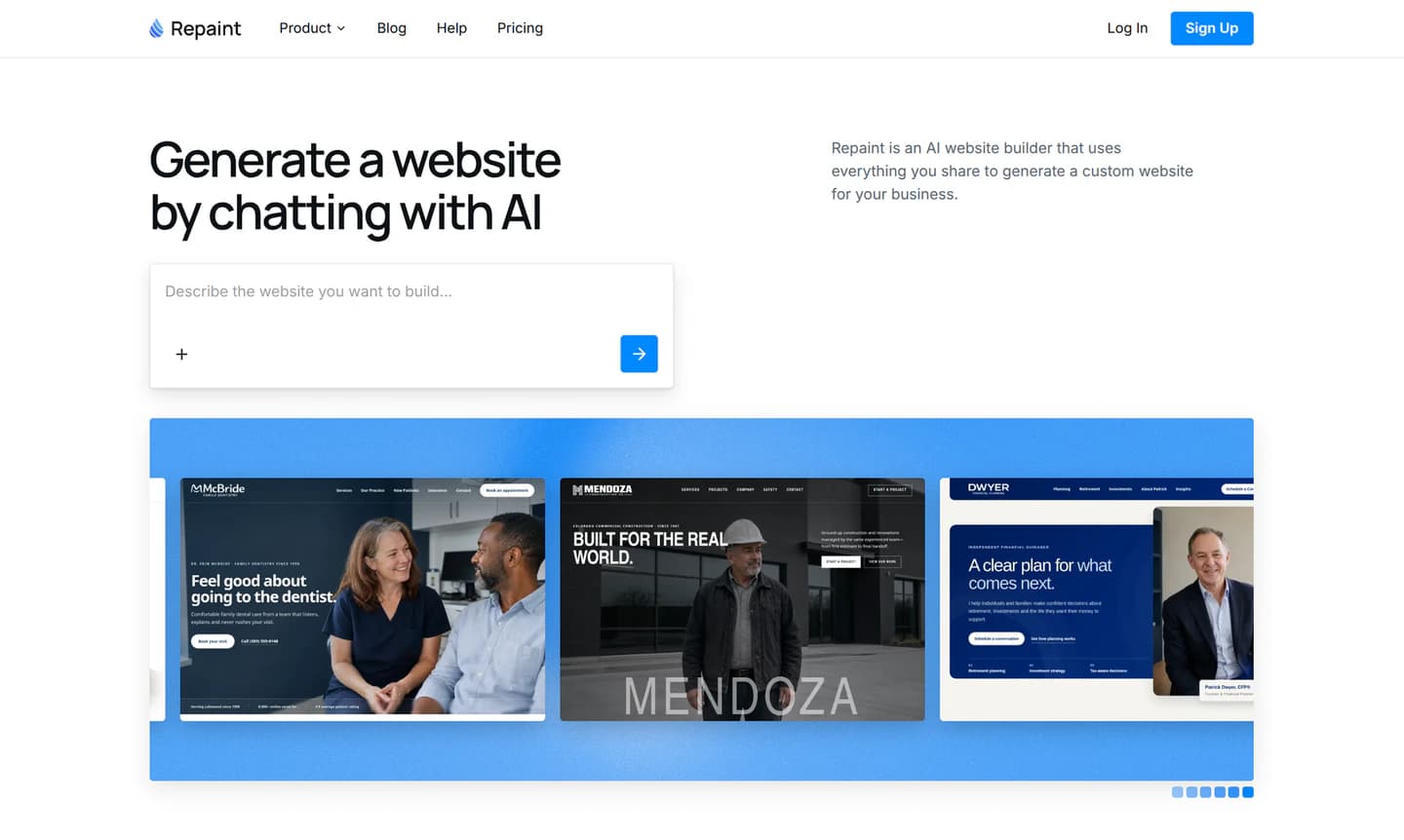
You start the process by telling Repaint about your business in the AI website generator. Explain what the business does, who it serves, and what you want people to do on the website. You can also mention any pages or functionality you already know you need.
You do not need to write a formal brief. A useful first message could be as simple as, "I run a residential cleaning company in Portland. I need a friendly website that explains our services and lets people request a quote."
Repaint will use your message to start planning the website. Before it generates anything, you will have a chance to clarify the direction and explain what should be included. A more detailed description can improve the first version, but the first prompt does not have to answer every question.
Import Existing Content
Repaint can use almost anything you already have as source material for the new website. These sources give it more specific information about the business and reduce how much content needs to be written from scratch.
If you have an existing website, you can give Repaint the URL. It can visit the pages, read the text, download the images, and map the content across the site. You can ask it to bring that information into a completely new design, preserve parts of the current style, or use only the pages you still want.
Public profiles work as sources too. Repaint can import business information, reviews, and images from a Google Business Profile, Instagram, Facebook, Yelp, and other public pages. This can be enough to create a website for a business that has never had one before.
Files can be uploaded directly. Logos, photos, menus, brochures, documents, and presentations can all help Repaint understand what the website should include. You can combine files with an existing website or social profiles rather than choosing a single source.
Websites and images can also be shared as visual references. These do not need to contain your business information. They can simply show Repaint the kind of design you want it to create.
None of these sources are required. A basic description is enough to generate the first version, but Repaint can use whatever material is available to make that version more specific to the business.
Step 2: Generate Your Website
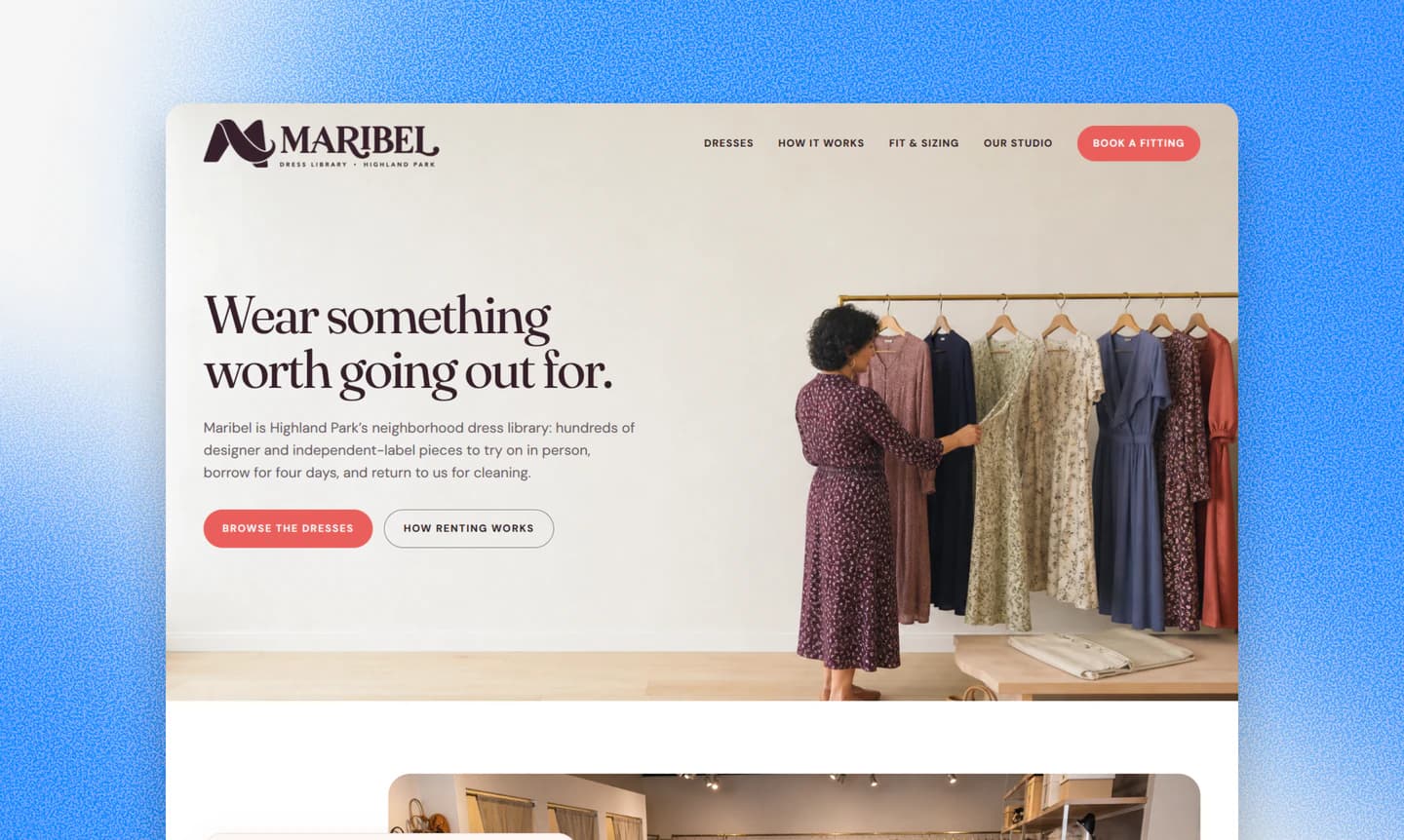
Once you are happy with the plan, Repaint will start generating the website. A typical small business website with a handful of pages takes a few minutes. Larger websites take longer depending on how many pages and how much content they include.
Repaint builds very large websites in chunks so the first generation does not consume your entire usage limit. It may begin with the main pages and a few representative content pages so you can review the structure. You can keep adding multiple pages at a time once those examples look right.
When the first version is ready, Repaint automatically opens the website in the editor. This is a first draft. If the style is wrong, you can ask Repaint to restyle it. If the information is inaccurate or incomplete, you can correct it through chat.
What Repaint Doesn't Generate Automatically
Repaint focuses on the public-facing website rather than the backend systems that run a business. It can create contact forms using its own form system, but it will not build customer accounts, databases, or other private software automatically.
Booking and ecommerce services can still be part of the website. Repaint can connect them with a link or embed code and design the surrounding pages. The appointments, products, payments, orders, and inventory continue running through the service that manages them.
Extensive animations also do not usually appear in the first version unless you ask for them. If you have a specific interaction in mind, you can describe how it should work or share a visual reference and have Repaint add it afterward.
Step 3: Edit With AI
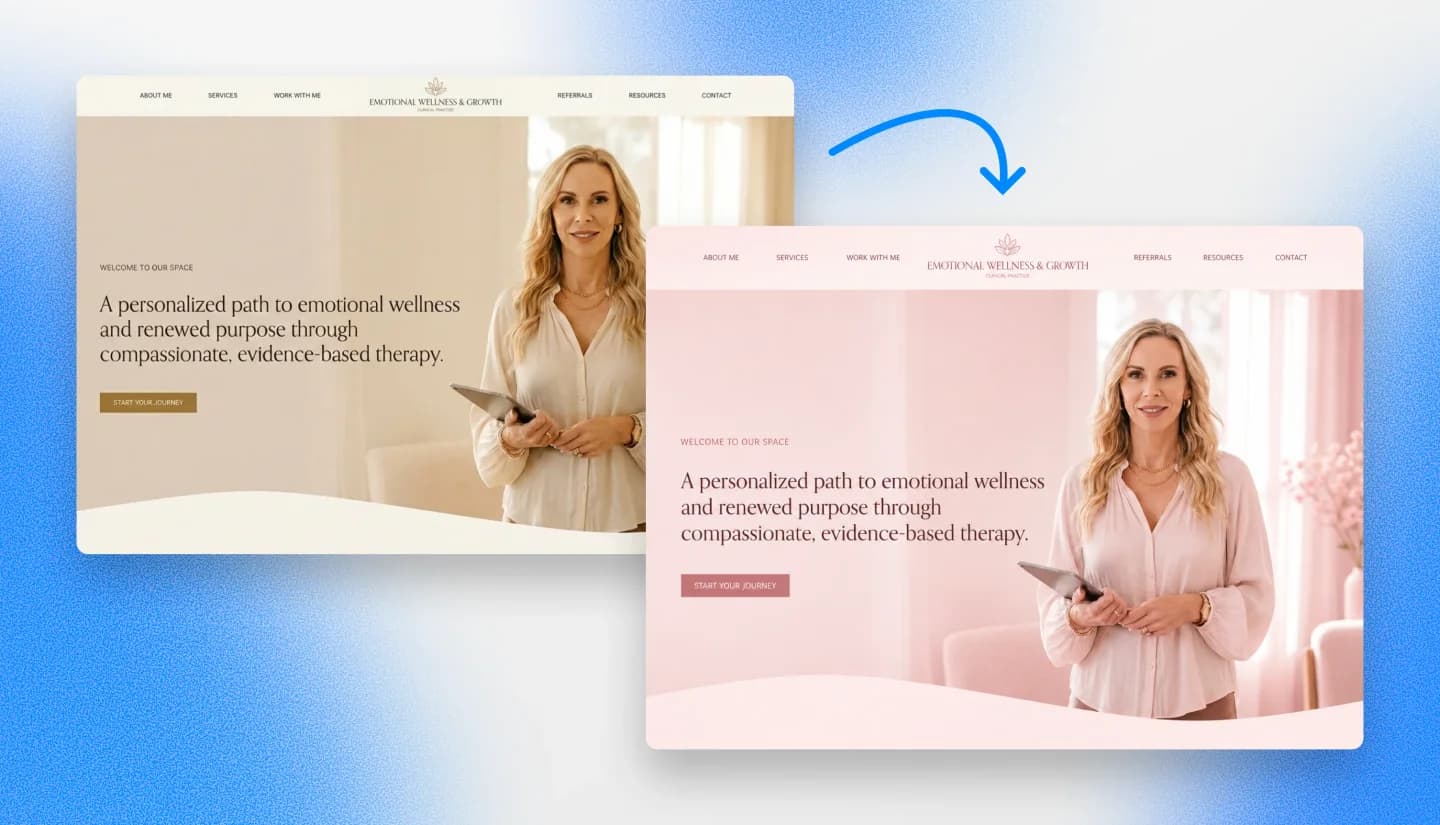
Most editing in Repaint happens through chat. You describe what should change, and the AI updates the website and shows you the result. The same process works for small edits and larger changes that affect the entire website.
The request does not have to be perfect. If Repaint misunderstands something, you can explain what went wrong and ask it to try again. Every update creates a new version of the website, so you can restore an earlier version if an edit breaks something or you don't like the result.
Small text changes can also be made directly on the page. This is usually faster when the design is already right and you only need to fix a word or adjust a sentence.
Editing Tips
It usually works best to settle the broad direction before polishing individual sections. Changes to the visual style, page structure, and navigation can affect the entire website. Once those feel right, it is easier to work through the writing and smaller details one page at a time.
Specific feedback produces more predictable results. Explaining which section should change and what the change should accomplish gives the AI more useful direction than asking it to make the website better.
Visual requests are often easier to communicate with an image. A screenshot, reference website, or uploaded design can show Repaint the layout and mood you have in mind. You can still explain which parts of the reference to use so the result fits your own brand.
Before You Publish
AI can help write the website, but it doesn't know the business as well as you do. Before publishing, read through each page and correct anything that is inaccurate or too generic.
It's also worth checking how the website works on desktop and mobile. Visitors should be able to navigate the site and complete important actions without running into problems. Publishing to a temporary Repaint address in the next step makes this easier to test.
Step 4: Publish Your Website

Publishing puts the website online at a free address ending in sites.repaint.com. This is a real public website rather than a preview inside the editor. Anyone with the link can open it, and you do not need to enter a credit card or connect a domain first.
The Repaint address can be used for as long as you want, but most businesses use it as a staging site before connecting a custom domain.
Testing the public version helps catch issues that are difficult to notice while editing. The website can be opened on different phones and computers, shared with other people, and tested under the same conditions customers will experience.
This is also the right time to confirm that form submissions reach the correct inbox and that outside booking, ordering, or payment tools open properly. Any analytics or tracking added to the website should begin recording visits on the public version.
Making Changes After Publishing
Publishing does not lock the website. You can continue making changes in the editor while the current version stays online. Those changes remain in a draft until you publish again, which makes it possible to review an update before replacing the public version.
Once the website works correctly at its Repaint address, you are ready to connect your domain.
Step 5: Connect Your Domain

A custom domain gives the business a permanent address such as yourbusiness.com. The domain stays registered with the company where it was purchased, while its DNS records tell visitors to open the website hosted by Repaint.
If the business already owns a domain, it can usually stay with the current registrar. Repaint works with domains from GoDaddy, Namecheap, Cloudflare, Squarespace, and other providers.
If You Do Not Have a Domain Yet
A new domain can be purchased from any domain registrar. The name should be easy for customers to recognize and type, but it does not have to match the full legal name of the business. Once it is registered, the connection process is the same as it would be for an existing domain.
You do not need to choose or purchase a domain before building the website. It is usually easier to finish the site at its Repaint address first, then decide which domain to use when the business is ready to launch.
Connect the Domain Through Chat
To connect the domain, tell Repaint what you want to do in the chat. It will provide the exact DNS records and walk you through where to add them based on the domain provider. You only need access to the account that manages the domain's DNS settings.
Connecting a custom domain requires a paid plan. Current plans start at $20 per month when billed annually or $25 month to month, with full details on the pricing page.
DNS changes often take effect within about 20 minutes, although they can occasionally take longer. After the connection finishes, the website should be checked on both the main domain and its www version. Repaint will also secure the domain with HTTPS automatically.
Conclusion
Creating a business website no longer has to begin with a blank page or a complicated website builder. An AI tool can turn a basic description into a complete first version, while the person who knows the business decides what should change.
The most useful difference continues after launch. New services, images, and pages can be added through chat, so the website can keep up with the business without requiring outside help for every update.
Repaint's AI website generator is free to try. You can generate the website, edit it, and publish it on a Repaint address before deciding whether to pay for a custom domain. That makes it possible to judge the actual website before committing to the platform.
FAQ
Do I need coding or design skills to create a website with AI?
No. Repaint handles the code and gives you a visual website to review. Most changes can be made by describing what you want in the chat, so you do not need to understand how the website is built. Design experience can help you evaluate the result, but it is not required to use the platform.
Will an AI-generated business website look generic?
It can if the AI has very little information or visual direction. Sharing your own logo, images, brand colors, and examples of websites you like makes the result more specific to the business. If the first version still feels generic, Repaint can restyle the entire website through chat without starting over.
How long does it take to create a business website with AI?
Generating the first version usually takes a few minutes. The rest of the timeline depends on how much content the website needs and how closely you review it. Most straightforward small business websites can be generated, edited, and published within a day.
Can an AI website include online booking or ecommerce?
Yes, but Repaint does not replace dedicated booking or ecommerce platforms. It can connect booking tools through links or embeds and build contact forms with its own form system. An online store can have custom marketing pages, while products, checkout, payments, and inventory continue running through an ecommerce platform such as Shopify.
Can an AI-generated business website rank on Google?
Yes. Search engines can crawl and index an AI-generated website like any other site. Rankings depend on whether the pages are useful, relevant to what people search for, and technically accessible. Clear page topics, original business information, and descriptive titles give a new website a stronger foundation for search.
Can I create a business website with AI for free?
Yes. Repaint lets you generate a website, make edits, and publish it on a Repaint subdomain without paying or entering a credit card. Paid plans start at $20 per month when billed annually or $25 month to month. They let you connect a custom domain, remove Repaint branding, and include more weekly AI usage. Full details are available on the pricing page.


