
How to Turn a Claude Artifact Into a Website
Learn how to turn a Claude artifact into a real website using a new AI tool called Repaint. A step-by-step guide to getting your AI-generated code online without rebuilding it or managing developer tools.

Introduction
A lot of people are using Claude to make websites. When you ask, Claude returns the site as an artifact: a single file you can preview right in the chat. But once you have that artifact, the next step isn't obvious. You still need to get it hosted somewhere, connect a domain, make it work on mobile, and figure out how to keep editing it later.
Claude has a "Publish" button for artifacts, but the result lives on a claude.site URL wrapped in Anthropic's UI. That's fine for sharing a demo, but not a real website you'd use for a business.
In this guide, I'll show you how to turn a Claude artifact into a real, published website using a new AI tool called Repaint. It lets you start from your artifact, publish the site, and make edits by chatting with AI.
Why Publishing a Claude Artifact Is Hard
Claude can generate code, but it isn't a full website builder. It points you to other platforms when you ask how to publish on your own domain. It usually recommends developer tools like GitHub, Netlify, and Vercel, or suggests rebuilding in a traditional website builder. Neither is ideal.
Developer tools are nice because they can directly run the code Claude generates. The downside is that every change requires editing specific code files. For people who aren't coders, this means constantly feeding files in and out of their deployed code just to make simple edits with AI.
Most people avoid code complexity by using a website builder like WordPress, Wix, or Webflow. These platforms make publishing edits smoother. The problem is, they can't run Claude artifacts, so you have to manually rebuild everything. Then going forward, you have to edit everything by hand.
That's why you should use an AI website builder like Repaint. It gives you the flexibility of running custom code and the convenience of editing and publishing in one place.
What is Repaint?
Repaint is an AI platform for creating websites. It's built around the same chat-based workflow that makes Claude useful. You can ask for changes in plain English, review the result, and keep iterating until the site looks right.
But Repaint is a full website platform, not just a place to generate code. That means it handles the parts of running a real website that Claude's artifact publishing doesn't:
- It publishes your site as a normal website, without Anthropic's UI wrapped around it.
- It lets you connect a custom domain, so the site can live at your real URL.
- It keeps the site editable with AI, so you can make changes later.
- It helps manage SEO details like page titles, descriptions, and site structure.
- It can grow past a single artifact into a multi-page site.
That is the difference between sharing an artifact and having a real place to manage your site over time.
Step 1: Import Code from Claude
When Claude makes a website, it puts everything in a single file you can preview in the chat. By default the artifact is HTML, but you can ask for React/TSX instead. Either way, there's a copy button at the top of the artifact panel.
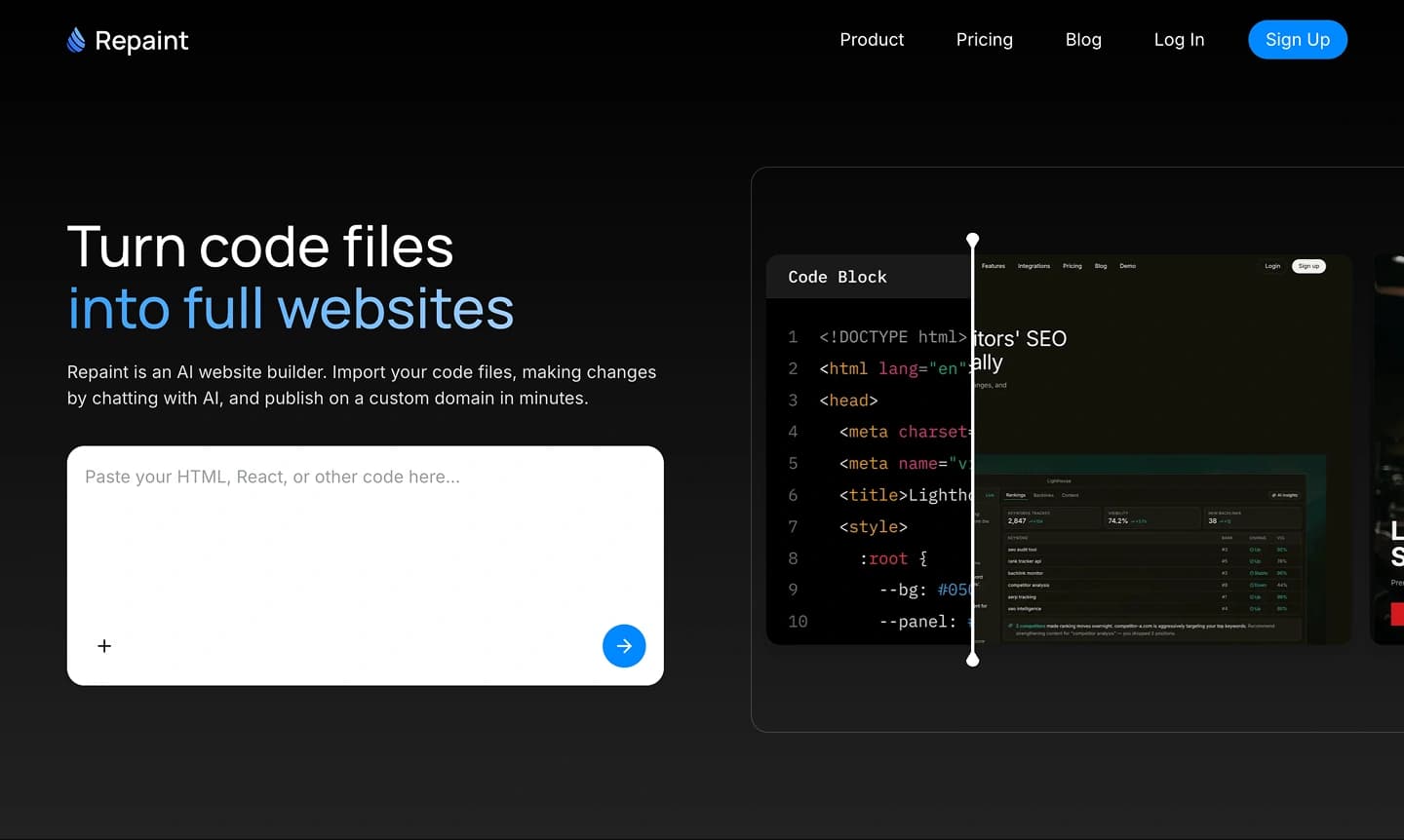
To get started, open your Claude artifact and copy the code. Then head to Repaint and import your code to start building. Repaint will use it to create a full website that you can publish and keep editing.
If you haven't made an artifact in Claude yet, I recommend asking for React. It is closer to the format Repaint uses, so there is less chance that small design details will be lost in translation. HTML works too, though any issues can be fixed later by chatting with Repaint.
Step 2: Plan What Repaint Should Build
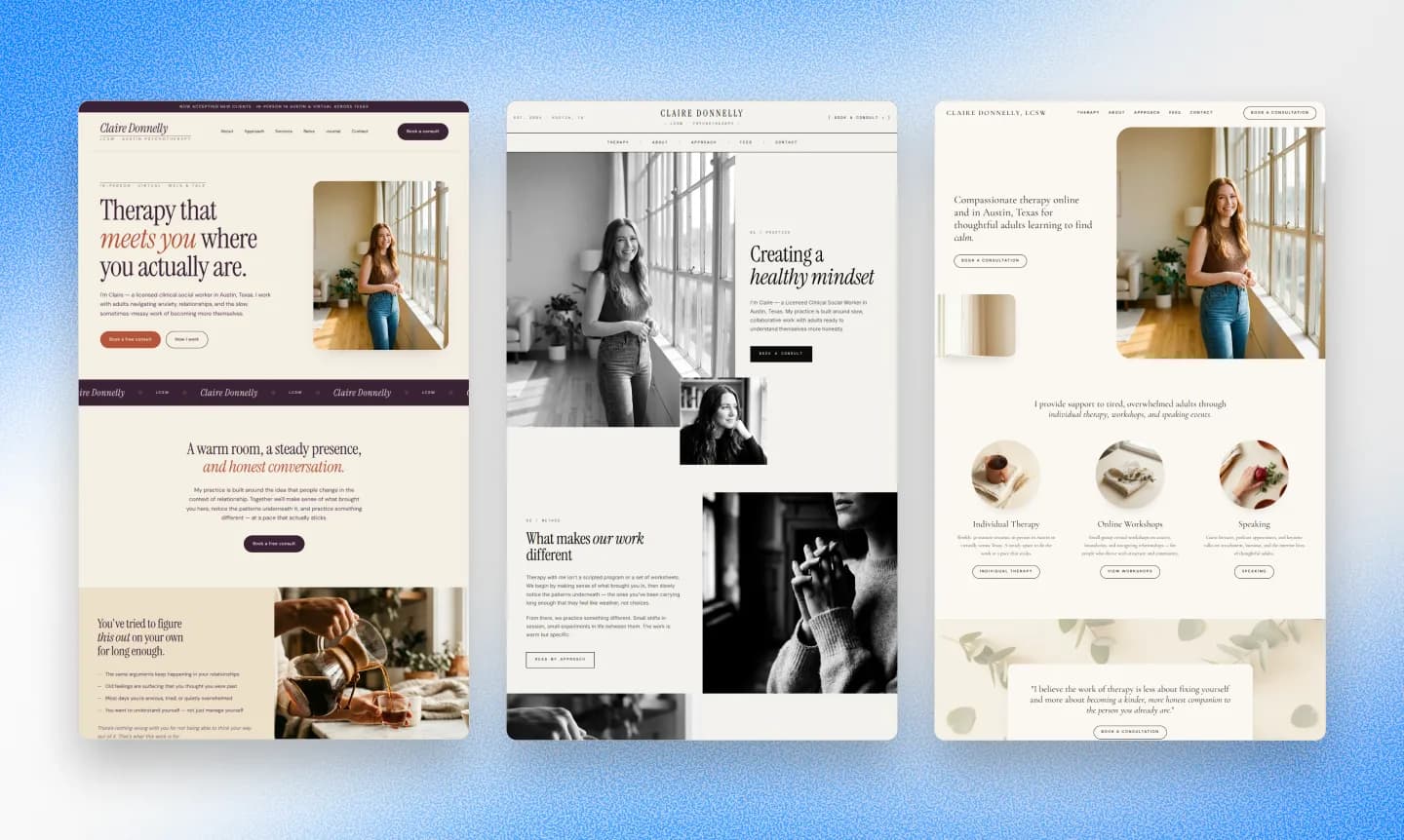
After you paste in your code, Repaint will ask a few questions before it builds the website. This gives you a chance to decide if you want to use the Claude version exactly, use it as loose inspiration, or turn it into a larger site with more pages.
Plan the Content
Claude artifacts are always a single file, so they usually end up as one-page sites where the links scroll to sections instead of opening new pages. But most businesses need more than a single page. So if your artifact is a one-pager, you should consider having Repaint build it as multiple pages.
You can also use this moment to add more content. Claude artifacts usually don't include large sets of pages like blog posts. When you import the artifact into Repaint, you can increase the scope to include everything you want.
Any new pages will match the style you already have.
Plan the Style
By default, Repaint will copy the style from your original. That means it will preserve the same look: colors, layout, typography, and spacing.
But you don't have to keep the style. If you're not happy with it, you can ask Repaint to redesign your website. Repaint can:
- Recreate the original as closely as possible
- Match the style of another website you like
- Create a custom style for your content
- Choose for you
Don't stress about it too much. If you don't like what it makes, you can ask it to make new versions later.
Review the Plan
Before generating anything, Repaint writes out exactly what it's going to build: which pages, what content, and what style. Look it over and make any last changes. It's a lot faster to fix the plan than to regenerate the whole site.
Once you confirm, Repaint will build your new website!
Step 3: Generate Your Website
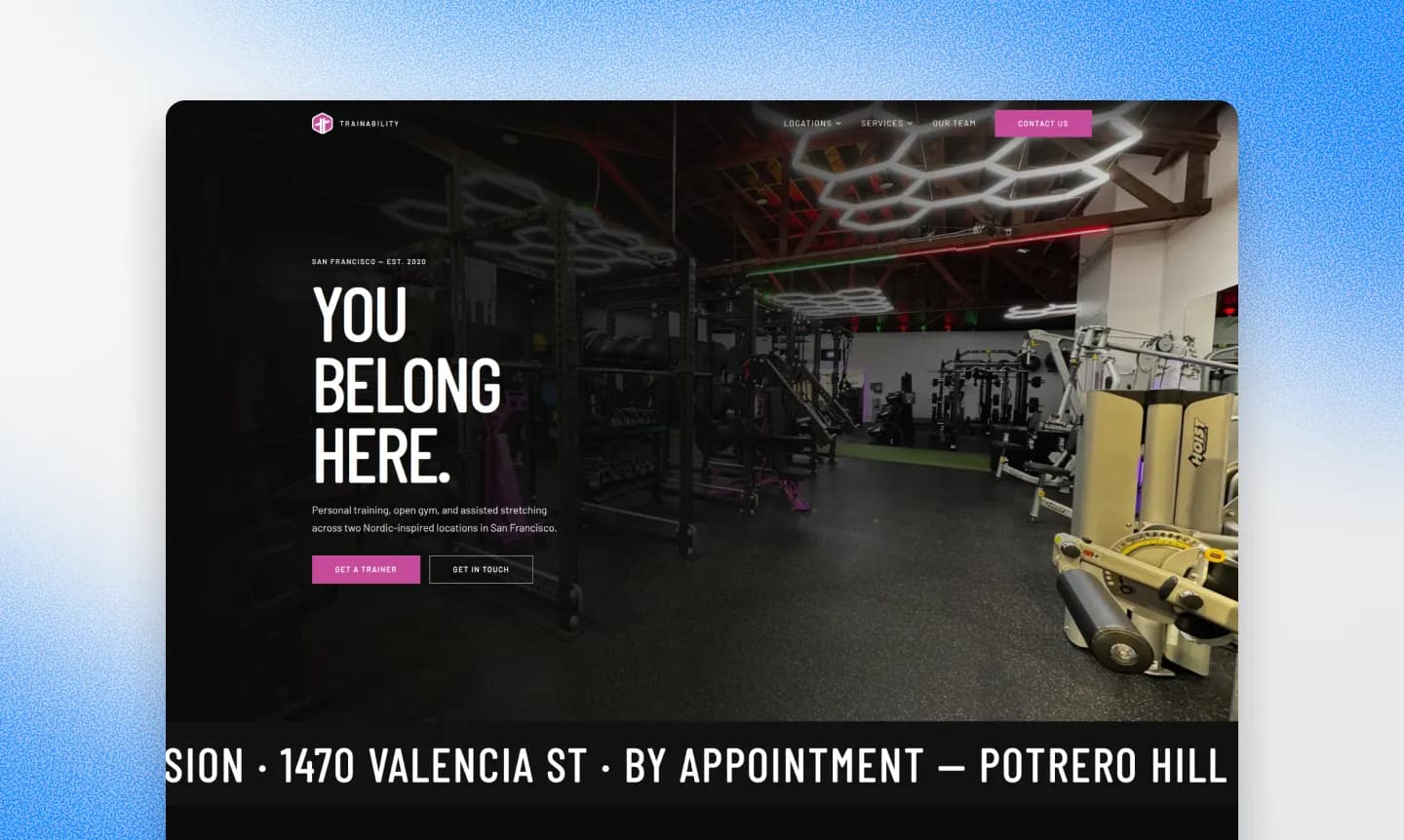
Once you confirm the plan, Repaint starts building your site. You'll see progress messages as it works through each page. A simple homepage might take a minute or two. A larger website with more pages can take longer.
Repaint is not just hosting the code you pasted. It uses the Claude artifact as source material, then builds the site described in your plan. If you asked for an exact recreation, it will try to match the original closely. If you asked for more pages or a different style, it will use the artifact as a starting point instead.
Sometimes details can get lost in translation during generation. It happens more often if your artifact is HTML, since React is closer to what Repaint uses. If any important details are lost, you can fix them in the next step.
Step 4: Edit Your Website with AI

Once Repaint generates the first version, you'll see it on the right side of your screen. Now you can make changes the same way you would in Claude. You type what you want changed, Repaint updates the site, and then you review the result.
For example, you can ask Repaint to:
- Add a new page
- Change the colors or fonts
- Add a contact form
- Generate images
- Rewrite the text
You can keep making changes until the site feels ready to publish.
Step 5: Publish Your Website

When the site is ready, click the Publish button. Repaint will put the site online and give you a live URL you can share with anyone. It will look something like this: https://xxxxxx-xxxxxx-xxxxxx.sites.repaint.com
This is the point where your work becomes a real website on the internet. You can open it on your phone, send it to someone, or test it in a real browser. It also won't be wrapped in any Anthropic UI like a published artifact would be.
You also do not need to export code or deploy files somewhere else. From now on, Repaint is where you edit and publish the site. If you want to make changes later, you can ask Repaint to update the website, then publish the new version with the same button.
Step 6: Connect Your Domain

When you're ready to use your own URL, just tell Repaint to connect your domain, and it will give you the DNS records to add. This requires a paid plan. You can see pricing details here.
Your domain is managed on a platform outside both Claude and Repaint. It is registered with a domain provider like GoDaddy, Namecheap, or Cloudflare. You do not need to move it anywhere. You just update the settings at your domain provider so the domain points to your Repaint site.
If you've never done this before, don't worry. Ask Repaint to walk you through it. It'll tell you exactly what to do, step by step.
The change can take a few hours to take effect. Once Repaint shows your domain as verified, your website is live at your own domain.
Conclusion
Claude makes it easy to create a first version of a website inside an artifact, but getting it online as a real website and maintaining it is still hard. Repaint gives you a way to turn that artifact into a real website you can publish, connect to a domain, and keep editing with AI. Repaint makes it easier than ever to turn a Claude artifact into a published site.
FAQ
Why not just use Claude's built-in artifact publishing?
You can, but the result lives in a Claude-hosted sandbox wrapped in Anthropic's UI, and you can't put it on your own domain. That's fine for sharing a demo, but not what most businesses want for a real website. Repaint gives you a normal website with your own domain, your own branding, and no Anthropic UI around it.
How long does it take to turn a Claude artifact into a website with Repaint?
If your artifact is already done, it should only take a few minutes. Sharing your code, planning the site, and generating the website usually takes 2-5 minutes. After that, time-to-publish depends on how many adjustments you make.
How much does it cost to publish with Repaint?
It is free to import your code into Repaint, generate a site, make edits, and publish. The main restrictions on the free plan are limited usage, no custom domain, and a Repaint badge on the site. Paid plans start at $20/month billed annually, or $25/month billed monthly. That includes expanded usage, custom domain support, and it removes the Repaint badge.
Why not just use GitHub Pages, Netlify, or Vercel?
You can, especially if you're comfortable managing code. Those tools are good at putting files online. But every meaningful change still sends you back into the code, which means you are stuck copying files between Claude, your editor, and your hosting tool.
Repaint is different because it is a full website platform, not just a place to serve files. That means you can keep editing with AI, publish changes from the same place, manage pages, update SEO settings, optimize images, connect forms, and use your custom domain. It is built for long-term website management, not just the first deployment.
Do I need to know how to code to fix problems?
No. Repaint is made for people who don't code. After you import your code from Claude, you never need to manage code again. If something looks wrong, you can fix it by chatting with AI. Knowing code can help if you want to be very specific, but it is not required.
Will the site look exactly like the Claude artifact?
If you tell Repaint to recreate the original, it should look almost exactly the same. On occasion, some details get lost because Repaint translates the code into its own website format. Translation issues are more common if the artifact was HTML. If that happens, you should be able to fix everything within a few prompts.
What happens if the AI makes a mistake?
As you make updates, Repaint saves every version of your site. You can ask Repaint to go back, and it will revert to a previous version. Or if you want to go back to a specific point in time, you can restore any previous versions manually. So you can make changes freely without any risk of ruining your site.
Will forms and buttons work after importing?
Yes. Contact forms probably didn't work in your original Claude artifact. But when you move the site to Repaint, it can turn the form into a real contact form that sends email notifications when you get submissions. Buttons should work if they link to real pages or sections. If a button points nowhere, you can ask Repaint to connect it.
Can Repaint handle images, icons, and other assets from my Claude artifact?
Claude artifacts don't usually store image files inside them. They usually link to images hosted somewhere else. When you import your code, Repaint can fetch and save copies of those images so they stay permanently available for your new site. Repaint can also generate images if you still need to add them.
Can I add SEO settings, analytics, and metadata?
Yes. You can add custom code, analytics, and metadata just by asking Repaint. It can set up technical SEO for you, and it can add scripts and embeds from other platforms. To add Google Analytics, just share your GA ID.
Does Repaint replace hosting, or do I still need a separate host?
Repaint is a hosting platform. It runs your website. You do not need a separate hosting platform like GitHub Pages, Netlify, Vercel, or another website builder.


